
Skill · #226 trending skills repo
Paper Figure To Figma
sidiangongyuan/paper-figure-to-figma
Agent skill that rebuilds research paper figures as editable Figma vectors — native text, curves and gradients, with SVG/PDF export.
- Stars
- 148
- This week
- —
- Forks
- 12
- Open issues
- 0
- Skills inside
- 1
Get started
Install the skills
npx skills add sidiangongyuan/paper-figure-to-figmaInstalls into Claude Code, Codex, Cursor, OpenCode and the other agents it finds on your machine.
git clone --depth 1 https://github.com/sidiangongyuan/paper-figure-to-figma.git /tmp/paper-figure-to-figma
cp -r /tmp/paper-figure-to-figma ~/.claude/skills/paper-figure-to-figmaClaude Code reads ~/.claude/skills/ (or .claude/skills/ in a project). Other agents read the same SKILL.md format from their own skills folder.
Inside this repo
1 skill
Documentation
README

Rebuild research figures with high fidelity. Keep every step editable.








English · 简体中文
Quick Start • How it works • Examples • Demo • Updates • FAQ
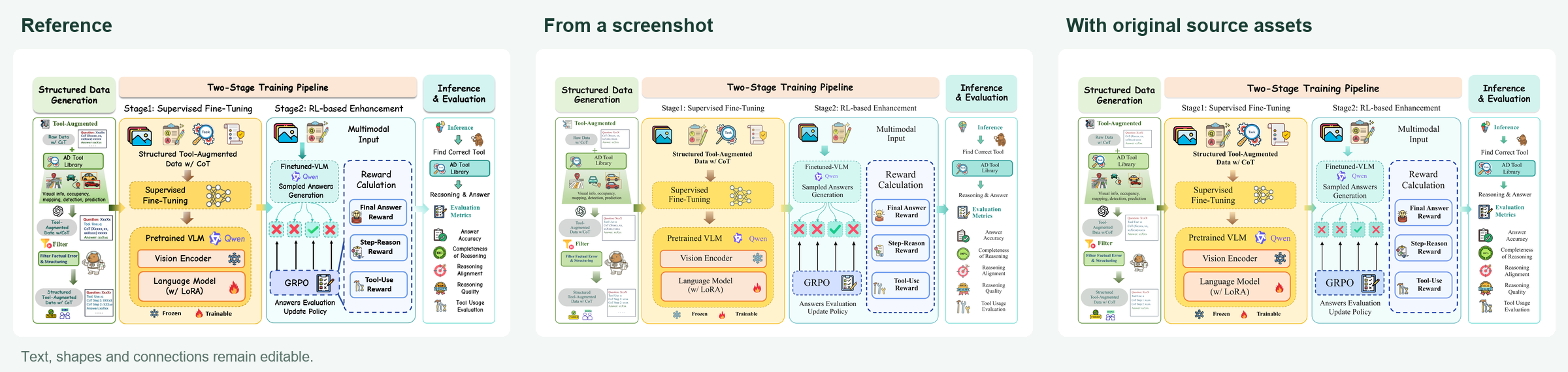
Reference · From a screenshot · With original source assets · Example and files · Enlarged details

Paper Figure to Figma is an agent skill that rebuilds research figures as editable Figma artwork or PowerPoint files. Give your assistant a reference image and choose the output. It reconstructs text, shapes and connections, reviews the actual result at whole-figure and detail scales, and corrects differences before delivery.
Provide a screenshot, or add a paper link, PDF or original asset source. The assistant retrieves accessible matching originals when available and continues from the screenshot when no usable source exists.
Recent updates
0.2.5 (V2.5) · November 5, 2026 — Full changelog
- Native PowerPoint output: editable text boxes, shapes and paths; complex illustrations remain independent SVG objects.
- Verified in PowerPoint: save, reopen, render and check text-edit geometry automatically on Windows with installed PowerPoint.
- Two downloadable PPTX examples: Aurora and P-GenRM, with clean previews and real object-selection screenshots. Explore PowerPoint
- One skill, two destinations: request Figma or PPT explicitly. Figma remains the default.
To upgrade an existing installation, run from your repository folder:
git pull --ff-only
python tools/install_skill.py --update
The previous installation is backed up automatically. ZIP users can download the updated repository and run the same installer with --update.
✨ Features
- Native, editable layers — labels stay text, shapes and arrows stay vectors. Only input/output photos are kept as image layers.
- Details that usually get lost — gradients, local text backings, transparency, dashed strokes, Bézier curves and stacking order.
- Built-in review loop — checks the whole figure, then enlarged details and editability, and revises only the affected elements.
- Revise without starting over — follow-up requests update the existing Figma frame and leave the elements you protect untouched.
- Paper-ready typography — Times New Roman body text and a clear size hierarchy by default; override any of it.
- No extra API key — runs inside your assistant with the selected drawing tools. No VLM API key or original generation prompt needed.
- Figma or PowerPoint — editable Figma artwork by default, or a native
.pptxon request. SVG/PDF exports remain optional. - Two reconstruction routes — source-assisted recovery with version and content checks, or a complete reconstruction from the supplied screenshot.
- Appearance-aware artwork — preserve silhouette, color and recognizable parts through matching SVGs, geometric reconstruction or cleaned local tracing.
🚀 Quick Start
Requirements
- An AI assistant that can view images, load local skills, run scripts and call external tools (verified with Codex).
- Figma output: a Figma connection with edit access to the target Design file.
- PPT output: Windows, installed desktop PowerPoint and
pywin32in the assistant’s Python environment. No Figma connection is needed for PPT. - Python 3.10+. Image preparation, tracing and PDF extraction use optional task-specific dependencies.
1. Install the skill
git clone https://github.com/sidiangongyuan/paper-figure-to-figma.git
cd paper-figure-to-figma
python tools/install_skill.py
This installs to $CODEX_HOME/skills/paper-figure-to-figma (default ~/.codex/skills/paper-figure-to-figma). Use --update to upgrade an existing install, or --dest <skills-dir>/paper-figure-to-figma for another assistant. To skip installation, open the repository in your assistant and ask it to read .agents/skills/paper-figure-to-figma/SKILL.md.
2. Choose the output
For Figma, enable its tool connection and authorize your account. For PPT, use Windows with PowerPoint and install its Python bridge: python -m pip install pywin32.
3. Rebuild a figure
Attach the complete reference image and send:
Use $paper-figure-to-figma to reconstruct this image in the linked Figma canvas,
review the whole figure and details, then share the editable frame link.
Figma: <your Design file link>
Source (optional): <paper link, PDF or original asset location>
For PowerPoint, attach the image and send:
Use $paper-figure-to-figma to reconstruct this image as an editable PPTX.
Use native text boxes and shapes, review the actual PowerPoint rendering,
and deliver the PPTX with a preview.
Need specific fonts, colors or edits? Compose the request with the Prompt Builder.
Full installation and connection guide: docs/CODEX_QUICKSTART.md
🔄 How it works
flowchart LR
    A[Figure + optional source] --> B{Matching source available?}
    B -->|Yes| C[Retrieve and inspect original assets]
    B -->|No| D[Inspect screenshot features]
    C --> E[Rebuild text, geometry and local contours]
    D --> E
    E --> T{Output destination}
    T --> F[Editable Figma artwork]
    T --> P[Native PowerPoint objects]
    F --> G[Compare whole figure and details]
    P --> G
    G -->|Correct differences| E
    G --> H[Deliver Figma frame or PPTX]
Source-assisted reconstruction: retrieve accessible assets from a supplied paper, PDF or project source; verify they match the reference, then extract and reconstruct the relevant objects. An extracted bitmap still needs vector reconstruction.
Screenshot reconstruction: preserve visible shapes, colors and component relationships. Rebuild regular parts geometrically, trace irregular contours where useful, and repair noisy results. The method covers the whole figure.
Source information is optional. A title-only lookup is normally limited to about 90 seconds; inaccessible or unmatched sources fall back to the supplied image. Both routes review actual Figma or PowerPoint results at whole-figure and enlarged-detail scales. Content and connection errors are fixed first, then readability, then appearance. Workflow details
What the review checks
| Review | What to check | Result |
|---|---|---|
| Whole figure | Missing content, panel arrangement, relative sizes, grouping and cross-panel arrow endpoints | Structural differences located |
| Enlarged details | Text accuracy and fit, spacing, curves, gradients, backings, repeated elements and layer order | Region, observed difference and correction |
| Editability | Editable text, independent vector elements, useful groups and protected content | Result can be revised without disturbing protected elements |
Full instructions: prompts/02-review.md
🎨 Examples
PowerPoint
Text stays editable. Modules, arrows and curves are native shapes; complex illustrations remain independent SVG objects. The screenshots below show real PowerPoint objects selected on the slide.
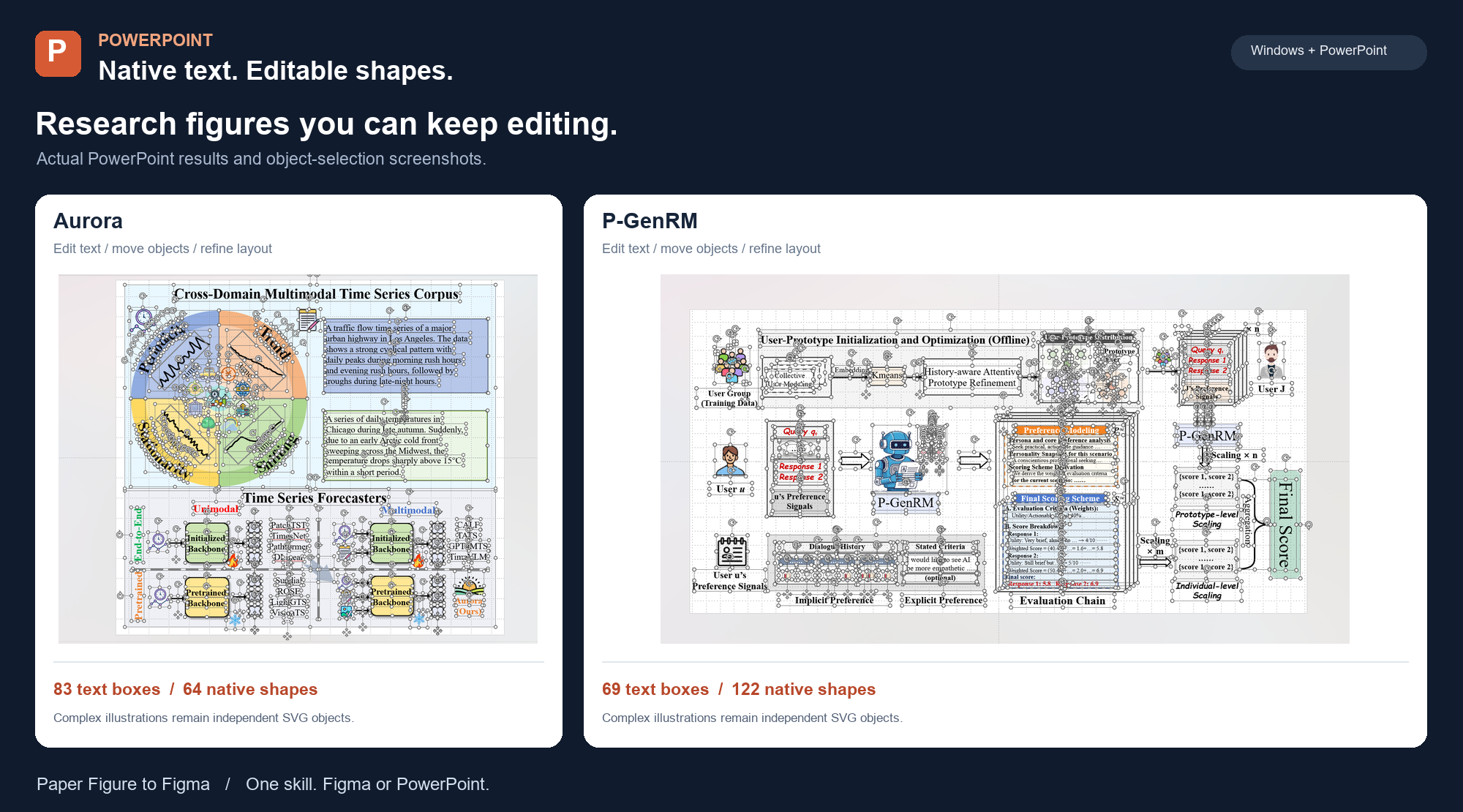
| Aurora | P-GenRM |
|---|---|
| Download PPTX · Case study | Download PPTX · Case study |
| 83 text boxes · 64 native shapes · 27 SVG objects | 69 text boxes · 122 native shapes · 13 SVG objects |
| Clean PowerPoint preview · Selected objects | Clean PowerPoint preview · Selected objects |


Compare the references and native PowerPoint results
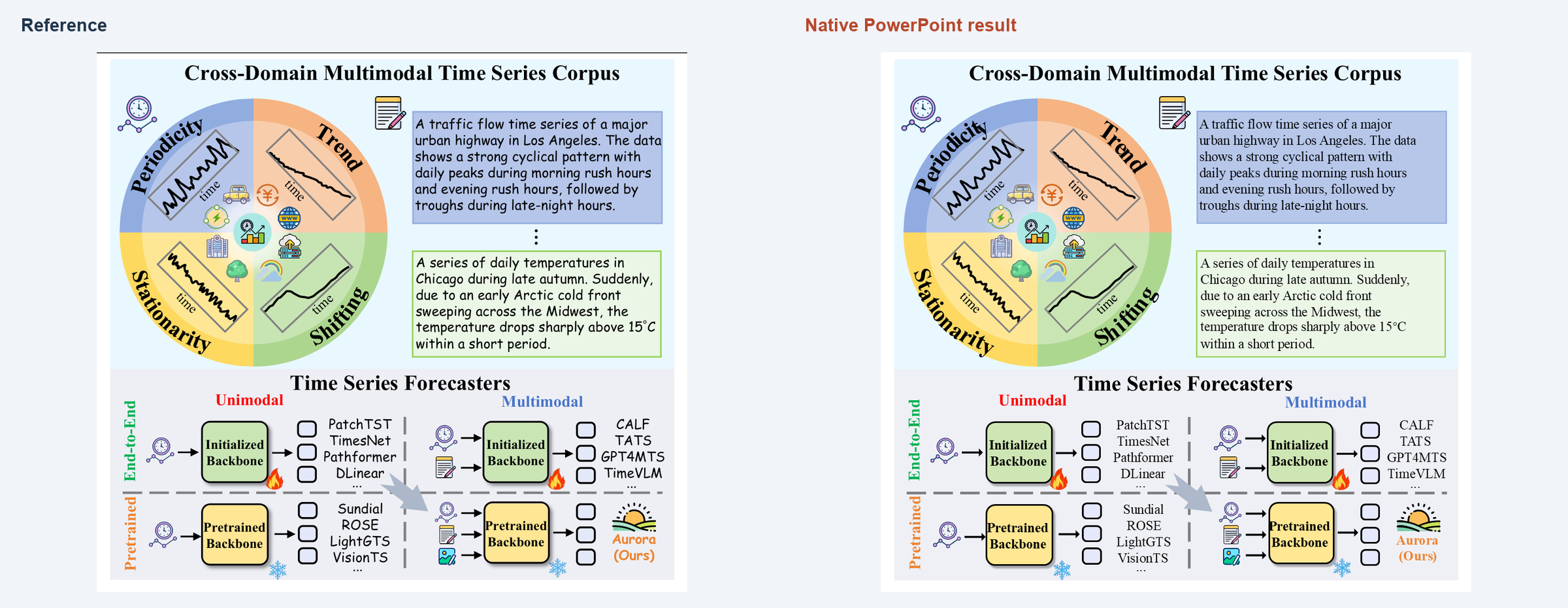
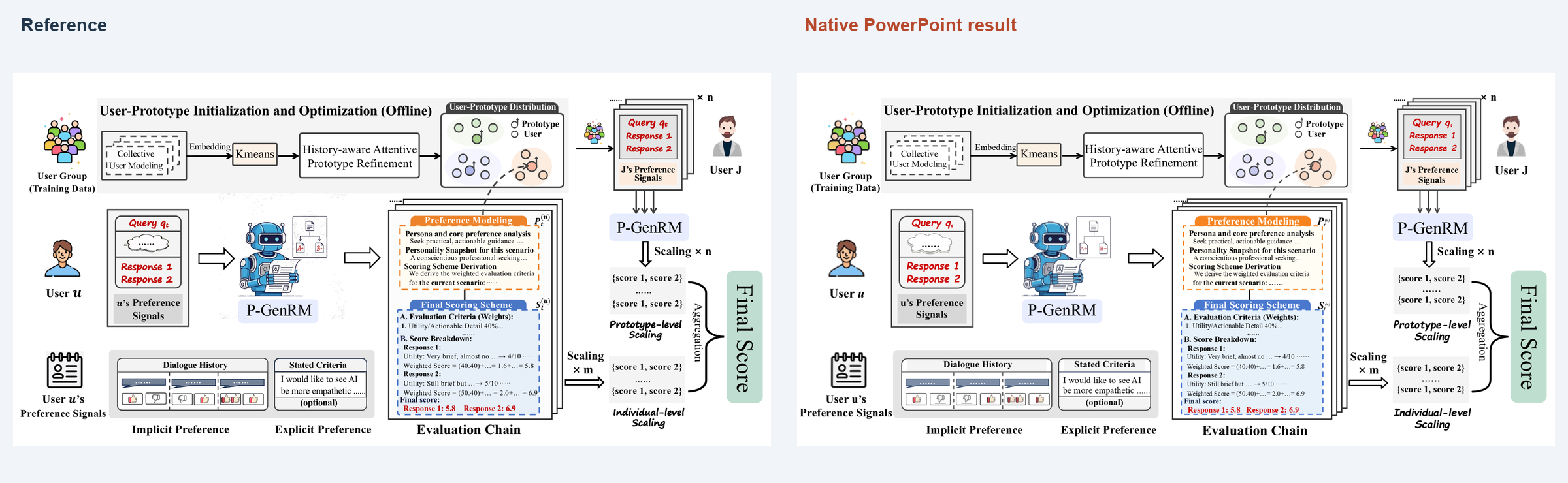
PPT generation and verification currently require Windows with desktop PowerPoint. Paper sources and reconstruction conditions are documented beside each example. PowerPoint setup
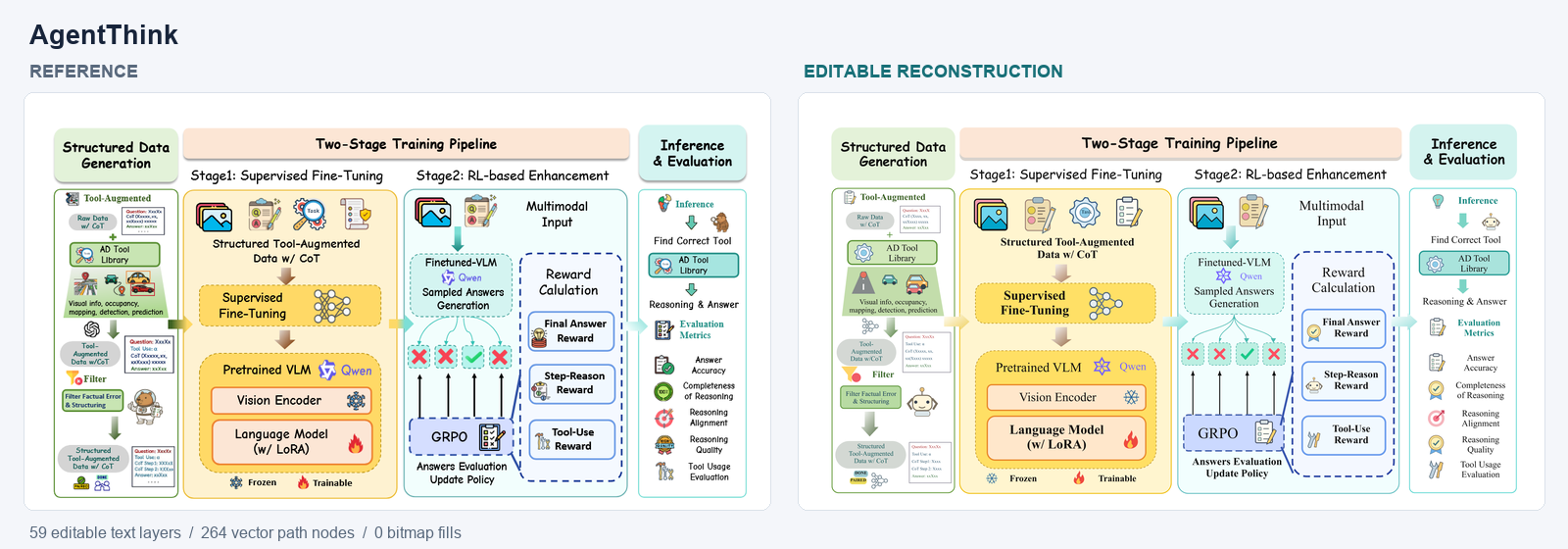
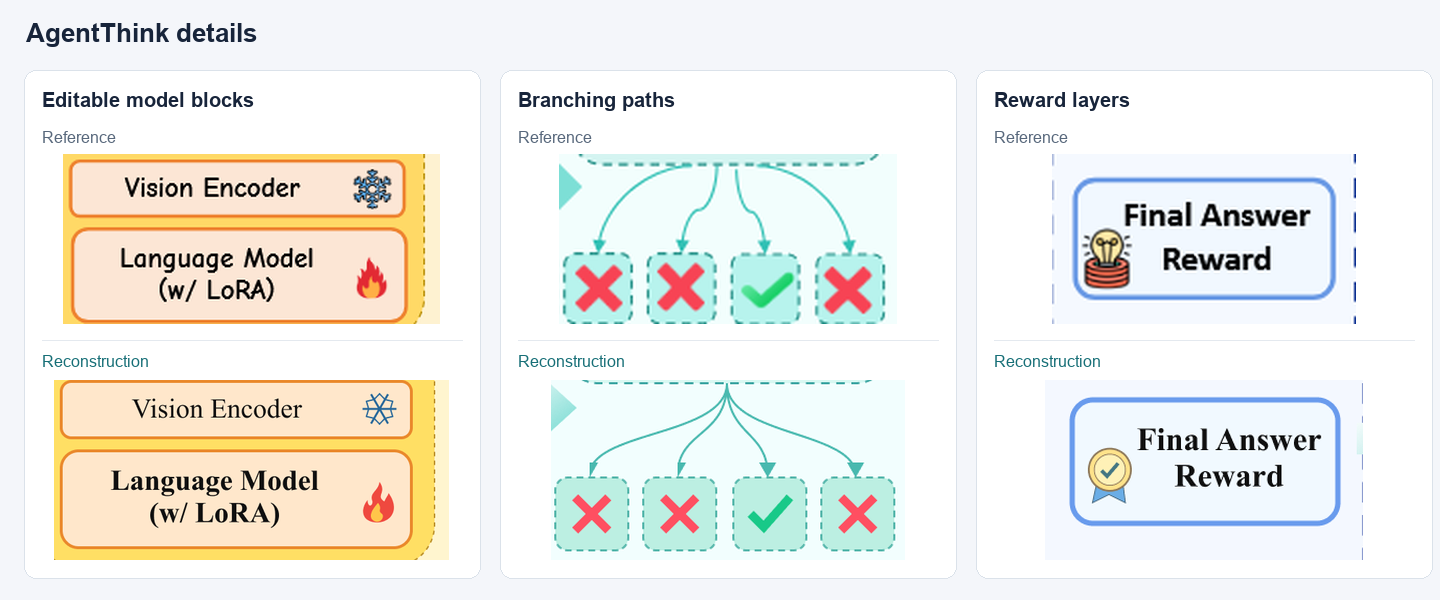
AgentThink
Rebuild the text, modules, illustrations and connections in a screenshot as editable layers. A matching paper or original asset source can provide additional detail.
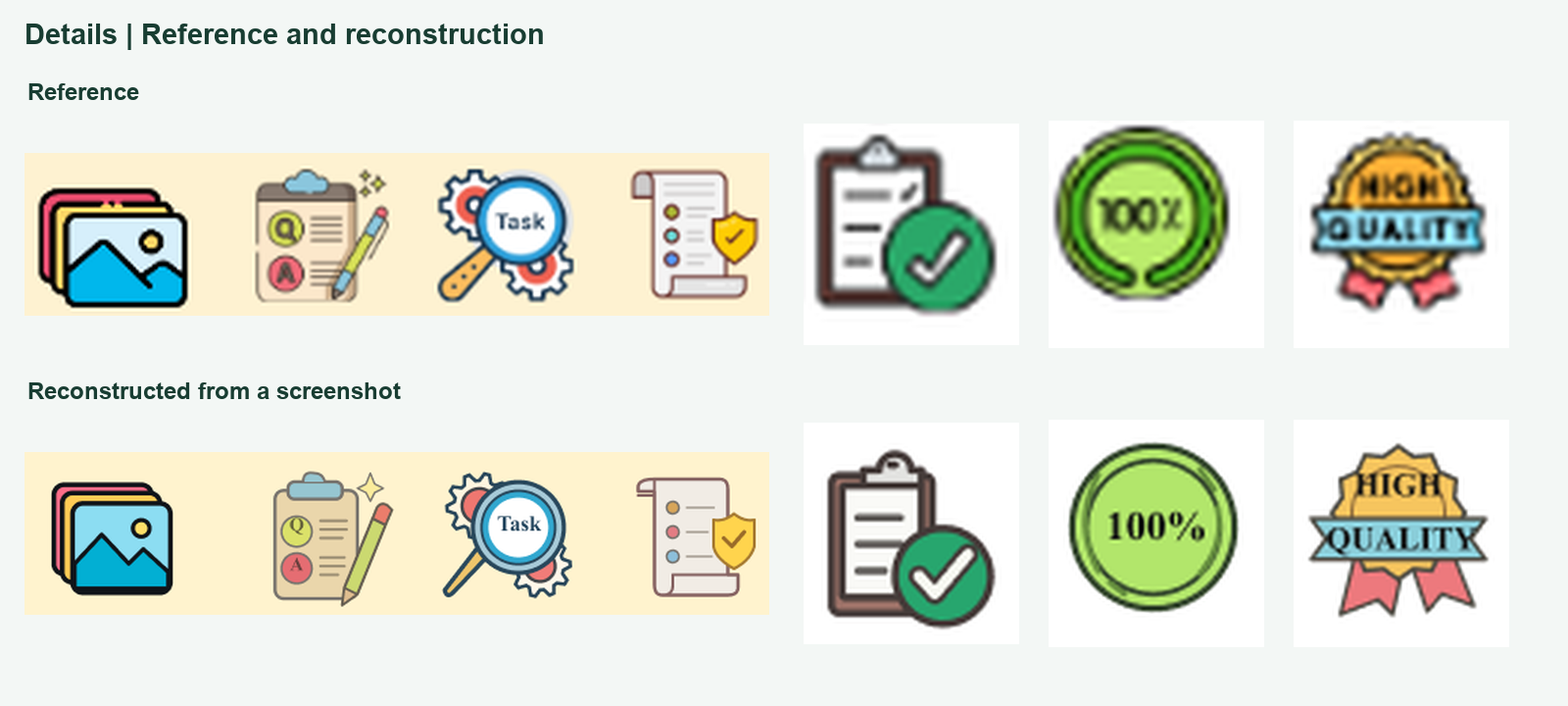
Compare details from both reconstruction routes
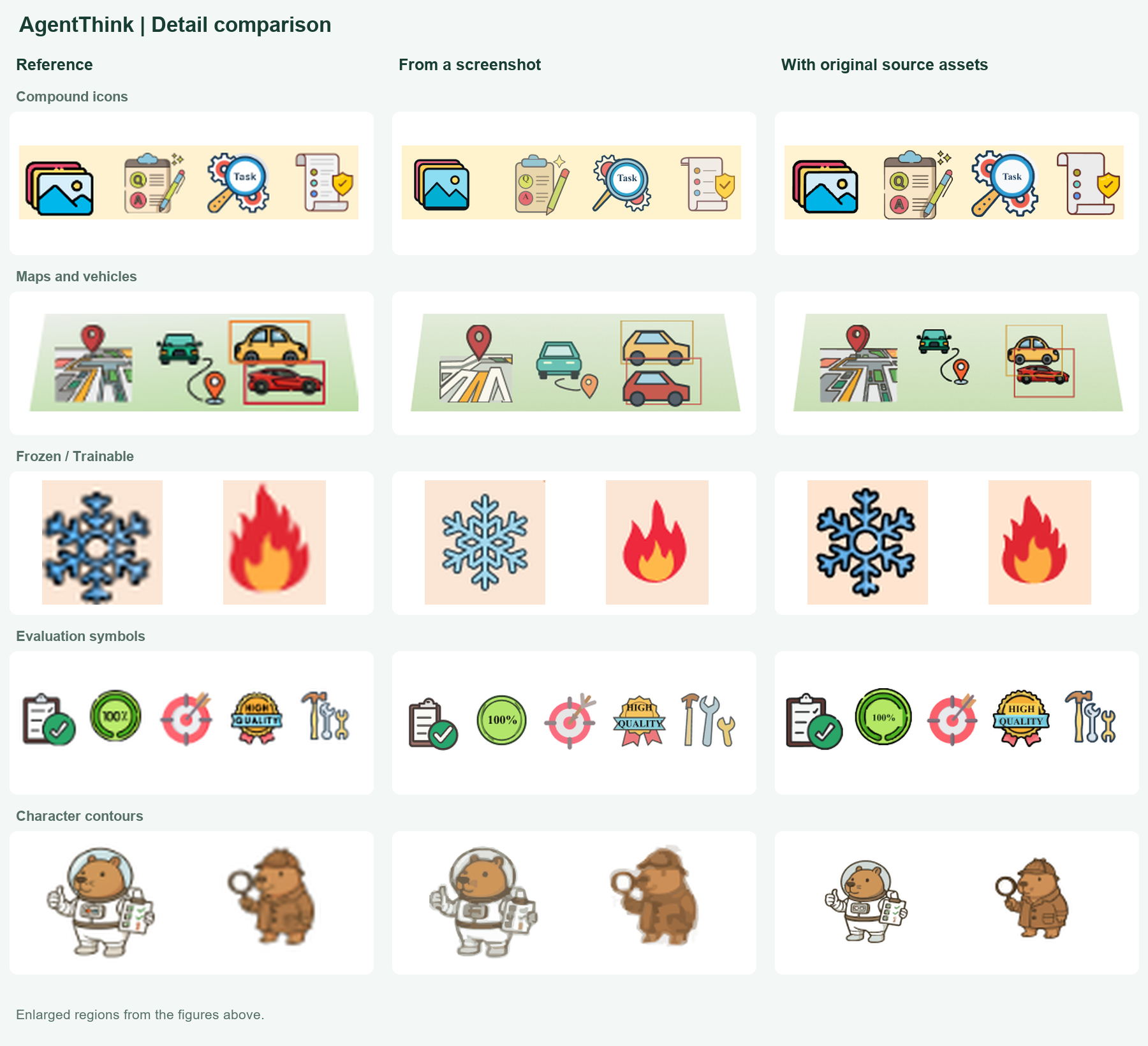
The comparison covers training illustrations, maps and vehicles, frozen/trainable symbols, evaluation icons and character contours.
Example files and attribution · Version history comparison
| AgentThink | PlanWAM |
|---|---|
 |
 |
| Data generation, two-stage training, inference and evaluation pipeline. Editable text, illustrations and connections |
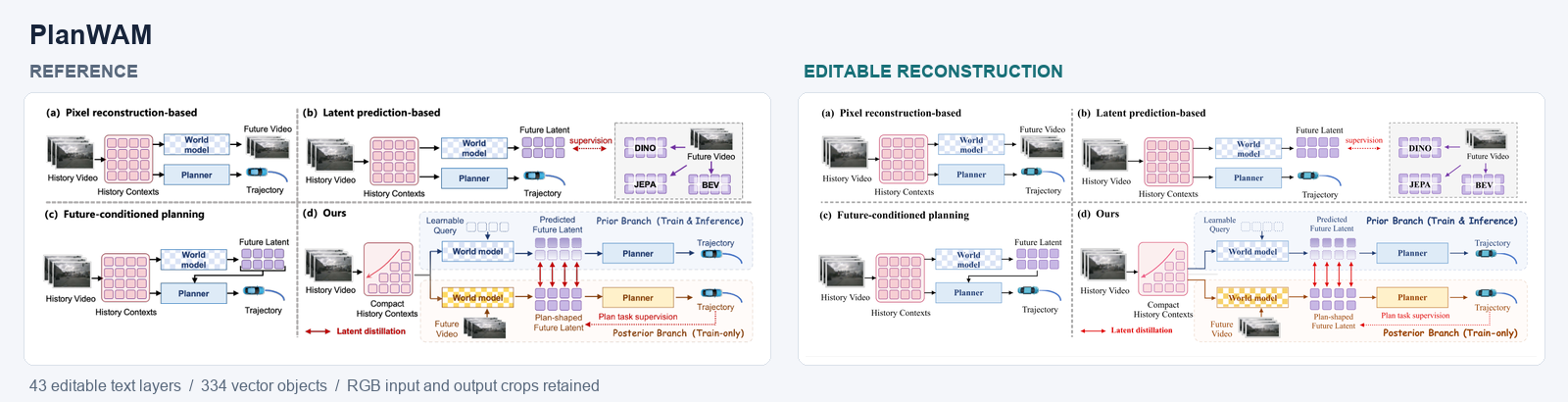
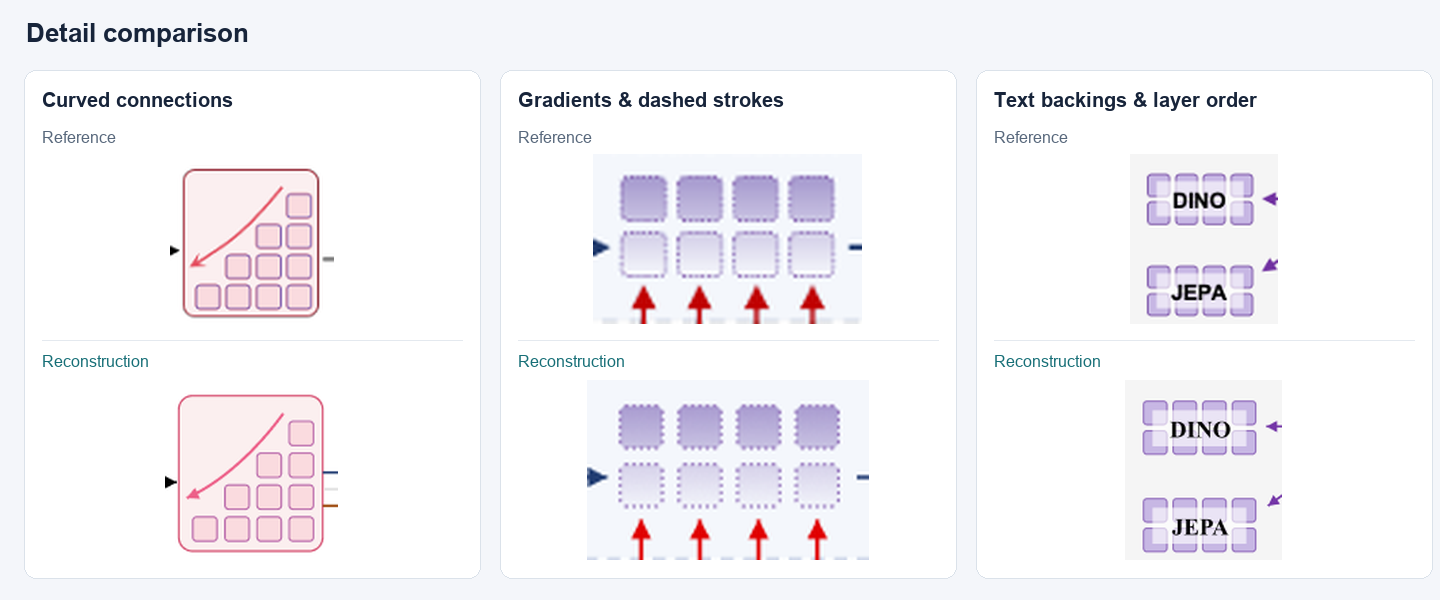
Four-panel comparison of world-model planning approaches. 43 text layers · 334 vector objects · 8 gradients |
| Paper · Reference · SVG · Scene | Paper · Reference · SVG · Scene |


Detail comparisons
AgentThink — model blocks, curved branches and reward layers
PlanWAM — curved connections, gradients and text backings
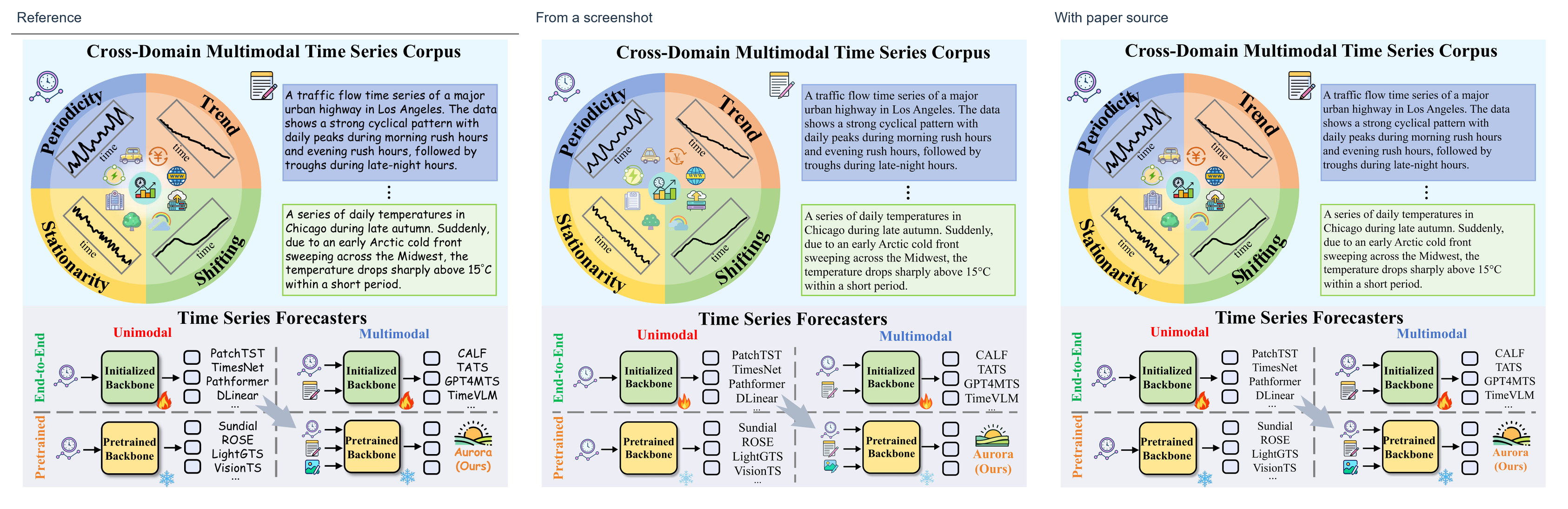
Aurora
The same time-series figure rebuilt from a screenshot and from its matching paper PDF. Compare the curved labels, series strokes, domain illustrations and modality symbols across all three images.
Compare Aurora details
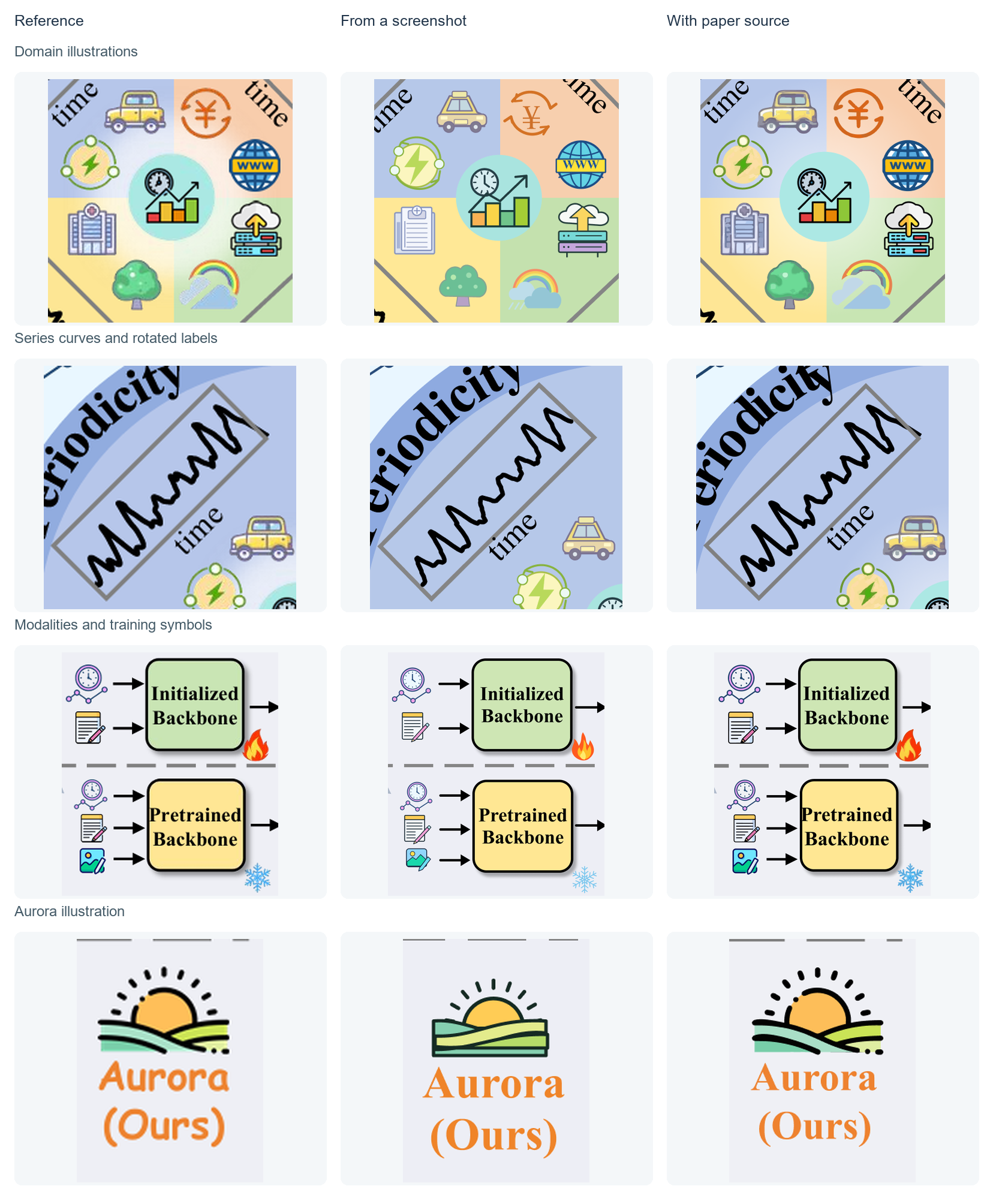
Source: Wu et al., Aurora: Towards Universal Generative Multimodal Time Series Forecasting, Figure 1, PDF page 2 (arXiv v6). Both results use editable text and vectors, with no image layers. Body text uses Times New Roman.
Case study and citation · Screenshot result · Source-assisted result


Reference figures belong to their original authors; see each example's notes for sources and approximations.
🎮 Demo
Download the repository and open demo/index.html in a browser — no install, works offline. Drag the divider to compare the reference with the reconstruction, edit text, fills and curves, then download the edited SVG.
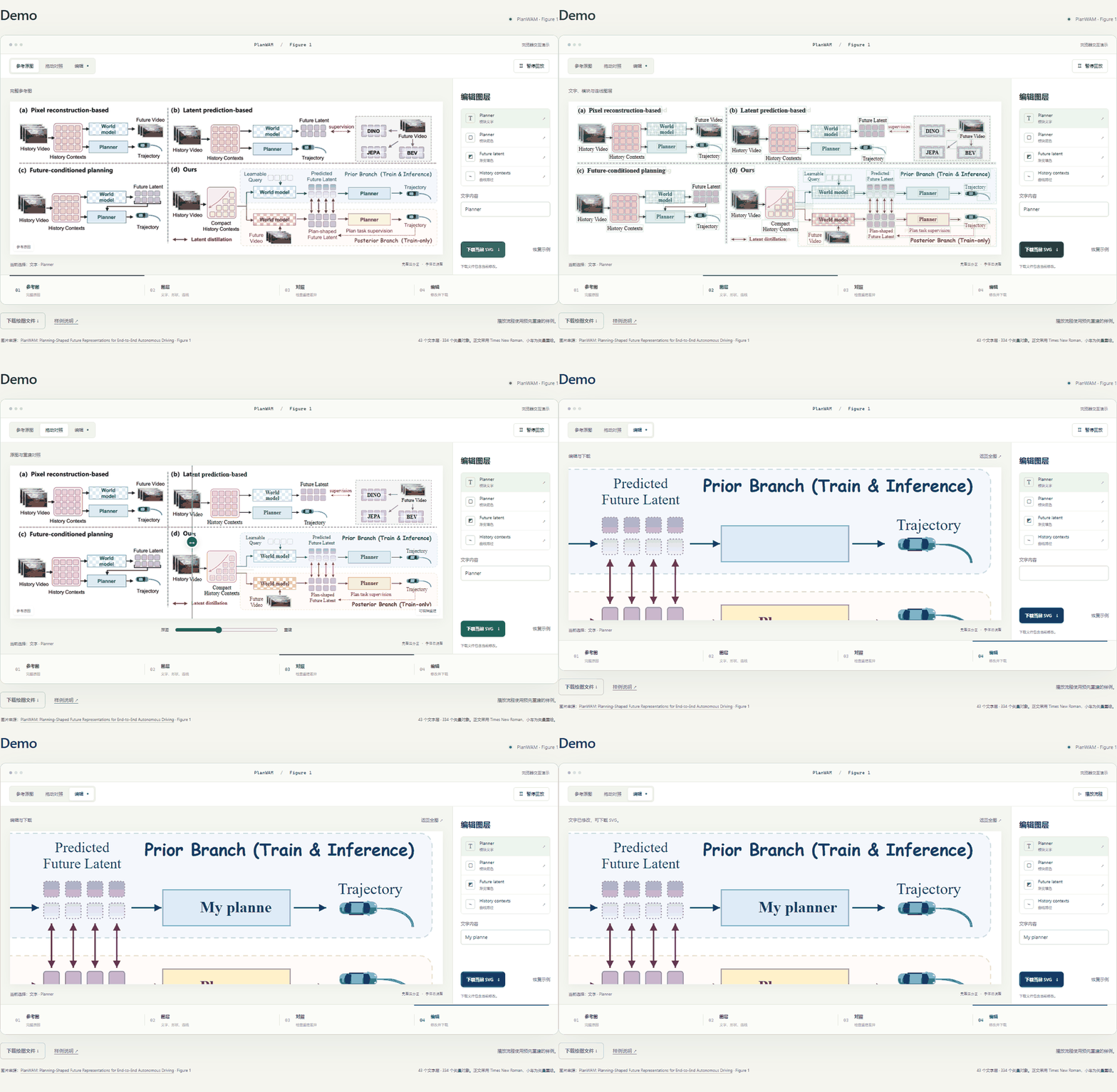
The demo uses a pre-built PlanWAM reconstruction to show the editable result; it does not run the AI reconstruction. Demo controls
🧭 Roadmap
- Agent skill with connected Figma drawing, review and export
- PlanWAM and AgentThink examples with editable files and visual comparisons
-
Aurora screenshot and source-assisted reconstructions with whole-figure and detail comparisons - Prompt Builder and offline demo
-
Source-assisted retrieval, PDF image extraction and screenshot reconstruction -
Complete AgentThink redraw with whole-figure and multi-region detail comparisons -
Offline SVG catalog with colored and outline assets, provenance and licenses - Improve low-resolution character contours, small accessories and background cleanup
- Extract reusable native vector and text objects from source PDFs
- Check font size, line width and spacing at the final paper dimensions
- Better selective updates that preserve manual Figma edits
- Better mathematical notation and formula reconstruction
- Style transfer for colors, typography and appearance while keeping content and structure
-
Native PowerPoint figures with automatic rendering and editability checks -
Aurora and P-GenRM PPTX examples with selected-object screenshots - PowerPoint generation and verification on additional platforms
- Editable import/export with draw.io and other drawing tools
- More examples and reproducible fidelity evaluations
- Compatibility testing across more assistants and operating systems
🚧 Limitations
- Not pixel-identical. Fidelity is judged through the whole-figure and detail review, not a universal accuracy score.
- Small illustrations are approximations. Library substitutions and local tracing can differ from the reference; unreadable source text is flagged rather than guessed.
- Photo crops follow the reference resolution. Use original dataset images for final layouts when available.
- Full reimports can overwrite manual edits to managed layers. Duplicate hand-edited artwork before a full rebuild.
- Verified with Codex using connected Figma tools, and on Windows with desktop PowerPoint. Other assistants and PPT platforms are not yet fully tested.
- PPT illustrations remain SVG objects. They can be moved, resized and replaced; internal path conversion is not guaranteed.
- Check readability at the final paper size once the physical dimensions are known.
❓ FAQ
Do I need an API key or the original generation prompt?
No. The skill runs inside your AI assistant and works from the image alone. A paper link, PDF or original source is optional and can help recover clearer assets.
Which AI assistants are supported?
It is verified with Codex. Other assistants need image input, local skill and script execution, and external tool calls; install with --dest pointing to their skill directory.
Do I need a Figma plugin?
No custom plugin is required. The skill uses the Figma tools connected to your assistant and needs edit access to the target Design file.
What happens if Figma is not connected?
The skill prepares the scene file and SVG locally, tells you which step is missing — no connection, expired authorization, read-only access or no file access — and continues writing to Figma once it is fixed.
Can I keep editing after the first version?
Yes. Edit directly in Figma, or send the assistant the same Figma link with your changes and list the elements that must stay unchanged.
🤝 Contributing
Issues, ideas and new examples are welcome.
- Bug or unexpected result — open an issue with the reference image (if shareable), your request and the assistant you used.
- New example — include the source paper, a reference image you may redistribute, the
.scene.jsonand the exported SVG. - Code changes — run the checks in docs/DEVELOPMENT.md before opening a pull request.
🙏 Acknowledgements
This open-source project acknowledges and links to the LINUX DO community. Thank you to the community for sharing ideas and practical experience with AI and design workflows.
The workflow draws on Image To Slice and the Linux.do discussion on AI and design workflows. Local-tracing guidance also draws on ScanSci SVG; icon sources and licenses are recorded in the asset catalog.
📄 License
Code is released under the MIT License. Reference figures, paper content and figure-derived example assets retain their original rights; see the source attribution in each example. Bundled icons retain the source licenses recorded in the asset catalog.
Releases