
Server · #320 trending MCP repo · ↗ +6 stars this week
Ppt MCP
ykuwai/ppt-mcp
The world's best PowerPoint MCP server. Real-time control of a live PowerPoint on Windows and macOS, 156 tools for AI agents
- Stars
- 112
- This week
- +6
- Forks
- 16
- Open issues
- 7
- Latest release
v2.6.0
Get started
Add it to your agent
claude mcp add powerpoint uvx ppt-mcpRun in your terminal. Add --scope project to share it with your team through .mcp.json.
codex mcp add ppt -- uvx ppt-mcpSaved to ~/.codex/config.toml.
{
  "mcpServers": {
    "ppt": {
      "command": "uvx",
      "args": [
        "ppt-mcp"
      ]
    }
  }
}Add to ~/.cursor/mcp.json (or .cursor/mcp.json in a project).
{
  "servers": {
    "ppt": {
      "type": "stdio",
      "command": "uvx",
      "args": [
        "ppt-mcp"
      ]
    }
  }
}Add to .vscode/mcp.json, then start it from the MCP view in Copilot Chat.
gemini mcp add ppt uvx ppt-mcpSaved to .gemini/settings.json.
Documentation
README

English (en) · 日本語 (ja) · 简体中文 (zh-CN) · Español (es) · Português (pt-BR) · עברית (he)




Real-time PowerPoint control on Windows and macOS —
an MCP server with 157 tools for AI agents and developers.
An MCP (Model Context Protocol) server that gives AI agents full control over a live Microsoft PowerPoint instance, over COM on Windows and Apple Events on macOS. Unlike file-based libraries like python-pptx, this server interacts directly with a running PowerPoint application.
🎬 Demo
An agent building a deck in a live PowerPoint window (15x speed):
https://github.com/user-attachments/assets/178b9b5b-624d-4de0-a1dd-619dc13d4bd7
✨ Key Features
- Real-time control — Directly manipulates a running PowerPoint instance; changes appear instantly on screen
- 157 tools across 26 categories — Slides, shapes, text, tables, charts, animations, SmartArt, media, freeform paths, and more
- Safe for AI agents —
ppt_activate_presentationlocks all tools to a specific file, preventing accidental edits to the wrong presentation - Google Material Symbols icons — Search 2,500+ icons by keyword and insert as SVG with theme colors
- Theme color awareness — Pass
accent1,accent2, etc. wherever a fill, line, shadow, glow or text color is taken, instead of hardcoded RGB values; the shapes follow the theme when it changes - Windows and macOS — The same tools, arguments and return values on both; where PowerPoint for Mac cannot do something, the tool says so rather than quietly doing nothing
📋 Requirements
- Windows 11, or macOS with Apple Silicon or Intel
- Microsoft PowerPoint
- uv
On macOS the server drives PowerPoint over Apple Events instead of COM. The first tool call raises the system's automation prompt, and PowerPoint has to be allowed there once. Pictures, icons, templates, themes, previews and exports pass through PowerPoint's own folder, which macOS 14 and later keeps other apps out of, so the application that launches the server (Terminal, an editor, Claude) needs Full Disk Access for those tools. Run from a terminal, macOS may refuse without asking; the tools then say what to grant. Shapes, text, tables and charts work regardless. See macOS support for what differs.
🚀 Getting Started
Standard config — works in Claude Desktop, Cursor, .mcp.json, and most other MCP clients:
{
  "mcpServers": {
    "powerpoint": {
      "command": "uvx",
      "args": ["ppt-mcp"]
    }
  }
}
Claude Code
User-scoped (available in all projects)
claude mcp add powerpoint uvx ppt-mcp
Project-scoped (stored in .mcp.json, shared with your team)
claude mcp add --scope project powerpoint uvx ppt-mcp
Cursor

Or add manually to ~/.cursor/mcp.json using the standard config above.
Claude Desktop
Edit %APPDATA%\Claude\claude_desktop_config.json using the standard config above.
Codex
Edit ~/.codex/config.toml:
[mcp_servers.ppt-mcp]
command = "uvx"
args = ["ppt-mcp"]
Or use the standard JSON config above in .codex/config.json.
VS Code
code --add-mcp '{"name":"powerpoint","command":"uvx","args":["ppt-mcp"]}'
From source
git clone https://github.com/ykuwai/ppt-mcp.git
cd ppt-mcp
uv sync
{
  "mcpServers": {
    "powerpoint": {
      "command": "uv",
      "args": [
        "--directory",
        "C:\\path\\to\\ppt-mcp",
        "run",
        "mcp",
        "run",
        "src/server.py"
      ]
    }
  }
}
🛠️ Tool Categories
| Category | Tools | Description |
|---|---|---|
| App | 5 | Connect to PowerPoint, app info, active window, window state, list presentations |
| Presentation | 8 | Create (with templates), open (a local file, or on Windows a SharePoint or OneDrive URL), save, close, info, activate target, list templates |
| Slides | 10 | Add, delete (bulk), duplicate (positional/multi), move (bulk), copy (cross-presentation), list, info, notes, navigation |
| Shapes | 10 | Add shapes/textboxes/pictures/lines (with z-order placement, including behind the text), list, info (position, fill, line, text frame), update (one shape, a set, or the whole slide, absolute or by offset), delete, z-order |
| Text | 10 | Set text (whole frame, one span keeping its formatting, or as runs), get text (with measurement and overflow), format one span or many in a batch, paragraph format, bullets, find/replace (optionally inside groups), textframe, extract all text as Markdown, typography check |
| Placeholders | 6 | List, get, set placeholder content |
| Formatting | 3 | Fill, line, shadow (on the shape or on its text) |
| Tables | 13 | Add tables, get/set cells, batch set data, merge/split cells, add/delete rows/columns, styles, layout, borders |
| Export | 4 | PDF, images, slide preview, clipboard copy |
| Slideshow | 6 | Start, stop, next, previous, go to slide, status |
| Charts | 7 | Add charts (on Windows, all but the 3-D and a few rarer types without starting Excel), set/get data (on Windows, setting it swaps in a copy of the chart under a new shape id without starting Excel where it can, then reads the chart back, and data that did not land is an error while a label Excel read differently is a warning), format, format axis, series, change type |
| Animation | 6 | Transitions, add/list/update/remove/clear animations (entrance, exit, emphasis, motion path, interactive sequences) |
| Themes | 4 | Apply themes, get/set theme colors, headers/footers |
| Groups | 3 | Group, ungroup, get group items |
| Connectors | 2 | Add, format |
| Hyperlinks | 3 | Add, get, remove |
| Sections | 3 | Add, list, manage |
| Properties | 2 | Set/get presentation metadata |
| Media | 3 | Video, audio, media settings |
| SmartArt | 3 | Add, modify, list layouts |
| Edit Operations | 6 | Undo and redo (on the target presentation), copy shapes/formatting between slides |
| Layout | 8 | Align, distribute, slide size, background, flip, merge shapes, layout check |
| Effects | 3 | Glow and reflection (on the shape or on its text), soft edge |
| Comments | 3 | Add, list, delete |
| Advanced | 19 | Tags, fonts (list the deck's or this computer's, set defaults, bulk replace), crop, picture format, shape export, visibility, selection, view, animation copy, picture from URL, SVG icons, icon search, aspect ratio lock, batch apply, default shape style |
| Freeform | 7 | Build freeform paths, get/set node positions, insert/delete nodes, node editing type, segment type |
| 157 |
💡 Example Prompts
Just describe what you want in plain language — no code required.
Simple — topic only
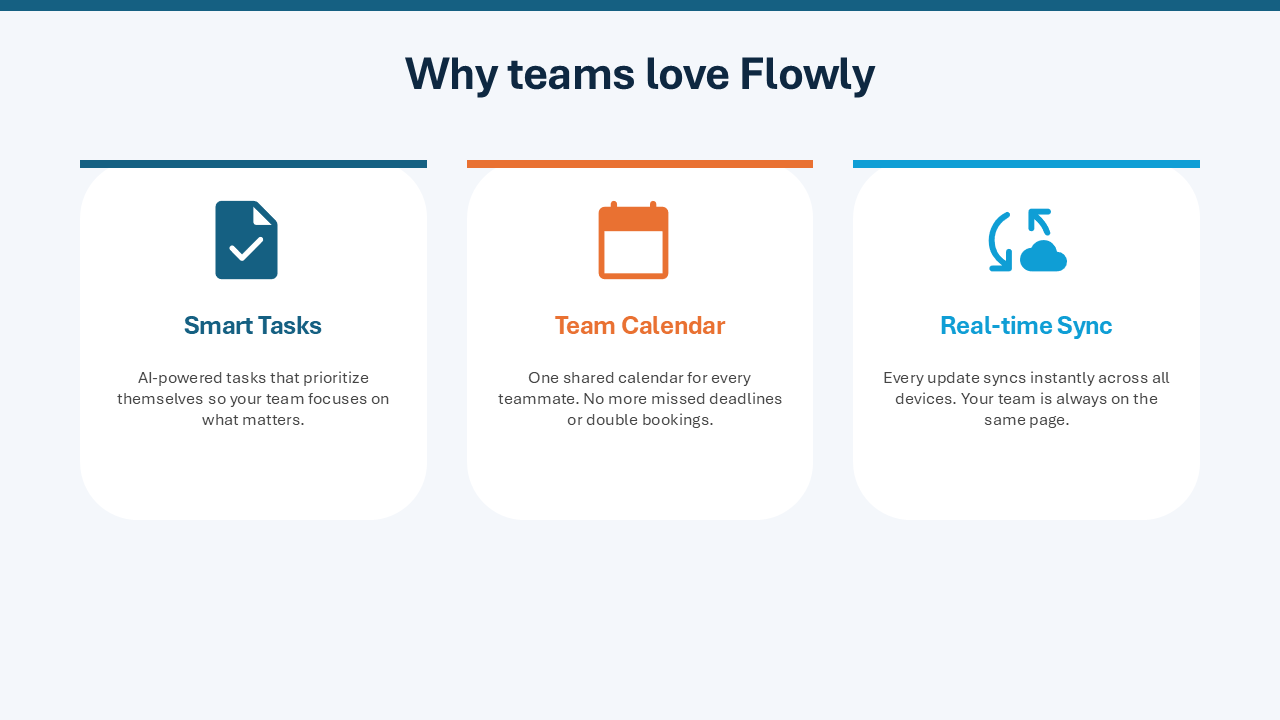
"Create a 3-slide intro deck for a productivity app called Flowly."
View slides


With style direction — topic + visual style
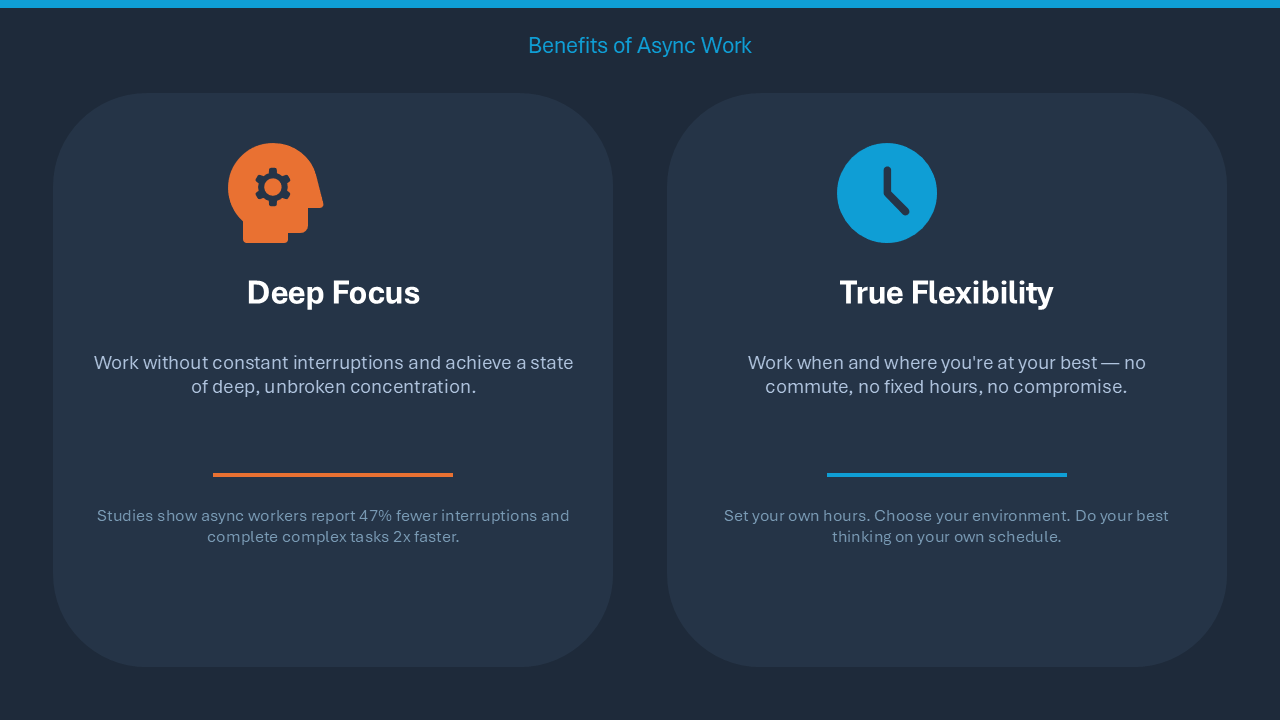
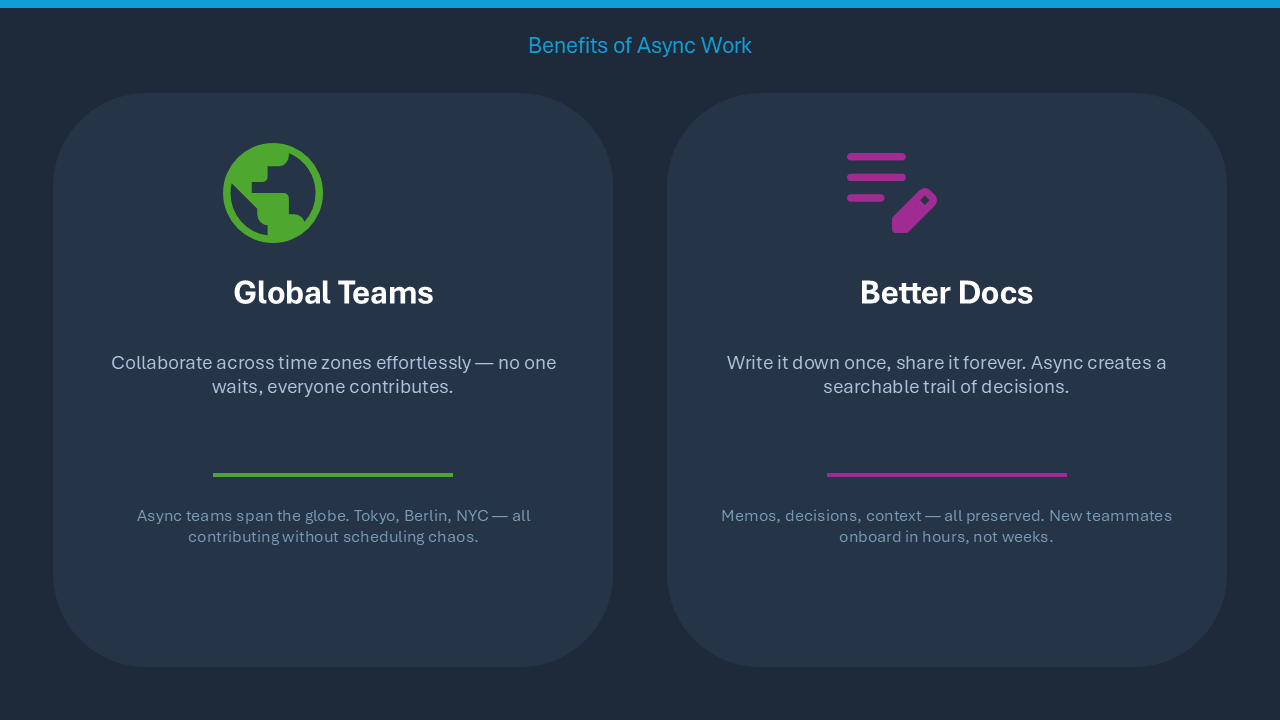
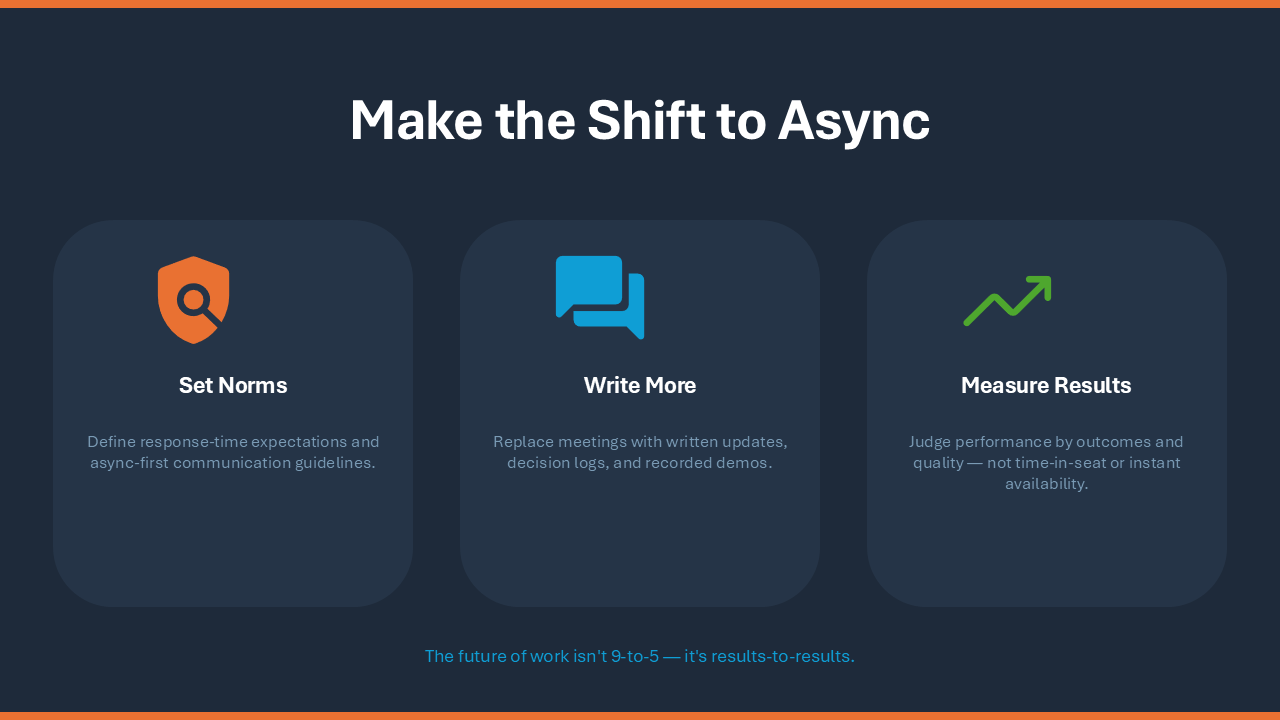
"Make a 4-slide presentation on the benefits of async work. Dark navy style, add icons for each benefit."
View slides

Detailed — topic + design intent + slide structure
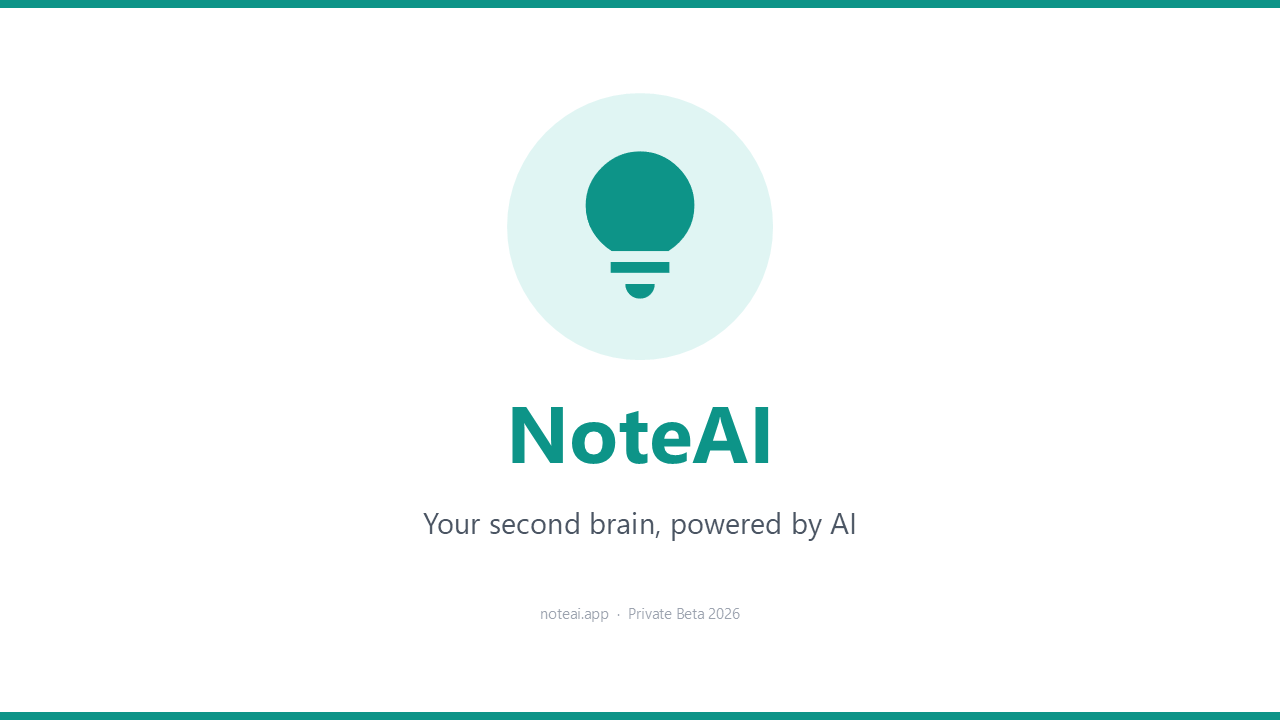
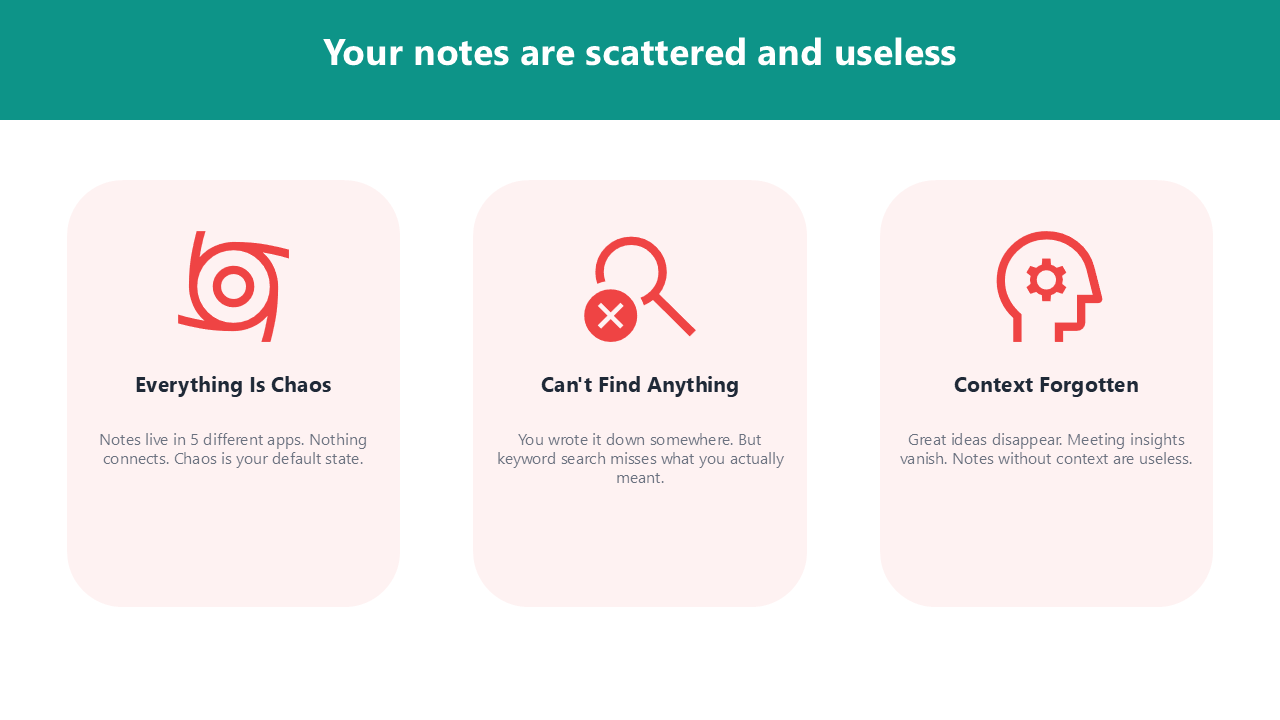
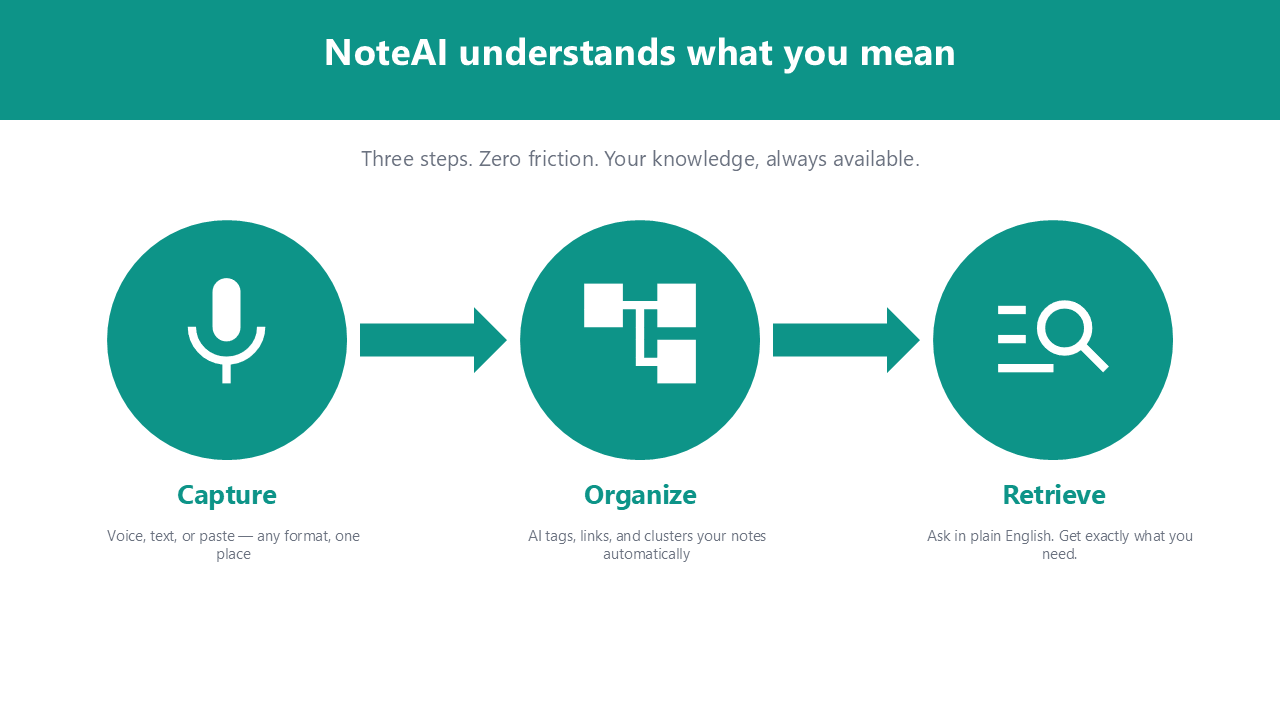
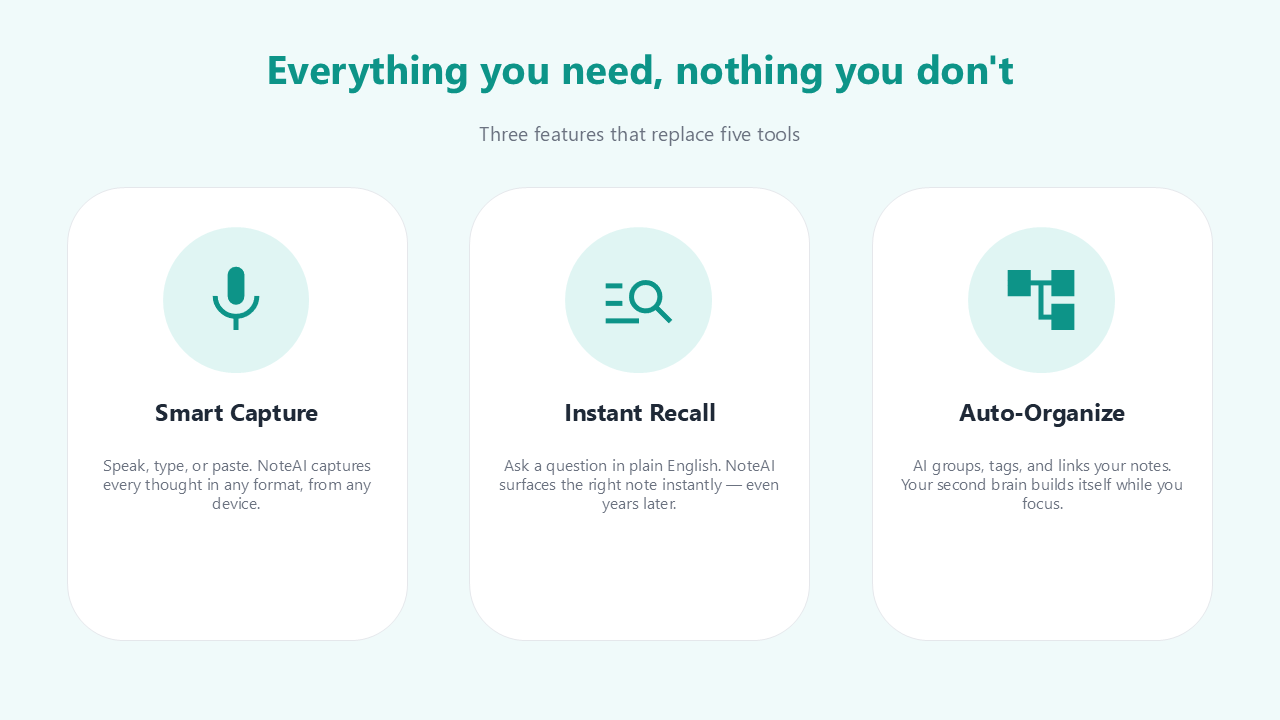
"Build a 5-slide pitch for an AI note-taking app called NoteAI. White background, teal accent. Slides: title, problem, solution, features with icons, closing."
View slides

Design keywords that elevate results:
| Aspect | Keywords / Phrases | What it does |
|---|---|---|
| Icons | add icons · icon for each point · use icons throughout |
Searches Google Material Symbols and places crisp SVG icons automatically |
| Color scheme | dark navy · white background · monochrome · light gray |
Sets the overall color palette and mood |
| Accent color | teal accent · blue accent · brand color #2563EB |
Applies a specific highlight color to headings, icons, and shapes |
| Style tone | modern minimal · bold and vibrant · clean and professional · playful |
Signals the overall visual personality |
| Deck type | pitch deck · investor presentation · workshop slides · status report |
Guides layout and content density toward the intended purpose |
| Slide structure | Slides: title, problem, solution, features, CTA · 4 slides |
Defines the narrative arc and slide count up front |
| Layout | card layout · two-column · centered · full-bleed background |
Shapes how content is arranged on each slide |
| Text density | minimal text · one message per slide · bullet points |
Controls how much text appears and how it's formatted |
| Backgrounds | gradient background · solid dark background · soft light background |
Specifies the background treatment across slides |
| Emphasis | highlight key numbers · bold headings · accent bar on each slide |
Draws attention to the most important information |
🔍 Features in Detail
🎯 Presentation Targeting
ppt_activate_presentation sets a session-level target so every subsequent tool call operates on that specific file — regardless of which window is active in PowerPoint. Switch targets anytime by calling it again.
ppt_activate_presentation(presentation_name="report.pptx")
# All tools now operate on report.pptx
ppt_activate_presentation(presentation_name="demo.pptx")
# Switched — all tools now operate on demo.pptx
The activated presentation is one value for the whole server, and a client such as Claude Desktop routes every conversation through one server. When several conversations work on different files at once, pass presentation on each call. It applies to that call only, leaves the activated presentation alone, and accepts a full path, a file name, or a file name without extension. A file that is not open is an error, never a fallback to another one.
ppt_add_textbox(params={...}, presentation="report.pptx")
# Lands in report.pptx whatever another conversation has activated
👥 Files Others Edit at the Same Time (Windows)
A presentation opened from SharePoint or OneDrive can be edited by other people while the server works on it. Without AutoSave, PowerPoint takes in what they have saved only when the file is saved, and shows "Updates available" until then; the server would read and write the older state. The server handles that for such a file:
- Before a tool call it merges the others' changes, as long as nothing in this copy is unsaved, so a read sees the current state. A writing call whose slides or shapes the merge moved is refused without changes, because its indices came from the older state.
- Results carry
coauthoring:pending_updates(changes wait;ppt_save_presentationtakes them in),merged_updates(they were just merged),conflict.ppt_open_presentation,ppt_activate_presentationandppt_get_presentation_infoalways report it, withcoauthor_count;ppt_list_presentationsgivespending_updatesper file. - A conflict (both sides changed the same object) opens PowerPoint's "Resolve conflict" dialog, which the object model cannot answer, so it stays with the user. An integration can answer it instead:
utils.coauthoring.set_conflict_resolver(fn)registers a function that gets the Presentation on the COM thread and returnsTrueonce the dialog is answered; the result then lists inoverwritteneach slide that now differs from this copy's version, with the text it had here.
📁 Template Support
Auto-detects your personal PowerPoint templates folder (registry, OneDrive, or default paths). Use ppt_list_templates to discover available templates, then ppt_create_presentation(template_path=...) to create a new presentation from any template.
🎨 Google Material Symbols Icons
Search 2,500+ Google Material Symbols icons with ppt_search_icons(query="...") and insert them as SVG with ppt_add_svg_icon:
- 3 styles: outlined, rounded, sharp
- Filled variants: set
filled=True - Theme colors:
color="accent1"uses the presentation's accent color - Auto-fit: preserves aspect ratio within the specified area
⚡ Real-Time Navigation
Every write operation automatically navigates PowerPoint to the target slide. You see changes happening in real-time — no need to manually switch slides.
✍️ Text Formatting
\n— Paragraph break (Enter). Each paragraph gets its own bullet/indent level.\v— Line break (Shift+Enter). Stays in the same paragraph, preserving formatting.- Per-character formatting with
ppt_format_text_range - Auto-fit control: shrink text to fit, resize shape, or overflow
🎨 Theme Color Presets & Auto-Generation
ppt_set_theme_colors supports three modes:
- 17 curated presets — WCAG AA accessible palettes across 5 categories: Classic (
corporate_blue,executive,consulting), Design Systems (tailwind,chakra,open_color,radix), Nature (ocean,forest,sunset,sage), Modern (nord_light,pastel_deep,swiss), Vibrant (vivid,rainbow,neon_safe) - Primary color generation — provide a single brand color (
primary="#2B579A") to auto-generate a full harmonious palette using color harmony (split-complementary + analogous) - Manual — set individual color slots (
accent1,accent2, etc.)
Modes can be combined: use a preset as a base and override specific slots. All accents are guaranteed 3:1+ contrast on white.
🔍 Typography Check
ppt_check_typography detects and optionally auto-fixes common typography issues:
- Widow lines — isolated 1-3 character lines caused by word wrapping
- Short lines after soft returns — side effects of manual line breaks (
\v) - Auto-shrunk text — text silently compressed by PowerPoint's shrink-to-fit feature
Auto-fix strategies include widening text boxes and inserting soft returns.
📐 Layout Check
ppt_check_layout measures a slide, or the whole deck, and reports what is wrong as numbers rather than as a picture, so it works whether or not the model can read images:
- Off the slide — a shape, or its text, reaching past a slide edge
- Overflow — text that needs more room than its box gives it
- Overlap — text running into another shape or into other text, text over a table's cells or hidden under a card laid over it, and anything a slide adds running into or across the template's own graphics: its logo, a band down the side, a footer line, the rule under the title
- Low contrast — text against what is behind it, below the WCAG minimum for its size, on a gradient too, and on a photo against the part of the photo under it
- Cramped text — text on a card pressed against one of its edges
- Narrow margin — a shape closer to the side of the slide than the margin the rest of the slide keeps, or run almost to its top or bottom
- Title edge — a title whose words start a few points from where the body below it starts, which reads as two edges a little apart
- Misaligned — edges a few points apart that were meant to line up
- Uneven spacing — a row or column of like shapes with unequal gaps
- Uneven sizes — like shapes in a row that are not one height, or in a column not one width, and a row with one card a little wider than the rest
- Sample text — lorem ipsum, "Your title here", "[Company name]" or "XX%" left behind by a template or a draft, and a chart still holding the data PowerPoint puts in a new one
- Stretched pictures — a picture or logo drawn in other proportions than its image; the fix puts them back, or crops the picture to its box with
ppt_crop_picture crop_fit - Small text — text under 10 pt, which a projected slide loses, measured at the size PowerPoint draws text it shrinks to fit
- Blurry pictures — a picture drawn larger than its image has pixels for
- Charts — data labels running into each other, or a legend or title lying on the plot. Windows only: PowerPoint for Mac has no chart object to read
- Alt text — a picture, chart or SmartArt graphic a screen reader cannot describe.
ppt_update_shape alt_textsets it on Windows; PowerPoint for Mac does not let a tool set it, so there it is set by hand - Fonts — text in a font this computer does not have, so PowerPoint draws it in a stand-in, and Hebrew or Arabic drawn in another font than the one asked for
- Right-to-left text — on a Hebrew or Arabic slide, a line of numbers only, such as "1948–1967", which PowerPoint draws left to right and a reader reads backwards, and a paragraph left to right in a file another program wrote.
ppt_set_paragraph_format direction='rtl'sets a paragraph's direction and keeps the side it is aligned to - Empty placeholders, and, for the whole deck, titles that change size, position, alignment, weight, typeface or colour from slide to slide, or are typed in capitals among titles in normal case, body text a size or two off the rest of the deck's, and slides with no title or the same title as another, which a screen reader and the outline cannot tell apart. A right-aligned title, as in a Hebrew or Arabic deck, is compared on its right edge, and a title on a layout no other slide uses is held to where its layout puts it
Shapes inside groups and SmartArt graphics are checked for what their text says and how it is set: overflow, contrast, sample text, fonts, direction and size.
A slide is judged as the slide show draws it. Lines a build-up shows one at a time in one place do not overlap, a shape a motion path moves is judged where it goes, a sound's icon dragged off the slide is hidden on purpose, and a shape waiting off a slide next to a Morph transition is left there. A finding on a hidden slide says that it is hidden.
Each issue names the shapes and says how to fix it, with the tool call and its values. A fix keeps the slide together rather than only clearing the issue: a card grows with its padding and the rest of its row, and a shape brought back onto the slide keeps the slide's margin. The tools that add, copy, move, resize, align, distribute or retext a shape, or fill a placeholder, also check the shape they touched and report any problem in their own result, under layout_issues, so it is caught by the call that caused it. A new slide background, or a new fill under text, reports the text it left hard to read, and a change to the whole deck, its theme, theme colours, fonts or slide size, reports what it broke that was not broken before.
Each of those checks reads the slide back, which adds a moment to every write, more on the Mac. To leave the checking to ppt_check_layout alone, set PPT_LAYOUT_CHECKS=off in the server's env; the server's instructions then tell the model to run it after each few changes. The accepted values are on (the default) and off; anything else is ignored with a warning and the checks stay on. A change to the whole deck (theme, theme colours, font, default fonts, slide size) reads every slide before and after. On a deck of more than 300 shapes it reads neither, since that would take longer than the change, and says so under layout_check_skipped, leaving the deck to ppt_check_layout. Paragraph formatting, bullets, picture crops and formats, grouping, SmartArt, chart data, lines, deleting table rows and columns, splitting cells and copying slides are checked the same way. A slide copied into another open deck is not: the check reads the deck the server is working on.
On a deck made from a template, the template is part of the check. The graphics its slide master and layouts draw are read, so a chart sized over the logo or a footnote on the confidentiality line is reported, and what the template designed is taken as meant: a placeholder still in the theme's colours, or a caption layout's own smaller title, is not held to the rest, and in a deck on two designs each design's titles are compared only with each other. Theme colours set with ppt_set_theme_colors are the caller's, so that call judges the placeholders in them too, and so does every later check once the theme's own text colour no longer reads on its background. PowerPoint for Mac exposes the master's graphics but not a layout's own, nor what is inside a group, so there the layout's graphics, its title's place, the theme's fonts and the text inside groups are read from the deck's saved file, while it holds what is on screen. On a deck not yet saved, or changed since, a layout's design is allowed for through its placeholders.
⚙️ Advanced Configuration
Handling PowerPoint Modal Dialogs
When PowerPoint has a modal dialog open (e.g., SmartArt layout picker, Save dialog, Insert dialog), COM calls return RPC_E_CALL_REJECTED. The MCP server automatically retries for up to 15 seconds (5 retries × 3 s), so the server stays connected and responsive even when a dialog is blocking PowerPoint.
Auto-dismiss (opt-in): By default, the server waits for you to close the dialog manually. To have the server automatically send ESC on the first retry — dismissing the dialog without user interaction — set PPT_AUTO_DISMISS_DIALOG=true:
{
  "mcpServers": {
    "powerpoint": {
      "command": "uvx",
      "args": ["ppt-mcp"],
      "env": {
        "PPT_AUTO_DISMISS_DIALOG": "true"
      }
    }
  }
}
ESC cancels without committing, so there are no destructive side effects. This is particularly useful in automated workflows where no human is present to close dialogs.
PowerPoint that the server starts
If no PowerPoint is running when a tool needs one (ppt_create_presentation, ppt_open_presentation, ppt_connect), the server starts it. On macOS it starts in the background and does not take the front from the app you are working in.
When a close leaves no presentation open in a PowerPoint the server started, ppt_close_presentation quits PowerPoint too and says so (powerpoint_quit). A PowerPoint you started yourself is never quit, and neither is one that still has a presentation open (on Windows, or a file open in Protected View). Pass keep_powerpoint_open=true to keep it running, for example to open another presentation straight away. Until a tool starts PowerPoint again, tools that need it answer that PowerPoint is not running, where they would otherwise have reported an empty list.
Working in the same deck as the model
Each write moves the deck's window to the slide it works on, so you can see where the model is. To work in the deck yourself at the same time, without the window jumping to another slide, set PPT_FOLLOW_EDITS=off in the server's env. The edits land the same way; only the window stays where you left it. ppt_goto_slide still moves it when asked. The accepted values are on (the default) and off; anything else is ignored with a warning. While you are typing in a text box PowerPoint may hold the model's call for a moment, and undo (Ctrl+Z) is shared, so it can take back the model's last change.
"env": { "PPT_FOLLOW_EDITS": "off" }
Icons on a network that blocks the icon sites
ppt_search_icons reads its icon list from fonts.google.com, and ppt_add_svg_icon downloads icons from cdn.jsdelivr.net. Every download, pictures by URL included, gives up after 15 seconds and says which host it could not reach. Three settings change that:
| Setting | Default | What it does |
|---|---|---|
PPT_ICON_BASE_URL |
https://cdn.jsdelivr.net/npm/@material-symbols/svg-400@0.31.3 |
Where icons come from. Any address with the package's layout (<base>/outlined/home.svg) works: a mirror such as https://unpkg.com/@material-symbols/svg-400@0.31.3, or a local copy of the package as file:///path/to/svg-400. |
PPT_ICON_METADATA_URL |
https://fonts.google.com/metadata/icons |
Where the icon list comes from. Save that page once and point this at the copy, as file:///path/to/icons.json. |
PPT_DOWNLOAD_TIMEOUT |
15 |
Seconds to wait for a server to answer. A value that is not a positive number is ignored (15 is used). |
{
  "mcpServers": {
    "powerpoint": {
      "command": "uvx",
      "args": ["ppt-mcp"],
      "env": {
        "PPT_ICON_BASE_URL": "https://unpkg.com/@material-symbols/svg-400@0.31.3"
      }
    }
  }
}
The tool list: catalog mode
A client sends the description of every tool it lists with every request, and this server's 157 come to about 112k tokens, a large part of a 128k or 200k window before any work. With PPT_TOOL_MODE=catalog in the server's env, the server lists three tools instead, about 700 tokens, and the model reaches the rest through them:
| Tool | What it does |
|---|---|
ppt_describe |
With no names, the list of all the tools, one line each. With names, their full description and arguments. |
ppt_run |
Runs one tool: {"tool": "ppt_add_textbox", "params": {...}}. |
ppt_run_steps |
Runs several in order, in one call. A step can use what an earlier one answered: "$prev.shape_name" is the previous step's shape_name, "$2.shape_name" the second step's. The first step that fails ends the run and says why. |
The tools themselves are the same, with the same arguments, checks and answers, and presentation is passed the same way. The model asks ppt_describe before using a tool for the first time, which costs one call. Building the same 12-slide deck through Claude Code, the context peaked at 136k tokens in catalog mode against 206k with every tool listed, and the run cost a third less.
What catalog mode gives up is per-tool control in the client: approving or blocking a tool by its name, and its read-only hint, apply to the three tools above rather than to each one. That is why it is not the default: every tool is listed by its own name unless the setting asks otherwise, which is also what PPT_TOOL_MODE=full says. A value other than catalog or full is ignored with a warning, and every tool is listed.
{
  "mcpServers": {
    "powerpoint": {
      "command": "uvx",
      "args": ["ppt-mcp"],
      "env": { "PPT_TOOL_MODE": "catalog" }
    }
  }
}
🍎 macOS support
11 tools refuse on macOS. The rest work. The 11 are listed by name in MACOS_PORT.md section 6.1, and a test keeps that list honest.
The same tools, the same arguments, the same answers. What differs is what PowerPoint for Mac's scripting dictionary can reach, and where it cannot reach something the tool says so rather than doing something unexpected.
Not available on macOS:
- A freeform node's editing type. Corner, smooth and symmetric are not stored anywhere a script can reach; move the node's handles instead.
- Removing one animation. Clearing a slide's animations works.
- Tags,
ppt_select_shapes,ppt_set_table_styleandppt_execute_mso. Nothing in the dictionary reaches any of them.
Smaller differences:
- Call the tools one after another, not several in the same turn. Only one request at a time reaches PowerPoint, so the rest queue behind it and come out in whatever order they arrived. A call left waiting too long is taken back and says so, having changed nothing.
- A few tools accept an argument that has no counterpart, a screen tip on a hyperlink for instance. Those refuse with a message naming the argument, so dropping it and retrying works.
- Video and audio go in embedded, never linked, and of the eight playback settings only looping and hiding the frame exist. Hiding the frame is refused on a slide that already has animations, because writing it rewrites them.
- Exports are staged through PowerPoint's own container and moved out, because the application is sandboxed and cannot write to arbitrary folders.
- A template's own layouts are found by name in the deck's saved file, so
save a new deck before asking
ppt_add_slidefor one by name. PowerPoint for Mac names no layouts to a script, so the slide is pasted in on its layout, which takes about a second. - Slide images are rendered from a PDF rather than exported as PNG. A preview is 2 pixels per point on both platforms.
- Automation consent belongs to whichever application launched the server, so running it from a different terminal or editor raises the prompt again.
- Save the deck early and at each break. It costs nothing, and PowerPoint has been seen to close every open document and then exit when a sandbox prompt went up behind a script (#191).
- Charts, freeform paths and grouping go through the clipboard, which means the operation takes it for a moment and puts back what was there. This is how those three reach a dictionary that has no words for them.
- Editing an existing chart or path recreates the shape. The chart data,
type, title, legend, axis and series tools, and the node tools, copy the
shape, rewrite it and paste it back, then delete the original. The name,
position and z order are kept; animations on the shape are not, and the
result says how many were lost. A few formatting arguments that depend on
the chart's rendered size (
chart_style, legend and title coordinates, the 8-direction legend presets) are refused by name. - Text inside a group is edited the same way.
ppt_set_text(the whole text, or a span inside one line) andppt_format_textreach a group's member by its name, or by its path ("Group 4/TextBox 3"); the group is copied, the member rewritten and the group pasted back. The members keep their names, and the group loses its animations, as above. - Icons are rasterised with
sipsbefore they are inserted, because PowerPoint for Mac cannot read an SVG. That needs macOS 13 or newer; older systems get a refusal naming the reason rather than a blank box.
🤝 Contributing
Pull requests are welcome. Base them on develop, one topic each, with tests; CONTRIBUTING.md has the rest.
📄 License
MIT
🙏 Credits
- FastMCP — Pythonic MCP server framework
- pywin32 — Windows COM automation
- appscript — macOS Apple Event bridge
- Model Context Protocol — by Anthropic
Releases