
SDK / infra · #216 trending MCP repo
MCP Client For Ollama
jonigl/mcp-client-for-ollama
Harness the power of local LLMs with this TUI MCP Client for Ollama. Featuring all core MCP primitives (tools, prompts, resources), agent mode, multi-server, model switching, streaming responses, human-in-the-loop, thinking mode, model params config, system prompts, and saved preferences.
- Stars
- 837
- This week
- —
- Forks
- 125
- Open issues
- 18
- Latest release
v0.35.1
Documentation
README

A simple yet powerful Python client for interacting with Model Context Protocol (MCP) servers using Ollama, allowing you to harness local LLMs for advanced tool execution.
MCP Client for Ollama (ollmcp)





Sponsored by

Learn how to use Atlas Cloud with ollmcp in the Sponsors section
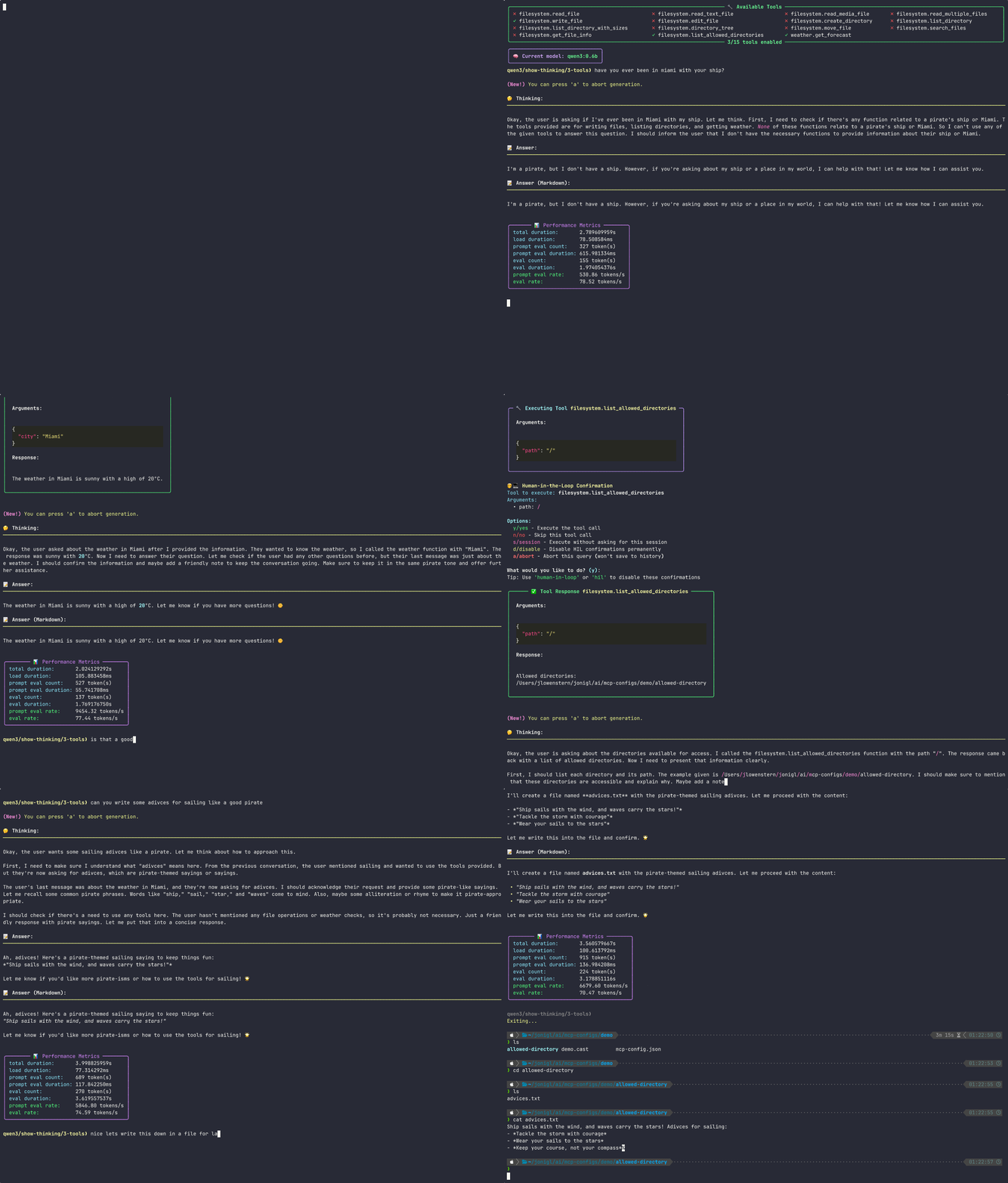
🎥 Watch this demo as an Asciinema recording
Table of Contents
- Overview
- Features
- Requirements
- Quick Start
- Installation Options
- Troubleshooting
- ✨NEW Managing MCP Servers via CLI
- Interactive Commands
- Autocomplete and Prompt Features
- Configuration Management
- Server Configuration Format
- Compatible Models
- ✨NEW Sponsors
- Where Can I Find More MCP Servers?
- Related Projects
- Security
- License
- Acknowledgments
Overview
MCP Client for Ollama (ollmcp) is a modern, interactive terminal application (TUI) built for harness engineering, connecting local Ollama LLMs to one or more Model Context Protocol (MCP) servers. By fully supporting the core MCP primitives (tools, prompts, and resources), it provides a controlled terminal space where you steer, and the agent executes. With a rich, user-friendly interface, it lets you safely manage your setup in real time with no coding required. Whether you're building, testing, or exploring, this client streamlines your workflow with features like fuzzy autocomplete, advanced model configuration, MCP server hot-reloading for rapid development, and strict Human-in-the-Loop safety controls.
Features
- 🤖 Agent Mode: Iterative tool execution when models request multiple tool calls, with a configurable loop limit and interactive choices when the limit is reached (continue, wrap up, or abort)
- 🌐 Multi-Server Support: Connect to multiple MCP servers simultaneously
- 🚀 Multiple Transport Types: Supports STDIO, SSE, and Streamable HTTP server connections
- 📋 MCP Prompts Support: Browse, invoke, and manage prompts from MCP servers with argument collection, preview, and safe rollback
- 📦 MCP Resources Support: Browse and read contextual data from MCP servers including files, documents, and structured data
- ☁️ Ollama Cloud Support: Works seamlessly with Ollama Cloud models for tool calling, enabling access to powerful cloud-hosted models while using local MCP tools
- 🌍 Multiple LLM Providers: Use Ollama (default) or OpenAI-compatible providers (OpenAI, OpenRouter, DeepSeek, etc.), with connection settings remembered per provider
- 🎨 Rich Terminal Interface: Interactive console UI with modern styling
- 🌊 Streaming Responses: View model outputs in real-time as they're generated
- 📝 Answer Display Modes: Switch between Plain, Markdown, Both, or Markdown (blocks) response views while streaming
- 🛠️ Tool Management: Enable/disable specific tools or entire servers during chat sessions
- 🧑💻 Human-in-the-Loop (HIL): Review and approve tool executions before they run for enhanced control and safety
- 🎮 Advanced Model Configuration: Fine-tune 15+ model parameters including context window size, temperature, sampling, repetition control, and more
- 💬 System Prompt Customization: Define and edit the system prompt to control model behavior and persona
- 🧠 Context Window Control: Adjust the context window size (num_ctx) to handle longer conversations and complex tasks
- 🎨 Enhanced Tool Display: Beautiful, structured visualization of tool executions with JSON syntax highlighting
- 🧠 Context Management: Control conversation memory with configurable retention settings
- 🤔 Thinking Mode: Advanced reasoning capabilities with visible thought processes for supported models (e.g., gpt-oss, deepseek-r1, qwen3, etc.)
- 💪 Reasoning Effort Levels: Set reasoning effort to auto, minimal, low, medium, high, or xhigh for supported models
- 🖼️ Vision Tool Support: Images returned by tools are automatically forwarded to vision-capable models
- 🗣️ Cross-Language Support: Seamlessly work with both Python and JavaScript MCP servers
- 📜 History Management: View full conversation history, export to JSON for backup/analysis, and import previous sessions for continuity
- 🔍 Auto-Discovery: Automatically find and use Claude's existing MCP server configurations
- 🔁 Dynamic Model Switching: Switch between any installed Ollama model without restarting
- 💾 Configuration Persistence: Save and load tool preferences and model settings between sessions
- 🔄 Server Reloading: Hot-reload MCP servers during development without restarting the client
- ✨ Fuzzy Autocomplete: Interactive, arrow-key command autocomplete with descriptions
- 🏷️ Dynamic Prompt: Shows current model, thinking mode, and enabled tools
- 📊 Performance Metrics: Detailed model performance data after each query, including duration timings and token counts
- 🔌 Plug-and-Play: Works immediately with standard MCP-compliant tool servers
- 🔔 Update Notifications: Automatically detects when a new version is available
- 🖥️ Modern CLI with Typer: Grouped options, shell autocompletion, and improved help output
- ⏹️ Abort Generation: You can abort model generation at any time by pressing 'a' during response streaming
Requirements
- Python 3.11+ (Installation guide)
- Ollama running locally (Installation guide)
- After installation, run
ollama listto see available models. If no models are installed, you can pull one usingollama pull <model_name>. For example,ollama pull gemma4:latest.
- After installation, run
- UV package manager (Installation guide)
Quick Start
Install ollmcp via pip, add an MCP server, and run the client:
# Install ollmcp via uv
uv tool install --upgrade ollmcp
# or via pip
pip install --upgrade ollmcp
# Add an MCP server (example: playwright stdio server)
ollmcp mcp add playwright -- npx @playwright/mcp@latest
# Run the client (check optional flags with `ollmcp --help`)
ollmcp # once running, use /help for interactive commands
Installation Options
Option 1: Install with uv and run (recommended)
uv tool install --upgrade ollmcp
ollmcp
Option 2: Install with pip and run
pip install --upgrade ollmcp
ollmcp
Option 3: Only run without installing (requires uv package manager)
uvx ollmcp
Option 4: Install from source and run using virtual environment
git clone https://github.com/jonigl/mcp-client-for-ollama.git
cd mcp-client-for-ollama
uv run -m mcp_client_for_ollama
Troubleshooting
Could not find a version that satisfies the requirement ollmcp (from versions: none)
This almost always means the Python you are using is older than the required 3.11+. This is common on macOS, where the system Python (/usr/bin/python3) or the Xcode-bundled Python can be 3.9 or older. When no release matches requires-python >= 3.11, pip filters out every version and reports the misleading "from versions: none".
First check your version:
python3 --version # must be 3.11 or newer
Then install with a modern Python. The simplest option is uv, which fetches a suitable Python for you automatically:
uv tool install --upgrade ollmcp   # recommended, installs the CLI in an isolated environment
# or, if you prefer pip, make sure to use a Python 3.11+ interpreter:
python3.11 -m pip install --upgrade ollmcp
# Then run the client:
ollmcp
Take a look at the Installation Options.
error: externally-managed-environment (PEP 668)
On recent Debian/Ubuntu (Python 3.12+), the system pip is intentionally locked to protect OS-managed packages, so pip install ollmcp is blocked. This is a system policy (PEP 668), not an issue with ollmcp. Install it into an isolated environment instead:
uv tool install --upgrade ollmcp   # recommended, installs the CLI in an isolated environment
# or, if you prefer pip, use a virtual environment:
python3.11 -m venv ollmcp-env
source ollmcp-env/bin/activate
python3.11 -m pip install --upgrade ollmcp
# Then run the client:
ollmcp
Take a look at the Installation Options.
[!WARNING] Avoid
pip install --break-system-packages ollmcp. It works, but it installs into the system Python and can break packages your OS depends on.
Managing MCP Servers via CLI
ollmcp can manage its own MCP server configurations directly from the command line, similar to claude mcp:
# Remote servers (Streamable HTTP or SSE)
ollmcp mcp add --transport http <name> <url>
ollmcp mcp add --transport sse <name> <url>

# Local stdio servers - everything after `--` is the command to run
ollmcp mcp add [options] <name> -- <command> [args...]

# List configured servers
ollmcp mcp list

# Remove a server
ollmcp mcp remove <name>

# For more details on options and usage, run:
ollmcp mcp --help
ollmcp mcp add --help
Examples:
[!TIP] Once you have added some servers, simply running
ollmcpwill connect to them automatically.
ollmcp mcp add --transport http github https://api.githubcopilot.com/mcp/ --header "Authorization: Bearer $YOUR_GITHUB_PAT"
ollmcp mcp add --transport stdio playwright npx @playwright/mcp@latest
ollmcp mcp add filesystem -- npx -y @modelcontextprotocol/server-filesystem /allowed-dir1 ~/allowed-dir2 # stdio transport by default
ollmcp mcp add --env API_KEY=YOUR_KEY --transport sse my-sse-server http://localhost:8000/sse
mcp add options
--transport,-t:stdio(default),sse, orhttp.--header,-H: HTTP header as"Name: Value"forsse/httpservers. Repeatable.--env,-e: Environment variable asKEY=valueforstdioservers. Repeatable.--scope,-s: Where to store the server (see scopes below). Default:local.
Scopes
| Scope | Loads in | Shared with team | Stored in |
|---|---|---|---|
local |
Current project only | No | ~/.config/ollmcp/mcp.local.json (keyed by project path) |
project |
Current project only | Yes (via VCS) | .mcp.json in the project root |
user |
All your projects | No | ~/.config/ollmcp/mcp.json |
The project scope writes a standard .mcp.json file at your project root, compatible with Claude Code and other MCP-aware tools. If the same server name exists in multiple scopes, precedence is local > project > user.
[!NOTE] Servers added via
ollmcp mcp addare always loaded as the base layer. Any flags (--mcp-server,--mcp-server-url,--servers-json,--claude-desktop) add on top. To include servers from Claude Desktop, pass--claude-desktopexplicitly.If a server with the same name is also provided via one of those flags, both connections are currently opened, but only one is kept active under that name. Avoid reusing a registry server's name in
--mcp-server/--mcp-server-url/--servers-json/--claude-desktop.
Command-line Arguments
[!TIP] The CLI now uses
Typerfor a modern experience: grouped options, rich help, and built-in shell autocompletion. Advanced users can use short flags for faster commands. To enable autocompletion, run:ollmcp --install-completionThen restart your shell or follow the printed instructions.
MCP Server Configuration:
--mcp-server,-s: Path to one or more MCP server scripts (.py or .js). Can be specified multiple times.--mcp-server-url,-u: URL to one or more SSE or Streamable HTTP MCP servers. Can be specified multiple times. See Common MCP endpoint paths for typical endpoints.--servers-json,-j: Path to a JSON file with server configurations. See Server Configuration Format for details.--claude-desktop: Load servers from Claude Desktop's config file (~/Library/Application Support/Claude/claude_desktop_config.json). Merged with servers added viaollmcp mcp addand any other flags.
[!IMPORTANT] Breaking change:
--auto-discovery/-ahas been replaced by--claude-desktop. Additionally, servers added viaollmcp mcp addare now always loaded automatically, they are no longer a fallback that disappears when other flags are used. Claude Desktop servers are never loaded automatically; use--claude-desktopto include them.
Inference Provider Configuration:
--model,-mMODEL: Model to use. Default: your saved configuration's model if set, otherwise the first model available in Ollama--provider,-pPROVIDER: LLM provider to use (e.g.ollama,openai,atlascloud,openrouter,deepseek). Default:ollama--host,-HHOST: LLM host / API base URL. Defaults to Ollama'shttp://localhost:11434for theollamaprovider, or the provider's own default endpoint otherwise.--api-key,-kKEY: API key for the LLM provider. Also read from the$OLLMCP_API_KEYenvironment variable, which is provider-agnostic (it applies to whichever provider you select with--provider). Keys passed via$OLLMCP_API_KEYare never written to the config file; only keys passed with--api-keyare saved. Not needed forollama.
[!NOTE] Currently supported providers:
ollama,openai,atlascloud, and any OpenAI-compatible provider (openrouter,deepseek,perplexity, etc.). More providers coming soon.
General Options:
--version,-v: Show version and exit--help,-h: Show help message and exit--install-completion: Install shell autocompletion scripts for the client--show-completion: Show available shell completion options
MCP Server Logging:
Whatever an MCP server reports is written to ~/.config/ollmcp/logs/<session>/<server>.log, one directory per run, keeping the last 5. Nothing a server prints reaches the screen unless you ask for it — otherwise it would draw over the answer being streamed.
Servers report through two channels: their stderr (only stdio servers, since a remote one runs elsewhere) and MCP log notifications (any server). Both flags only change what you see on screen — the log file gets everything either way:
| written to the log file | shown on screen | |
|---|---|---|
| (no flag) | everything the server sends | nothing from the server |
--debug |
everything the server sends | all of it, as it arrives |
--log-level LEVEL |
everything the server sends | only notifications of LEVEL or higher |
--debug --log-level LEVEL |
everything the server sends | stderr in full + notifications of LEVEL or higher |
LEVEL is one of debug, info, notice, warning, error, critical, alert, emergency.
With no flag, no level is requested at all: the server decides what it emits and all of it is recorded. --log-level filters what you see, and is also sent to the server (logging/setLevel) when it advertises the logging capability — such a server may then stop emitting the lower levels, which are missing from the file too. Servers without that capability keep sending everything and the filtering happens here.
When a server fails to connect, the error points at its log file: whatever the server printed on its way out is in there, and that is usually the real reason.
[!NOTE] What ollmcp itself reports goes to
~/.config/ollmcp/logs/<session>/ollmcp.log, next to the server files. It is written on every run, no--debugneeded, and it is the file the on-screen warning points at when a response stream ends early. Work in progress: for now it records mostly provider and streaming errors, and more will be logged there over time.
Supported Inference Providers
[!WARNING] Non-Ollama providers are experimental. Support for providers other than Ollama was added recently and is still being stabilized, not everything may work correctly yet.
ollmcp works with Ollama plus any OpenAI-compatible provider that any-llm exposes. Select one with --provider. Provide the key with --api-key or $OLLMCP_API_KEY (both work for any selected provider) or via the provider's own environment variable shown below. $OLLMCP_API_KEY and the provider-native env vars are never written to disk; only a key passed with --api-key is saved to the config.
Provider (--provider) |
API key env var |
|---|---|
ollama (default) |
- (local) |
atlascloud |
ATLASCLOUD_API_KEY |
azureopenai |
AZURE_OPENAI_API_KEY |
dashscope |
DASHSCOPE_API_KEY |
databricks |
DATABRICKS_TOKEN |
deepinfra |
DEEPINFRA_API_KEY |
deepseek |
DEEPSEEK_API_KEY |
fireworks |
FIREWORKS_API_KEY |
gateway |
GATEWAY_API_KEY |
inception |
INCEPTION_API_KEY |
llama |
LLAMA_API_KEY |
llamacpp |
- (local) |
llamafile |
- (local) |
lmstudio |
LM_STUDIO_API_KEY |
minimax |
MINIMAX_API_KEY |
moonshot |
MOONSHOT_API_KEY |
mzai |
ANY_LLM_KEY |
nebius |
NEBIUS_API_KEY |
openai |
OPENAI_API_KEY |
openrouter |
OPENROUTER_API_KEY |
perplexity |
PERPLEXITY_API_KEY |
portkey |
PORTKEY_API_KEY |
qiniu |
QINIU_API_KEY |
sambanova |
SAMBANOVA_API_KEY |
vllm |
VLLM_API_KEY |
zai |
ZAI_API_KEY |
[!NOTE] Local OpenAI-compatible servers (
ollama,llamacpp,llamafile,lmstudio,vllm) typically run without an API key, point ollmcp at them with--host. Providers any-llm offers that are not OpenAI-compatible (e.g.anthropic,gemini,mistral,groq,cohere) are not supported yet.
[!WARNING] Capability detection limitation: ollmcp only reads real per-model capabilities (
tools,vision,thinking) from Ollama. For every non-Ollama provider, all three capabilities are currently assumed available and shown as such in the model list and badges, so a model may be reported as supporting tools, vision, or thinking even when it doesn't. If a model lacks a capability, the provider's API will return an error when you try to use it.
API key resolution order
For the selected provider, ollmcp resolves the API key in this order, from highest to lowest precedence:
- The
--api-key/-kflag. - The
$OLLMCP_API_KEYenvironment variable (provider-agnostic, applies to whichever provider you selected with--provider). - The per-provider key saved in
~/.config/ollmcp/config.json(present only if it was once passed via--api-key). - The provider's own native environment variable, detected by any-llm (e.g.
OPENAI_API_KEY,OPENROUTER_API_KEY).
[!WARNING] A saved per-provider key (3) takes precedence over the provider's native environment variable (4). So if you previously saved a wrong or expired key, setting
OPENAI_API_KEY(or the equivalent) alone will not override it. To fix it, either pass the correct key with--api-key, or remove the staleapiKeyfrom that provider's profile in~/.config/ollmcp/config.json.
Usage Examples
Simplest way to run the client:
ollmcp
[!TIP] This connects to all servers registered via
ollmcp mcp addand uses the model from your saved configuration file, or the first available model in Ollama if none is saved. Pass--claude-desktopto also include servers from Claude Desktop's config.
Connect to a single server:
ollmcp --mcp-server /path/to/weather.py --model llama3.2:3b
# Or using short flags:
ollmcp -s /path/to/weather.py -m llama3.2:3b
Connect to multiple servers:
ollmcp --mcp-server /path/to/weather.py --mcp-server /path/to/filesystem.js
# Or using short flags:
ollmcp -s /path/to/weather.py -s /path/to/filesystem.js
[!TIP] If
--modelis not specified, the model from your saved configuration file is used; otherwise the first available model in Ollama is selected automatically (you'll be told how to pull one if none are installed).
Use a JSON configuration file:
ollmcp --servers-json /path/to/servers.json --model llama3.2:1b
# Or using short flags:
ollmcp -j /path/to/servers.json -m llama3.2:1b
[!TIP] See the Server Configuration Format section for details on how to structure the JSON file.
Use a custom Ollama host:
ollmcp --host http://localhost:22545 --servers-json /path/to/servers.json
# Or using short flags:
ollmcp -H http://localhost:22545 -j /path/to/servers.json
Use a different LLM provider (OpenAI or any OpenAI-compatible API):
ollmcp --provider openai --api-key $OPENAI_API_KEY --model gpt-5.5
# OpenAI-compatible providers (e.g. OpenRouter, DeepSeek); override the endpoint with --host if needed:
ollmcp --provider openrouter --api-key $OPENROUTER_API_KEY -m openrouter/free
[!TIP] Provider settings (model, host, API key) are remembered per provider. Once saved with
/save-config, plainollmcpresumes your last-used provider. See Configuration Management for details.
Connect to SSE or Streamable HTTP servers by URL:
ollmcp --mcp-server-url http://localhost:8000/sse --model qwen2.5:latest
# Or using short flags:
ollmcp -u http://localhost:8000/sse -m qwen2.5:latest
Connect to multiple URL servers:
ollmcp --mcp-server-url http://localhost:8000/sse --mcp-server-url http://localhost:9000/mcp
# Or using short flags:
ollmcp -u http://localhost:8000/sse -u http://localhost:9000/mcp
Mix local scripts and URL servers:
ollmcp --mcp-server /path/to/weather.py --mcp-server-url http://localhost:8000/mcp --model qwen3:1.7b
# Or using short flags:
ollmcp -s /path/to/weather.py -u http://localhost:8000/mcp -m qwen3:1.7b
Include Claude Desktop servers alongside other sources:
ollmcp --mcp-server /path/to/weather.py --mcp-server-url http://localhost:8000/mcp --claude-desktop
# Or using short flags:
ollmcp -s /path/to/weather.py -u http://localhost:8000/mcp --claude-desktop
How Tool Calls Work
- The client sends your query to Ollama with a list of available tools
- If Ollama decides to use a tool, the client:
- Displays the tool execution with formatted arguments and syntax highlighting
- Shows a Human-in-the-Loop confirmation prompt (if enabled) allowing you to review and approve the tool call
- Extracts the tool name and arguments from the model response
- Calls the appropriate MCP server with these arguments (only if approved or HIL is disabled)
- Shows the tool response in a structured, easy-to-read format (including image and unsupported-media summaries)
- If the tool returned images and the current model supports vision, attaches the images to the next LLM message; otherwise displays a warning
- Sends the tool result back to Ollama
- If in Agent Mode, repeats the process if the model requests more tool calls
- Finally, the client:
- Displays the model's final response incorporating the tool results
Agent Mode
Some models may request multiple tool calls in a single conversation. The client supports an Agent Mode that allows for iterative tool execution:
- When the model requests a tool call, the client executes it and sends the result back to the model
- This process repeats until the model provides a final answer or reaches the configured loop limit
- You can set the maximum number of iterations using the
/loop-limit(/ll) command - The default loop limit is
7to prevent infinite loops
When the loop limit is reached
Instead of silently stopping, the client pauses and asks you how to proceed:
| Choice | Key | Description |
|---|---|---|
| Continue | c (default) |
Grant another batch of iterations (same size as the current limit) |
| Number | n |
Choose exactly how many more iterations to allow |
| Unlimited | u |
Remove the cap and run until the model stops requesting tools |
| Wrap up | w |
Ask the model to summarise what it gathered so far and produce a final answer — preserves all tool results collected before the limit |
| Abort | a |
Discard the turn entirely (nothing saved to history) |
[!NOTE] If you want to prevent using Agent Mode, simply set the loop limit to
1.
Agent Mode Quick Demo:

Interactive Commands
During chat, use these commands:
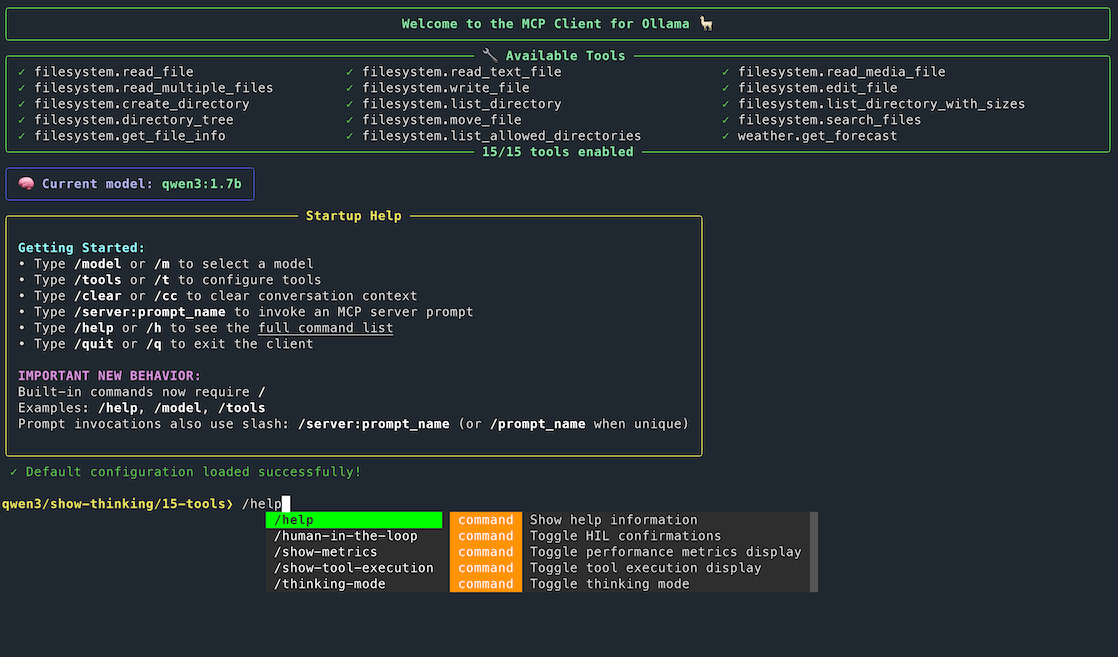
[!IMPORTANT] NEW: Built-in interactive commands now require a leading
/.
- Use
/help,/model,/tools,/prompts, etc.- Bare command names like
helpormodelare no longer executed as commands.- Prompt invocations also use
/, with/server:prompt_namerecommended to avoid collisions.
| Command | Shortcut | Description |
|---|---|---|
abort |
a |
While model is generating, abort the current response generation |
/clear, /new |
/cc |
Clear conversation history and context |
/cls |
/clear-screen |
Clear the terminal screen |
/context |
/c |
Toggle context retention |
/context-info |
/ci |
Display context statistics |
/export-history |
/eh |
Export chat history to a JSON file |
/full-history |
/fh |
Display all conversation history |
/help |
/h |
Display help and available commands |
/import-history |
/ih |
Import chat history from a JSON file |
/human-in-the-loop |
/hil |
Toggle Human-in-the-Loop confirmations for tool execution |
/load-config |
/lc |
Load tool and model configuration from a file |
/loop-limit |
/ll |
Set maximum iterative tool-loop iterations (Agent Mode). Default: 7 |
/model |
/m |
List and select a different Ollama model |
/model-config |
/mc |
Configure advanced model parameters and system prompt |
/display-mode |
/dm |
Choose Plain, Markdown, Both, or Markdown (blocks) answer display modes |
/input-mode |
/im |
Choose Single-line or Multiline chat input mode |
/prompts |
/pr |
Browse and view all available MCP prompts |
…
Releases