
Server · #158 trending MCP repo · ↗ +37 stars this week
Unity-MCP
IvanMurzak/Unity-MCP
AI Skills, MCP Tools, and CLI for Unity Engine. Full AI develop and test loop. Use cli for quick setup. Efficient token usage, advanced tools. Any C# method may be turned into a tool by a single line. Works with Claude Code, Gemini, Copilot, Cursor and any other absolutely for free.
- Stars
- 4.6k
- This week
- +37
- Forks
- 405
- Open issues
- 56
- Skills inside
- 2
Get started
Add it to your agent
claude mcp add ai-game-developer <command>Run in your terminal. Add --scope project to share it with your team through .mcp.json.
codex mcp add unity -- docker run -t -e MCP_PLUGIN_CLIENT_TRANSPORT=stdio -p 8080:8080 aigamedeveloper/mcp-serverSaved to ~/.codex/config.toml.
{
  "mcpServers": {
    "unity": {
      "command": "docker",
      "args": [
        "run",
        "-t",
        "-e",
        "MCP_PLUGIN_CLIENT_TRANSPORT=stdio",
        "-p",
        "8080:8080",
        "aigamedeveloper/mcp-server"
      ]
    }
  }
}Add to ~/.cursor/mcp.json (or .cursor/mcp.json in a project).
{
  "servers": {
    "unity": {
      "type": "stdio",
      "command": "docker",
      "args": [
        "run",
        "-t",
        "-e",
        "MCP_PLUGIN_CLIENT_TRANSPORT=stdio",
        "-p",
        "8080:8080",
        "aigamedeveloper/mcp-server"
      ]
    }
  }
}Add to .vscode/mcp.json, then start it from the MCP view in Copilot Chat.
gemini mcp add ai-game-developer <command>Saved to .gemini/settings.json.
claude mcp add --transport http unity https://ai-game.dev/mcpThe project also runs a hosted endpoint, so you can skip the local install.
Inside this repo
2 skills
Documentation
README
✨ AI Game Developer — Unity SKILLS, MCP










Unity MCP is an AI-powered game development assistant for Editor & Runtime. Connect Claude, Cursor, & Windsurf to Unity via MCP. Automate workflows, generate code, and enable AI within your games.
Unlike other tools, this plugin works inside your compiled game, allowing for real-time AI debugging and player-AI interaction.
💬 Join our Discord Server - Ask questions, showcase your work, and connect with other developers!

- ✔️ AI agents - Use the best agents from Anthropic, OpenAI, Microsoft, or any other provider with no vendor lock-in
- ✔️ Tools - A wide range of default MCP Tools for operating in Unity Editor
- ✔️ Skills - Generate skills for AI based on operating system, Unity version, plugins in the project
- ✔️ Code and Tests - Develop game mechanics and test them with AI agents
- ✔️ Runtime (in-game) - Use LLMs directly inside your compiled game for dynamic NPC behavior or debugging
- ✔️ Debug support - Let AI debug and fix the problems in a project
- ✔️ Natural conversation - Chat with AI like you would with a human
- ✔️ Flexible deployment - Works locally (stdio) and remotely (http) via configuration
- ✔️ Extensible - Create custom Tools in your project code

https://github.com/user-attachments/assets/228baf4d-4f00-4dce-939d-fb985ebdd8dd
OR use cli
# 1. Install unity-mcp-cli
npm install -g unity-mcp-cli

# 2. Install "AI Game Developer" in Unity project
unity-mcp-cli install-plugin ./MyUnityProject

# 3. Sign in to ai-game.dev (opens your browser — OAuth device flow)
unity-mcp-cli login

# 4. Open Unity project (auto-connects and generates skills)
unity-mcp-cli open ./MyUnityProject
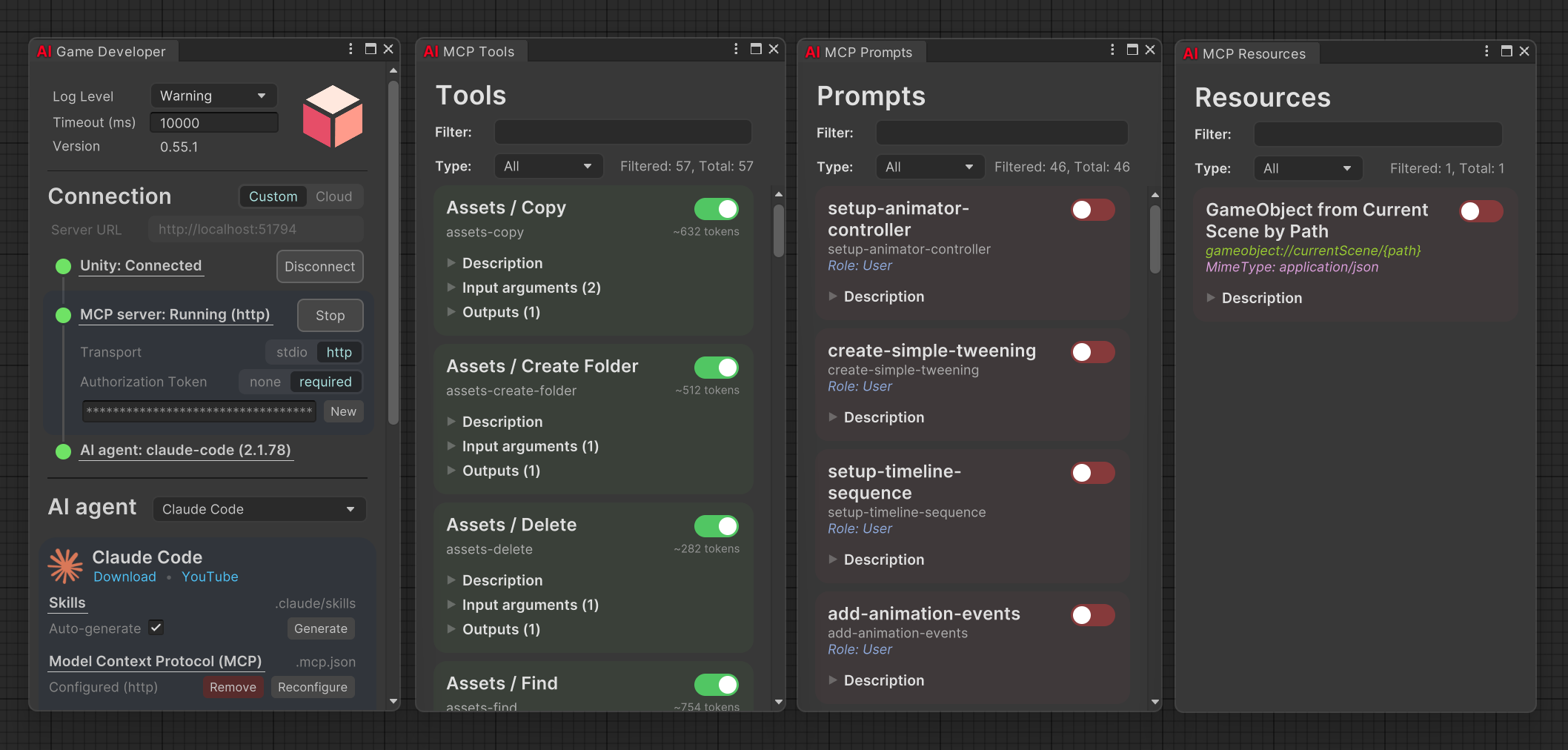

Quick Start
Get up and running in three steps:
- Install plugin — download the
.unitypackageinstaller or runopenupm add com.ivanmurzak.unity.mcpAlternative:
npx unity-mcp-cli install-plugin ./MyUnityProject— see CLI documentation - Pick an AI agent — Claude Code, Claude Desktop, GitHub Copilot, Cursor, or any other
- Setup AI agent — open
Window/AI Game Devin Unity and click Auto-generate skills (recommended) or Configure MCP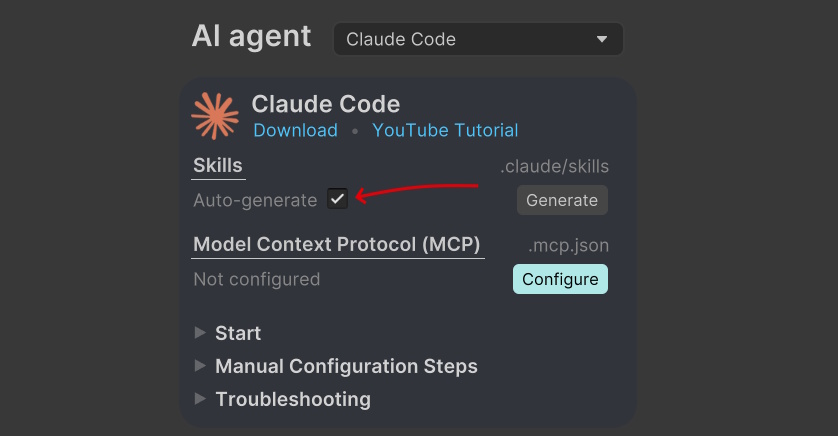
Alternative:
npx unity-mcp-cli setup-skills claude-code ./MyUnityProject— see CLI documentation
That's it. Ask your AI "Create 3 cubes in a circle with radius 2" and watch it happen. ✨
Skills and Tools Reference
Since 1.0.0 the plugin exposes a small set of tools, and most Editor work goes through RQL, a query language over the Editor's data: rql-query reads, rql-mutate changes, and rql-schema describes the sources, types and calls (start there when unsure). The one-tool-per-action tools of earlier versions (gameobject-create, scene-save, console-get-logs and others) were replaced by RQL in #1017. See docs/default-mcp-tools.md for the full reference.
🧰 Browse the full MCP tools registry online: ai-game.dev/docs/tools
Shown to the AI agent by default: rql-query, rql-mutate, rql-schema, screenshot-isolated, script-execute, tests-run, unity-tool-list. The other tools are installed but hidden from the agent's tool list (a hidden tool still runs when called by name). Show them with tool-set-visibility, in the AI Game Developer window, or with unity-mcp-cli configure <path> --enable-tools <ids>.
RQL (scenes, GameObjects, components, assets, console, editor)
rql-query- Read Editor data with an RQL query, e.g.roots | recurse children | select name activerql-mutate- Change Editor data or call Editor operations, e.g.editor | call CreateGameObject({name: "Ground", primitive: "Plane"})rql-schema- Describe the sources, types, members and calls RQL can use, and print the topic guides- Sources:
scenes,roots,objects(every GameObject in the loaded scenes),selection,prefab(the prefab open in prefab mode),editor(create GameObjects, materials, folders and scenes; open and save scenes and prefabs; copy, move and delete assets; execute menu items; …),settings,console(captured Editor log entries),shaders,componentTypes,tests,testResults,profiler,lighting; assets by path withunity.asset("Assets/…")
Screenshots
screenshot-isolated- Render a GameObject in isolation from a chosen angle (optional composite 2x2 view)screenshot-scene-view- Captures a screenshot from the Unity Editor Scene View (hidden by default)screenshot-game-view- Captures a screenshot from the Unity Editor Game View (hidden by default)screenshot-camera- Captures a screenshot from a camera and returns it as an image (hidden by default)
Scripting, tests and packages
script-execute- Compiles and executes C# code dynamically using Roslynscript-read- Reads the content of a script file (hidden by default)script-update-or-create- Updates or creates script file with the provided C# code (hidden by default)script-delete- Delete the script file(s) (hidden by default)tests-run- Execute Unity tests (EditMode/PlayMode): any RQL selection over thetestssource as one run, results filtered with RQLpackage-list,package-search,package-add,package-remove- Unity Package Manager packages (hidden by default)
Tool management
unity-tool-list- List every tool and whether the agent sees ittool-set-visibility- Show or hide tools in the agent's tool list (hidden by default)tool-set-enabled-state- Deprecated alias oftool-set-visibility(hidden by default)
Profiling & Diagnostics
- RQL source
profiler(viarql-query/rql-mutate) - memory, rendering, script and frame snapshots, module flags;Start,Stop,ClearFrames,EnableModule,Save,Load
Lighting
- RQL source
lighting(viarql-query/rql-mutate) - the active scene's environment (ambient, fog, skybox, sun, reflections; undoable), its Lighting Settings asset and the bake:CreateSettings,UseSettings,Bake,CancelBake,ClearBakedData,BakeReflectionProbes LightProbeGroup.PlaceGrid(size, spacing)- fill a box with evenly spaced light probes;ReflectionProbe.Bake()- bake a Custom probe next to its scene
Install Additional Skills and Tools
Install extensions when need more tools or create your own tools.
| Extension | Description |
|---|---|
| AI Animation | Set of additional tools for Unity Animations |
| AI Cinemachine | MCP Tools for Cinemachine |
| AI InputSystem | MCP Tools for the Unity Input System |
| AI Navigation | MCP Tools for AI Navigation (NavMesh surfaces, baking, agents, links) |
| AI ParticleSystem | Set of additional tools for Unity Particle System |
| AI ProBuilder | Set of additional tools for Unity ProBuilder |
| AI Splines | MCP Tools for Unity Splines |
| AI Terrain | Set of additional tools for Unity Terrain |
| AI Tilemap | MCP Tools for Unity 2D Tilemaps |
| AI Timeline | MCP Tools for Unity Timeline cutscenes and sequences |
Contents
- Quick Start
- Skills and Tools Reference
- Contents
- Installation
- AI Workflow Examples
- Customize Tools
- Runtime usage (in-game)
- Unity
MCP Serversetup - How Unity MCP Architecture Works
- Contribution 💙💛
More Documentation
| Document | Description |
|---|---|
| Default MCP Tools | Full reference of all built-in tools with descriptions |
| MCP Server Setup | Server configuration, environment variables, remote hosting |
| Docker Deployment | Step-by-step Docker deployment guide |
| Development Guide | Architecture, code style, CI/CD — for contributors |
| Wiki | Getting started, tutorials, API reference, FAQ |
| CLI Tool | Install plugins, configure, and connect via command line |
Installation
Step 1: Install Unity MCP Plugin
⚠️ Requirements (click)
[!IMPORTANT] Project path cannot contain spaces
- ✅
C:/MyProjects/MyProject- ❌
C:/My Projects/MyProject- ❌
C:/My Projects/My Project- ❌
C:/MyProjects/My Project
Option 1 - Installer
- ⬇️ Download Installer
- 📂 Import installer into Unity project
- You can double-click on the file - Unity will open it automatically
- OR: Open Unity Editor first, then click on
Assets/Import Package/Custom Package, and choose the file
Option 2 - CLI (recommended)
Install the plugin via unity-mcp-cli — no Unity Editor needed:
# 1.1 Install unity-mcp-cli                                #  ┌────────────────────┐
npm install -g unity-mcp-cli                               #  │ Available AI agent │
                                                           #  ├────────────────────┤
# 1.2 (Optional) Install Unity                             #  │ antigravity        │
unity-mcp-cli install-unity                                #  │ claude-code        │
                                                           #  │ claude-desktop     │
# 1.3 (Optional) Create Unity project                      #  │ cline              │
unity-mcp-cli create-project ./MyUnityProject              #  │ codex              │
                                                           #  │ cursor             │
# 2. Install "AI Game Developer" in Unity project          #  │ gemini             │
unity-mcp-cli install-plugin ./MyUnityProject              #  │ github-copilot-cli │
                                                           #  │ kilo-code          │
# 3. Sign in to ai-game.dev (OAuth device flow)            #  │ open-code          │
unity-mcp-cli login                                        #  │ rider-junie        │
                                                           #  │ unity-ai           │
# 4. Open Unity project (auto-connects and generates skills)  │ vs-copilot         │
unity-mcp-cli open ./MyUnityProject                        #  │ vscode-copilot     │
                                                           #  └────────────────────┘
# 5. Wait for Unity Editor to be ready
unity-mcp-cli wait-for-ready ./MyUnityProject
See full CLI documentation for all available commands.
Cloud sign-in & project pinning:
unity-mcp-cli loginruns the browser OAuth device flow and stores the credential in the shared machine store (~/.ai-game-dev/credentials.json) — there is no personal access token to paste. By default the AI-agent config thatsetup-mcpwrites points at a per-project pinned endpoint (https://ai-game.dev/mcp/p/<pin>); pass--no-pinto use the sharedhttps://ai-game.dev/mcpendpoint instead. Teams can distribute access with an enrollment code:unity-mcp-cli install-plugin --enroll <code>.
Step 2: Install AI agent
Choose a single AI agent you prefer - you don't need to install all of them. This will be your main chat window to communicate with the LLM.
- Claude Code (recommended)
- Claude Desktop
- GitHub Copilot in VS Code
- Antigravity
- Cursor
- Windsurf
- Any other supported
The AI Game Developer is quite universal, which is why you may use any AI agent you prefer - it will work as smoothly as any other. The only important requirement is that the AI agent must support Skills or dynamic MCP Tool updates.
Step 3: Configure AI agent
Automatic configuration
- Open Unity project
- Open
Window/AI Game Dev - Option 1: Click
Auto-generateSkills (recommended) - Option 2: Click
ConfigureModel Context Protocol (MCP)

If your MCP client is not in the list, use the raw JSON shown in the window to inject it into your MCP client. Read the instructions for your specific MCP client on how to do this.
Manual configuration
If automatic configuration doesn't work for you for any reason, use the JSON from the AI Game Developer (Unity-MCP) window to configure any MCP Client manually.
Command line configuration
Create command
1. Choose your <command> for your environment
| Platform | <command> |
|---|---|
| Windows x64 | "<unityProjectPath>/Library/mcp-server/win-x64/gamedev-mcp-server.exe" port=<port> client-transport=stdio |
| Windows x86 | "<unityProjectPath>/Library/mcp-server/win-x86/gamedev-mcp-server.exe" port=<port> client-transport=stdio |
| Windows arm64 | "<unityProjectPath>/Library/mcp-server/win-arm64/gamedev-mcp-server.exe" port=<port> client-transport=stdio |
| MacOS Apple-Silicon | "<unityProjectPath>/Library/mcp-server/osx-arm64/gamedev-mcp-server" port=<port> client-transport=stdio |
| MacOS Apple-Intel | "<unityProjectPath>/Library/mcp-server/osx-x64/gamedev-mcp-server" port=<port> client-transport=stdio |
| Linux x64 | "<unityProjectPath>/Library/mcp-server/linux-x64/gamedev-mcp-server" port=<port> client-transport=stdio |
| Linux arm64 | "<unityProjectPath>/Library/mcp-server/linux-arm64/gamedev-mcp-server" port=<port> client-transport=stdio |
2. Replace <unityProjectPath> with the full path to Unity project
3. Replace <port> with your port from AI Game Developer configuration
4. Add MCP server using command line
 Gemini CLI
gemini mcp add ai-game-developer <command>
Replace
<command>from the table above
 Claude Code CLI
claude mcp add ai-game-developer <command>
Replace
<command>from the table above
 GitHub Copilot CLI
copilot
/mcp add
Server name: ai-game-developer
Server type: local
Command: <command>
Replace
<command>from the table above
AI Workflow Examples
Communicate with the AI (LLM) in your AI agent. Ask it to do anything you want. The better you describe your task or idea, the better it will perform the job.
Some AI agents allow you to choose different LLM models. Pay attention to this feature, as some models may work much better than others.
Example prompts:
Explain my scene hierarchy
Create 3 spheres on top of each other
Create metallic golden material and attach it to a new sphere gameObject
Make sure
Agentmode is enabled if using VS Code with Copilot
Disabling update notifications for the whole team
The plugin shows an update popup at Editor startup when a newer version is available on OpenUPM. By default, each team member sees this popup until they individually click "Do not show again" (which is a per-user setting stored on their machine).
For multi-person Unity projects where one engineer owns plugin versioning, you can disable the popup for the entire team by opening Edit ▸ Project Settings ▸ AI Game Developer and enabling "Disable update notifications for the entire team". The setting is persisted to ProjectSettings/AI-Game-Developer-UpdateSettings.asset and only needs to be set once per project — commit that file and every team member who pulls the commit will have the popup suppressed.
The same toggle is also reachable via Tools ▸ AI Game Developer ▸ Updates ▸ Disable Update Notifications (Team) in the menu bar.
Advanced Features for LLM
Unity MCP provides advanced tools that enable the LLM to work faster and more effectively, avoiding mistakes and self-correcting when errors occur. Everything is designed to achieve your goals efficiently.
Core Capabilities
- ✔️ Agent-ready tools - Find anything you need in 1-2 steps
- ✔️ Instant compilation - C# code compilation & execution using
Roslynfor faster iteration - ✔️ Full asset access - Read/write access to assets and C# scripts
- ✔️ Intelligent feedback - Well-described positive and negative feedback for proper issue understanding
Reflection-Powered Features
- ✔️ Object references - Provide references to existing objects for instant C# code
- ✔️ Project data access - Get full access to entire project data in a readable format
- ✔️ Granular modifications - Populate & modify any piece of data in the project
- ✔️ Method discovery - Find any method in the entire codebase, including compiled DLL files
- ✔️ Method execution - Call any method in the entire codebase
- ✔️ Advanced parameters - Provide any property for method calls, even references to existing objects in memory
- ✔️ Live Unity API - Unity API instantly available - even when Unity changes, you get the fresh API
- ✔️ Self-documenting - Access human-readable descriptions of any
class,method, orpropertyviaDescriptionattributes
Customize Tools
Unity MCP supports custom MCP Tool, MCP Resource, and MCP Prompt development by project owners. The MCP server takes data from the Unity MCP Plugin and exposes it to a client. Anyone in the MCP communication chain will receive information about new MCP features, which the LLM may decide to use at some point.
Add custom Tool
To add a custom Tool, you need:
- A class with the
AiToolTypeattribute - A method in the class with the
AiToolattribute - Optional: Add a
Descriptionattribute to each method argument to help the LLM understand it - Optional: Use
string? optional = nullproperties with?and default values to mark them asoptionalfor the LLM
Note that the line
MainThread.Instance.Run(() =>allows you to run code on the main thread, which is required for interacting with Unity's API. If you don't need this and running the tool in a background thread is acceptable, avoid using the main thread for efficiency purposes.
[AiToolType]
public class Tool_GameObject
{
    [AiTool
    (
        "MyCustomTask",
        Title = "Create a new GameObject"
    )]
    [Description("Explain here to LLM what is this, when it should be called.")]
    public string CustomTask
    (
        [Description("Explain to LLM what is this.")]
        string inputData
    )
    {
        // do anything in background thread

        return MainThread.Instance.Run(() =>
        {
            // do something in main thread if needed

            return $"[Success] Operation completed.";
        });
    }
}
Add custom MCP Prompt
MCP Prompt allows you to inject custom prompts into the conversation with the LLM. It supports two sender roles: User and Assistant. This is a quick way to instruct the LLM to perform specific tasks. You can generate prompts using custom data, providing lists or any other relevant information.
[AiPromptType]
public static class Prompt_ScriptingCode
{
    [AiPrompt(Name = "add-event-system", Role = Role.User)]
    [Description("Implement UnityEvent-based communication system between GameObjects.")]
    public string AddEventSystem()
    {
        return "Create event system using UnityEvents, UnityActions, or custom event delegates for decoupled communication between game systems and components.";
    }
}
Runtime usage (in-game)
Use Unity MCP in your game/app. Use Tools, Resources or Prompts. By default there are no tools, you would need to implement your custom.
// Build MCP plugin
var mcpPlugin = UnityMcpPluginRuntime.Initialize(builder =>
    {
        builder.WithConfig(config =>
        {
            config.Host = "http://localhost:8080";
            config.Token = "your-token";
        });
        // Automatically register all tools from the current assembly
        builder.WithToolsFromAssembly(Assembly.GetExecutingAssembly());
    })
    .Build();

await mcpPlugin.Connect(); // Start active connection with retry to the MCP server

await mcpPlugin.Disconnect(); // Stop active connection and close existed connection
Sample: AI powered Chess game bot
There is a classic Chess game. Lets outsource to LLM the bot logic. Bot should do the turn using game rules.
Mark game-only tools [AiToolType(Target = ToolTarget.Runtime)] (using com.IvanMurzak.McpPlugin.Common;): only the game registers them, and the MCP server sends their calls to the running game even while the Editor is connected.
[AiToolType(Target = ToolTarget.Runtime)]
public static class ChessGameAI
{
    [AiTool("chess-do-turn", Title = "Do the turn")]
    [Description("Do the turn in the chess game. Returns true if the turn was accepted, false otherwise.")]
    public static Task<bool> DoTurn(int figureId, Vector2Int position)
    {
        return MainThread.Instance.RunAsync(() => ChessGameController.Instance.DoTurn(figureId, position));
    }

    [AiTool("chess-get-board", Title = "Get the board")]
    [Description("Get the current state of the chess board.")]
    public static Task<BoardData> GetBoard()
    {
        return MainThread.Instance.RunAsync(() => ChessGameController.Instance.GetBoardData());
    }
}
Why runtime usage is needed?
There are many use cases, lets imagine you are working on a Chess game with bot. You may outsource the bot decision making to LLM by writing few lines of code.
Unity MCP Server setup
Unity MCP Server supports many different launch options and Docker deployment. Both transport protocols are supported: streamableHttp and stdio
…
Releases