
Server · #369 trending MCP repo
Iv Studio
hollisorg/iv-studio
Free, open-source AI film studio on your own PC. Recurring characters, MiniMax H3 and Seedance shots, voices, music, a short-film wizard and a real editor, on your ComfyUI or your own cloud GPU. Windows, Mac and Linux, with 214 MCP tools so Claude Code, Codex or Hermes can run it.
- Stars
- 103
- This week
- +0
- Forks
- 21
- Open issues
- 1
- Skills inside
- 1
Get started
Add it to your agent
claude mcp add iv-studio -e ELECTRON_RUN_AS_NODE=1 -- "<checkout>\node_modules\electron\dist\electron.exe" "<checkout>\out\main\mcp.js"From the project README.
Documentation
README
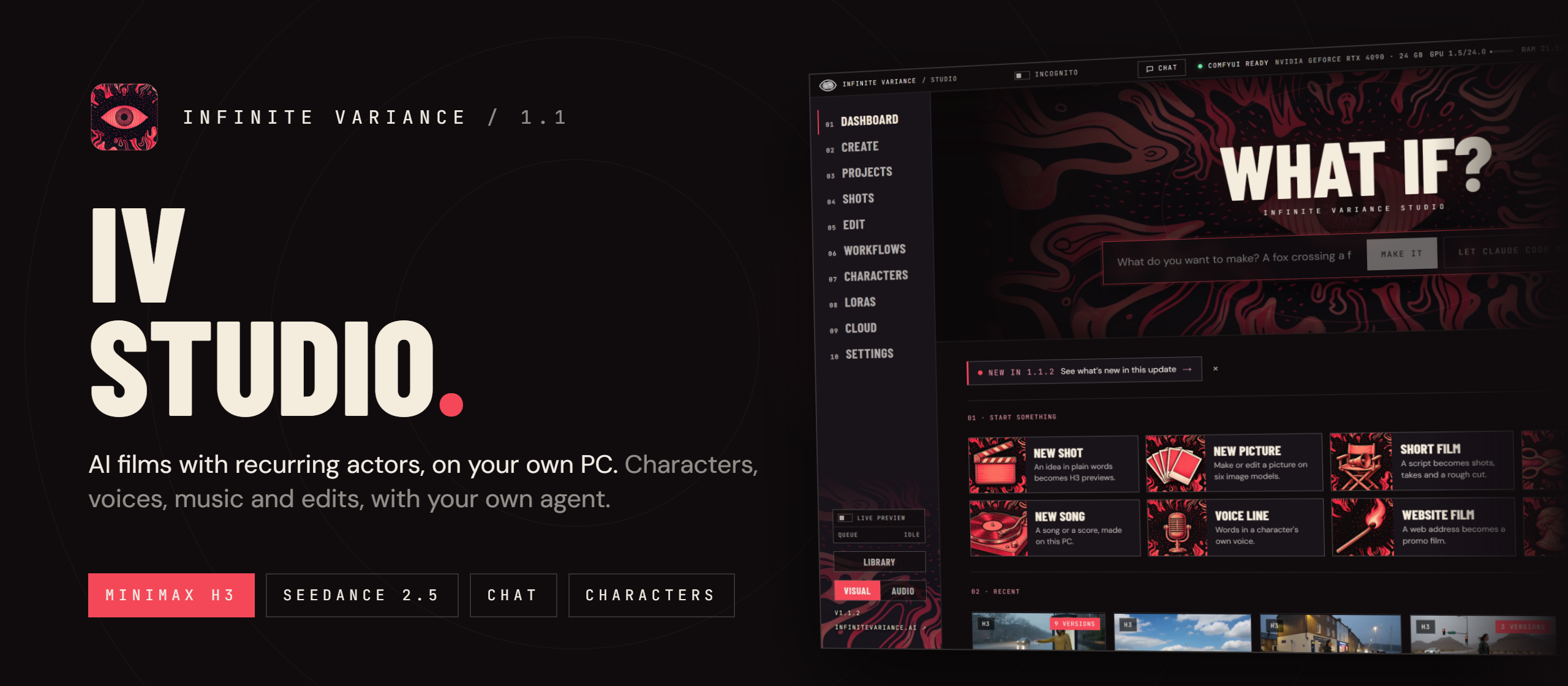
Download for Windows · Mac (Apple Silicon) · Mac (Intel) · Linux (AppImage) · What you need · Release notes · Infinite Variance
IV Studio
A free Infinite Variance desktop app for making short films with MiniMax H3 on your own PC. Give a recurring actor a face and a voice, write a shot, hunt a few quick previews and finish the best one at full size. Make pictures, songs and spoken lines, cut it all together and export. IV Studio drives your own ComfyUI; nothing leaves your machine unless you choose the cloud. No strong graphics card? Shots can also render on a GPU in your own RunPod or Modal account, billed by the second, or on Comfy Cloud (see Cloud).
IV Studio 1.1.7 opens on a simpler welcome that asks how much you already know and keeps things short if you're new, shows a picture for every one of the 165 Cinematography setups, lets Hermes write your prompts, and opens Create's examples and staging board as pop-ups. 1.1.6 lets you name your agent (and tell it your name), pick a colour for the whole app (red, blue, purple, orange or a dark grey), and gives the editor's cut tool a red katana.
IV Studio 1.1.4 adds Hermes to the chat beside Claude Code and Codex, and a History tab for earlier
conversations. The IV Studio plugin for Hermes works the other way
round: Hermes's own video_generate and image_generate render in IV Studio, on your GPU, for free.
IV Studio 1.1.3 lets you talk to the chat (it hears you with IV Studio's own speech recognition, on your PC) and read its replies aloud, shows every agent's work in an Activity log with Undo, gives the chat a cleaner look and its own window, and tells it more about what you're looking at.
IV Studio 1.1 brings your own Claude Code or Codex into the app as a chat that can make, edit and fix things for you, MiniMax H3 Image and Seedance 2.5 beside MiniMax H3, effects for any clip, nearly every feature on your own RunPod or Modal, speed presets for smaller graphics cards, and a new look that fits any window. See what's new in 1.1.
IV Studio is Powered by MiniMax H3. Using H3 through it means agreeing to the IV Studio terms of use, which carry MiniMax's use restrictions: IV Studio asks once, before your first H3 render. To report misuse, email abuse@infinitevariance.ai.
What's new in 1.1
Your own Claude Code, Codex or Hermes, inside IV Studio
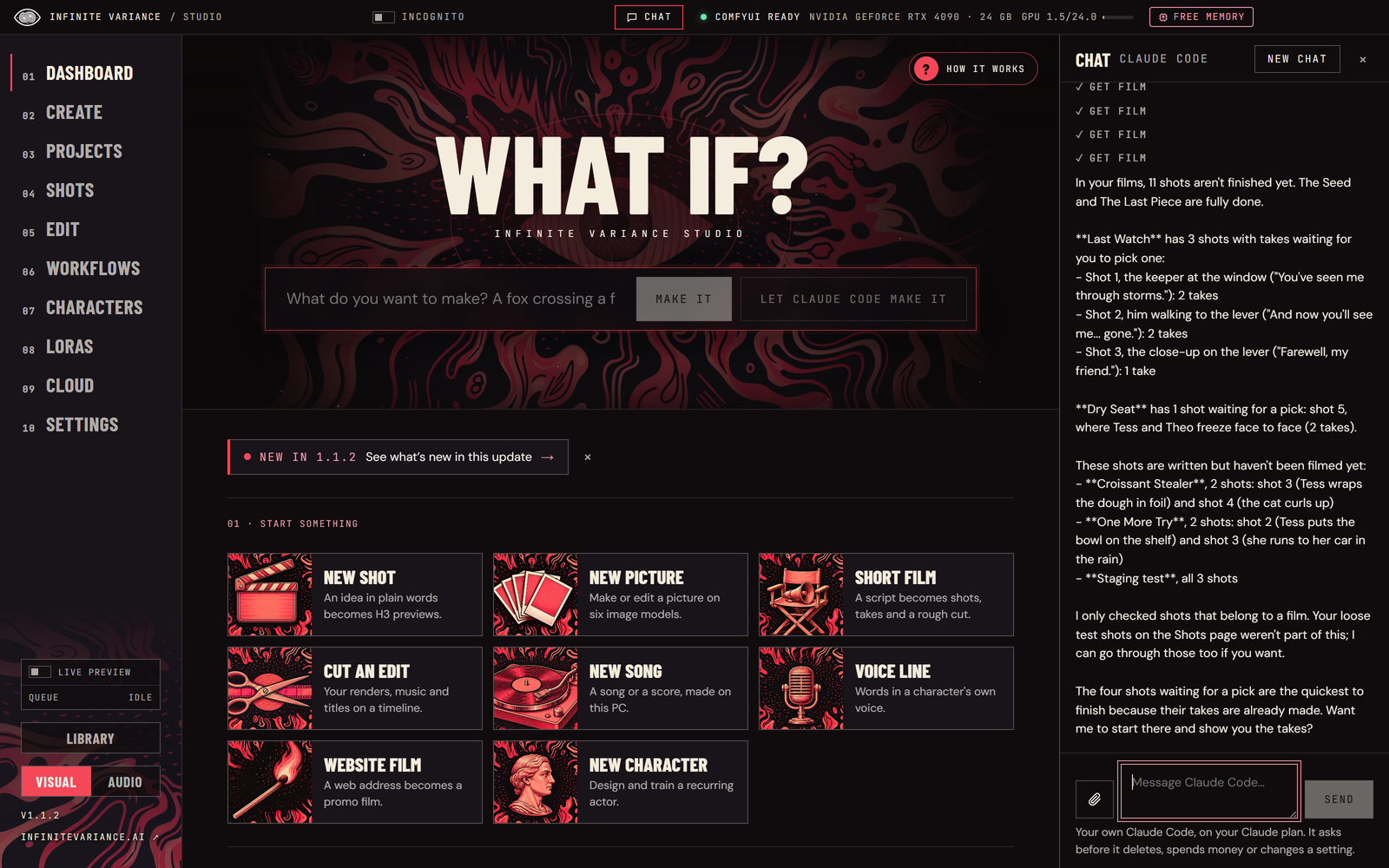
- Chat. The Chat button in the title bar opens a conversation with your own Claude Code, Codex or Hermes, on your own plan, with every IV Studio tool: it can look things up, write and render shots, sequence, edit, make music and voices, and answer questions about your projects. It knows which page you're on and which shot, film or edit is open. Anything that deletes, costs money, installs or changes a setting shows an Allow / Don't allow card first. Conversations are kept: the History tab (1.1.4) lists them, newest first, with which agent and when, and opening one carries on where you left off. On a wide window the chat sits beside the page; on a smaller one it slides over it. Works on Windows, Mac and Linux.
- Hermes (1.1.4). Pick Hermes beside Claude Code and Codex and your own
Hermes Agent works in the chat, on the model you chose in Hermes. IV Studio
talks to it through Hermes's Agent Client Protocol server (
hermes-acp, found where Hermes's installer puts it), gives the session IV Studio's tools, and resumes the same Hermes session for each message. Anything Hermes asks approval to run outside IV Studio (a shell command, a file edit) is declined and shown as a declined step. - Talk to it (1.1.3). Press the mic in the chat, say what you want and press send. IV Studio's own Whisper writes it down on your PC (Audio → Voices → Set up voices once). Talking while the agent works stops its answer and sends your new words; renders it already started keep going. The speaker button reads each reply aloud in one of your voices (the first one takes a while as the voice loads; after that a few seconds).
- Its own window (1.1.3). The arrow in the chat's header opens it in a window of its own: keep it on top while you work, and put it back in the app when you're done. It still knows what's open in the main window, and its links open things there.
- What it can see (1.1.3). Besides the page, each message tells the agent what you picked on it (a shot's version, the clip and playhead in the editor, the item open in the Library, how Create is set up), what's rendering or waiting, and the last render that failed in the past half hour.
- Activity (1.1.3). The chat's Activity tab lists everything agents did in IV Studio: the chat, Dashboard ideas,
and Claude Desktop, Codex, Claude Code or Hermes using IV Studio's MCP server from outside, each by name. Steps that
change something, spend or fail are kept for 30 days (looking things up isn't), with a link to what they made and
Undo this change for any agent's change to an edit. Agents can read it too (
list_activity). - Working memory (1.1.3). The chat's header shows how full the agent's context window is (exact for Claude Code; estimated for Codex from its usage) and, when clicked, the chat's tokens. A note shows when the agent summarizes earlier messages to make room. Your plan's 5-hour and weekly limits aren't shared with apps, so they aren't shown.
- Ask about this. Buttons around the app hand the chat a question: Ask … to fix it on a failed render (with IV Studio's own explanation), Ask … on any run and Ask … to pick the best take on the Shot page, and Ask … about this in the Library viewer.
- Drop files in. Drop pictures, videos, sound or a script onto the chat, or use its paperclip. The agent can look at a picture or a moment of a video, and use the files as a first frame, a reference, a song or a script.
- Show me where. Ask "where do I train a character?" and IV Studio goes to the right page and lights up the right button, with the agent's words beside it.
- Edit by talking. On an open edit, press Ask … and say "tighten the middle", "add a song under it" or "put captions on". Captions are new: Whisper hears each spoken clip and the words go on as short lines at the bottom, timed across the clip (silent clips are left alone). Every change the agent makes gets an Undo this change in the chat, even when the edit isn't open, and an open edit shows the change at once.
- Recipes. When something works, say "save this as a recipe". It becomes a button on the Dashboard that asks the chat for the same thing again, written so it works another day.
- Overnight batches. "Make 10 variations of this idea overnight, three takes each": the agent writes each variation and queues them on your PC (free, up to 12). IV Studio keeps the PC from sleeping, ranks the takes as they finish, and leaves a report in the chat with the best ones to open.
- A short film in one conversation. Make one with … on Projects: the agent takes an idea through script, cast, storyboard, shots and rough cut, and stops for your OK at each step. It only starts filming after you approve the storyboard.
- A spending limit. Settings → Agents: let the chat spend Comfy.org credits without asking, up to a daily amount and an amount per step (off unless you turn it on). Each paid step shows what it spent and how much of today's limit is used. Renders on your cloud GPU, training and anything without a known price always ask. Seedance now works from the chat too.
- Let Claude Code make it. On the Dashboard, a button beside Make it hands your idea to your own agent: it writes the prompt and renders the previews on this PC, with its steps in a panel and a Stop button. It never deletes, installs or spends.
- Install them from IV Studio. The welcome asks which agent you use (Claude Code, Codex or Hermes) and what to call it, and Settings → Agents can install Claude Code or Codex with its maker's own installer and open its sign-in.
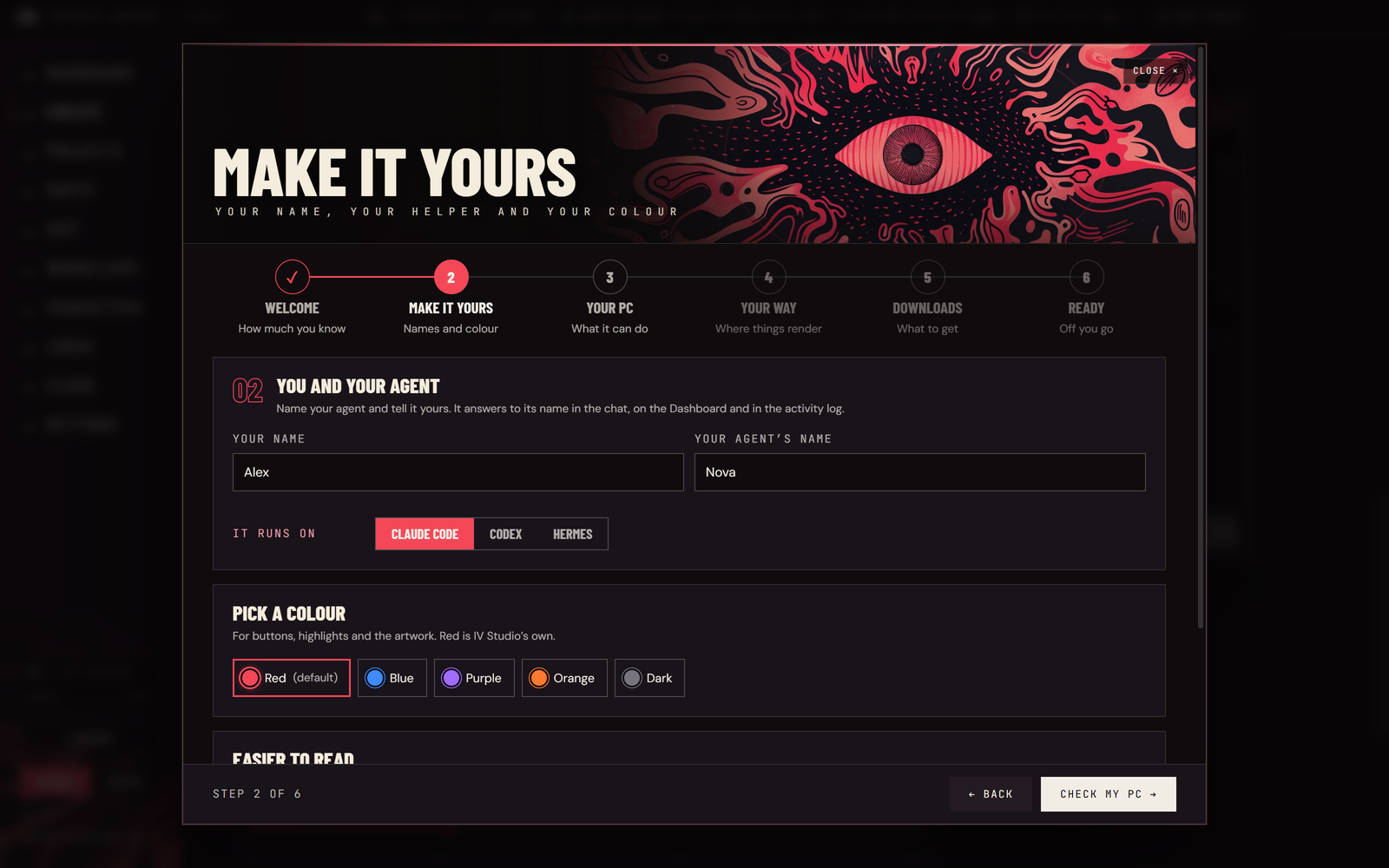
- Your agent's name (1.1.6). Name your agent and tell it yours, in the welcome or Settings → You and your agent. It answers to that name in the chat, on the Dashboard ("Let Nova make it") and in the activity log.
Make more
- MiniMax H3 Image. A new picture model in Create → Image: big, detailed pictures at 4, 8 or 16 MP that follow long descriptions closely, with MiniMax's own prompt tips beside the box. It needs ComfyUI 0.45 or newer and a 22 GB download (Settings → Setup). New pictures are clean; edits with the int8 download come out over-sharpened for now.
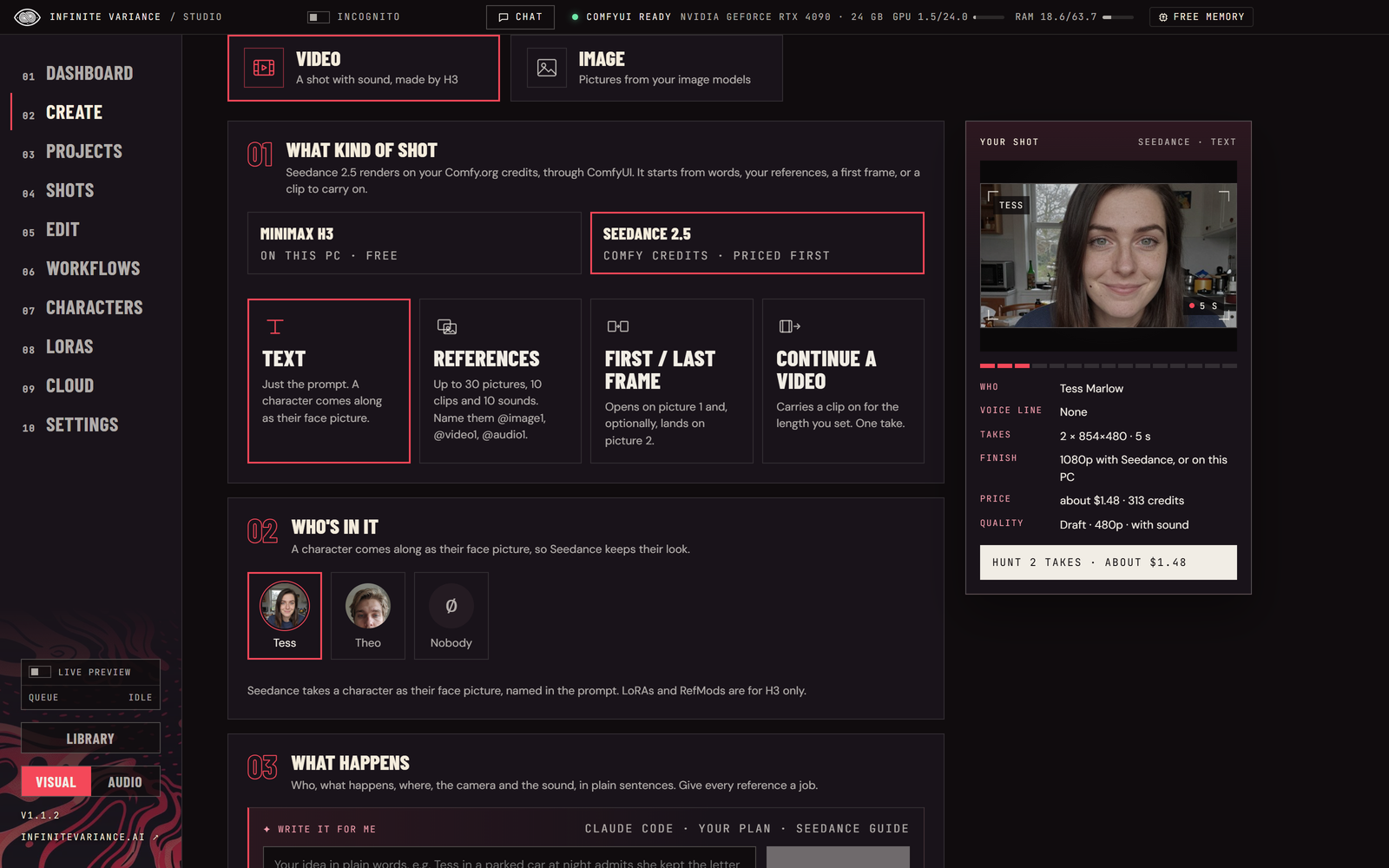
- Seedance 2.5 in Create. A model switch beside MiniMax H3: the same shots on ByteDance's Seedance 2.5, through ComfyUI's partner nodes, on your Comfy.org credits. Cheap 480p drafts to try ideas, or 720p and 1080p takes, 4 to 30 seconds. The price shows on the button and you confirm before anything is charged. Write it for me writes for Seedance from a Seedance 2.5 prompt guide.
- Your Comfy account. Settings → Comfy account holds your Comfy.org key and shows your credits, also in the title bar. Anything paid is priced first, from ComfyUI's own prices, and needs your OK.
- Free finishes for Seedance takes. Finish a draft on your own graphics card: SeedVR2 (cleanest), DLSS 5 (quickest), or H3 redrawing it at full size followed by DLSS 5 or SeedVR2.
- Upscaler strength. DLSS 5 has a strength and a look (Default, Natural, Cinematic), SeedVR2 an extra-detail slider and H3's redraw a strength, in the Finish dialog and in Enhance.
- Effects on any clip. Right-click a clip in the editor → Effects…: Dub (new words in any language, with new lip movement), Clean plate, Day to night, Add water, SDR to HDR, Remove background and Smooth or slow motion. The result takes the clip's place, and Undo brings it back. Built on Freefield's apps (MIT).
- Effects, Sounds and picture tools. Workflows → Effects turns a photo into an effect clip, a transformation or a transition. Audio → Sounds makes sound effects, ambiences, one-shots and loops with Stable Audio 3. Create → Image → Tools inpaints (paint over a part and describe it), relights, removes backgrounds, upscales and makes depth or normal maps.
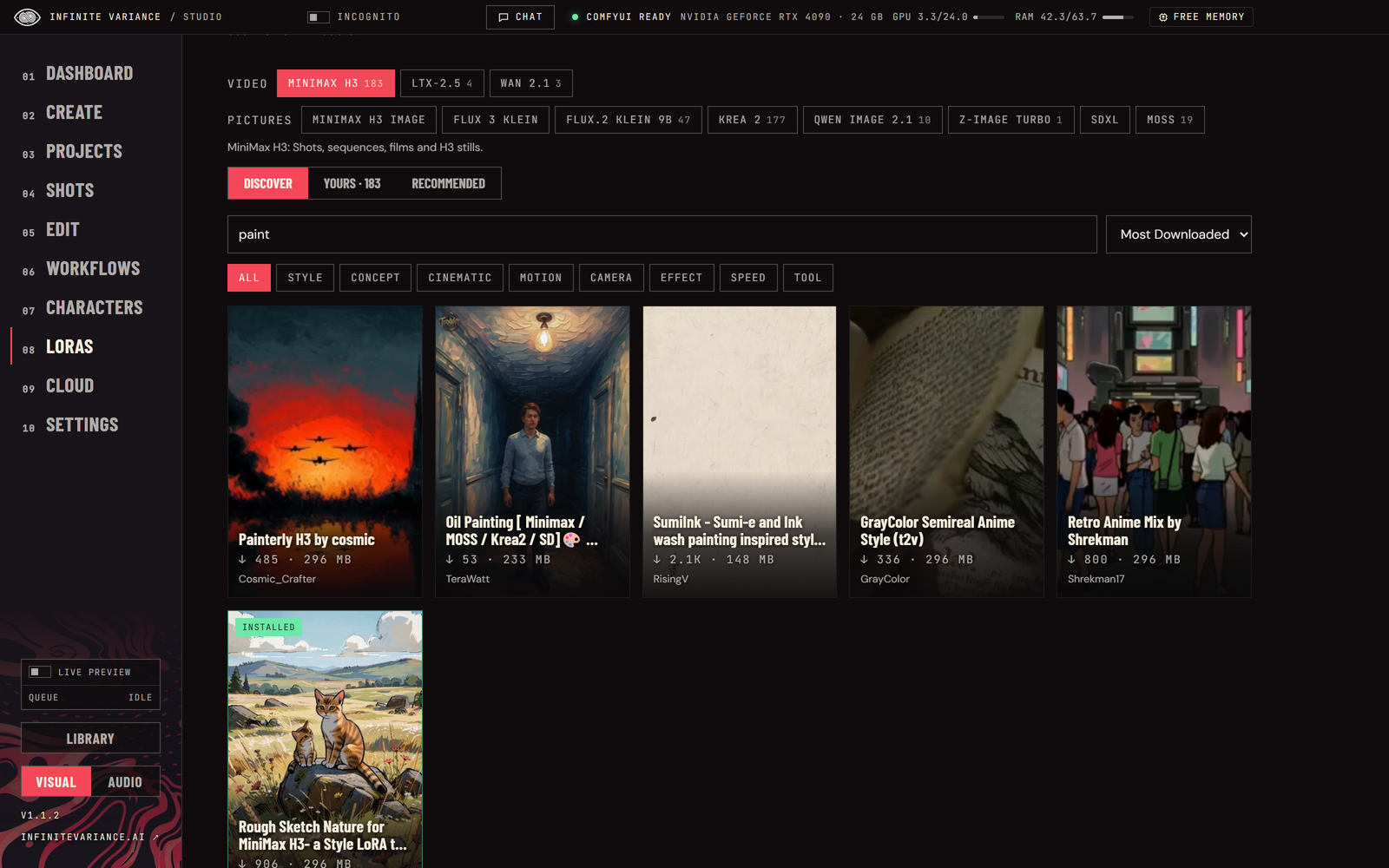
- LoRAs for every model. The LoRAs page and every LoRA picker cover MiniMax H3, LTX-2.5, Wan 2.1, Flux 3 Klein, Flux.2 Klein, Krea 2, Qwen Image 2.1, Z-Image Turbo, SDXL (with Pony and Illustrious) and Moss: find a model's LoRAs on Civitai, see yours sorted by model, and send one to that model's tray. A LoRA IV Studio can't place can be assigned by hand.
- Start from an example. Create's Start from an example button opens six ready-made shots in a pop-up; each fills in a working prompt. The welcome wizard's Make your first shot opens the first one ready to hunt.
- Speed presets. Quality, Balanced, Fast and Low memory trade picture size and steps for time and memory. Check my PC picks the one that suits your card; every preset fits a 12 GB card, the 2 MP finish too.
- How long, and what it costs. Hunt and Finish say how long they'll take on your machine, worked out from your own earlier renders, and what a cloud render will cost.
- Failed renders in plain words. Out of memory, a missing model or node pack, a full drive, credits and more are explained with a button for the fix. ComfyUI's own message is still under Details.
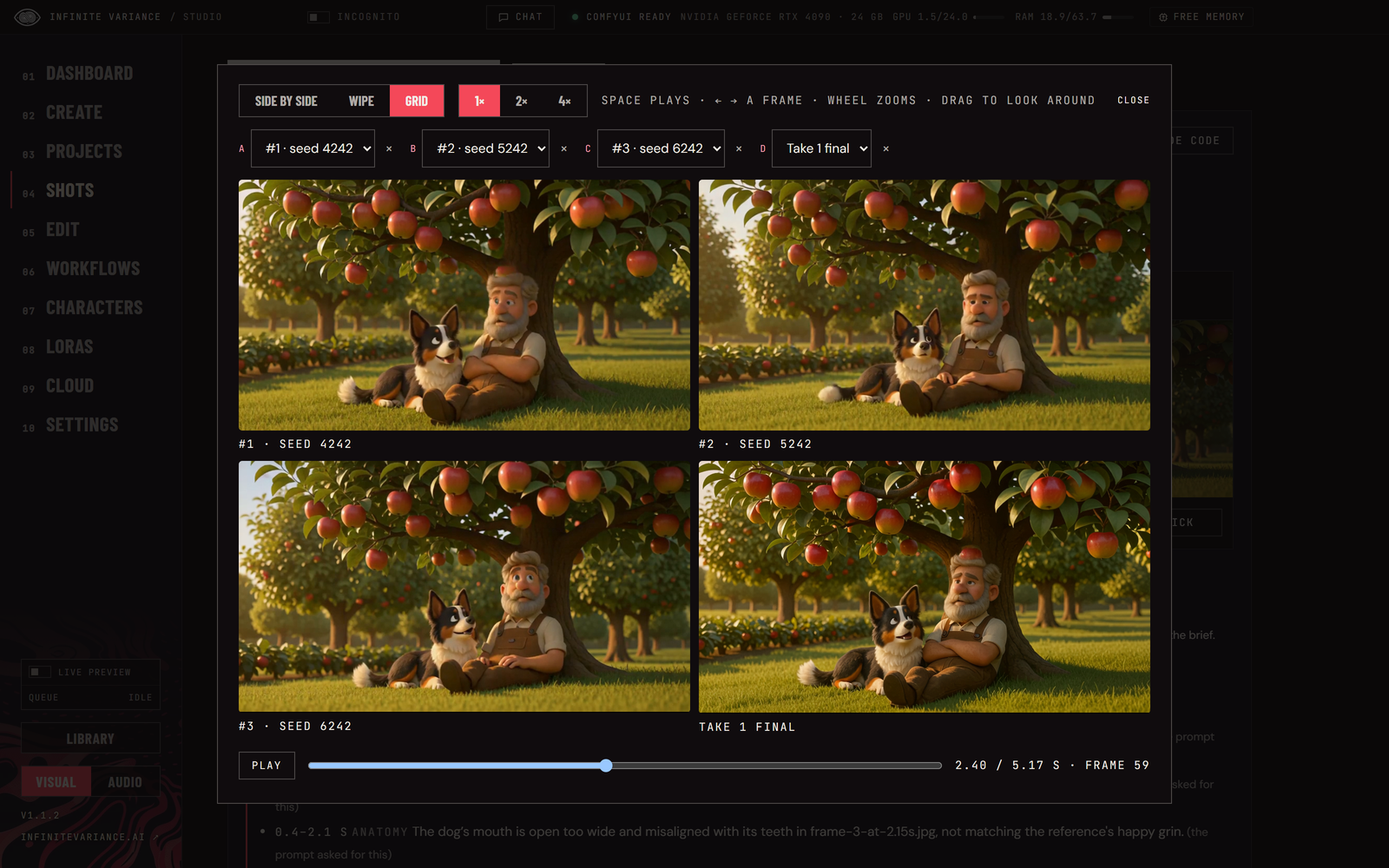
- Compare and finish. Mark up to four takes, finals or enhanced copies and play them in sync, side by side, as a wipe or in a grid, zoomed in on the same spot. Picking a take opens the Finish settings over the page, and every finished version sits in one card.
- Library details. Open any render to see how it was made: model, size, length, seed, character, LoRAs, how it was finished and enhanced, render time, cost and the prompt (with Copy). Tiles show size, length and model; search finds words in prompts.
- An end card, if you want one. The editor can add a "Made with IV Studio" end card to an export (Edit settings → End card), off unless you turn it on, and each export shape says where it fits.
 |
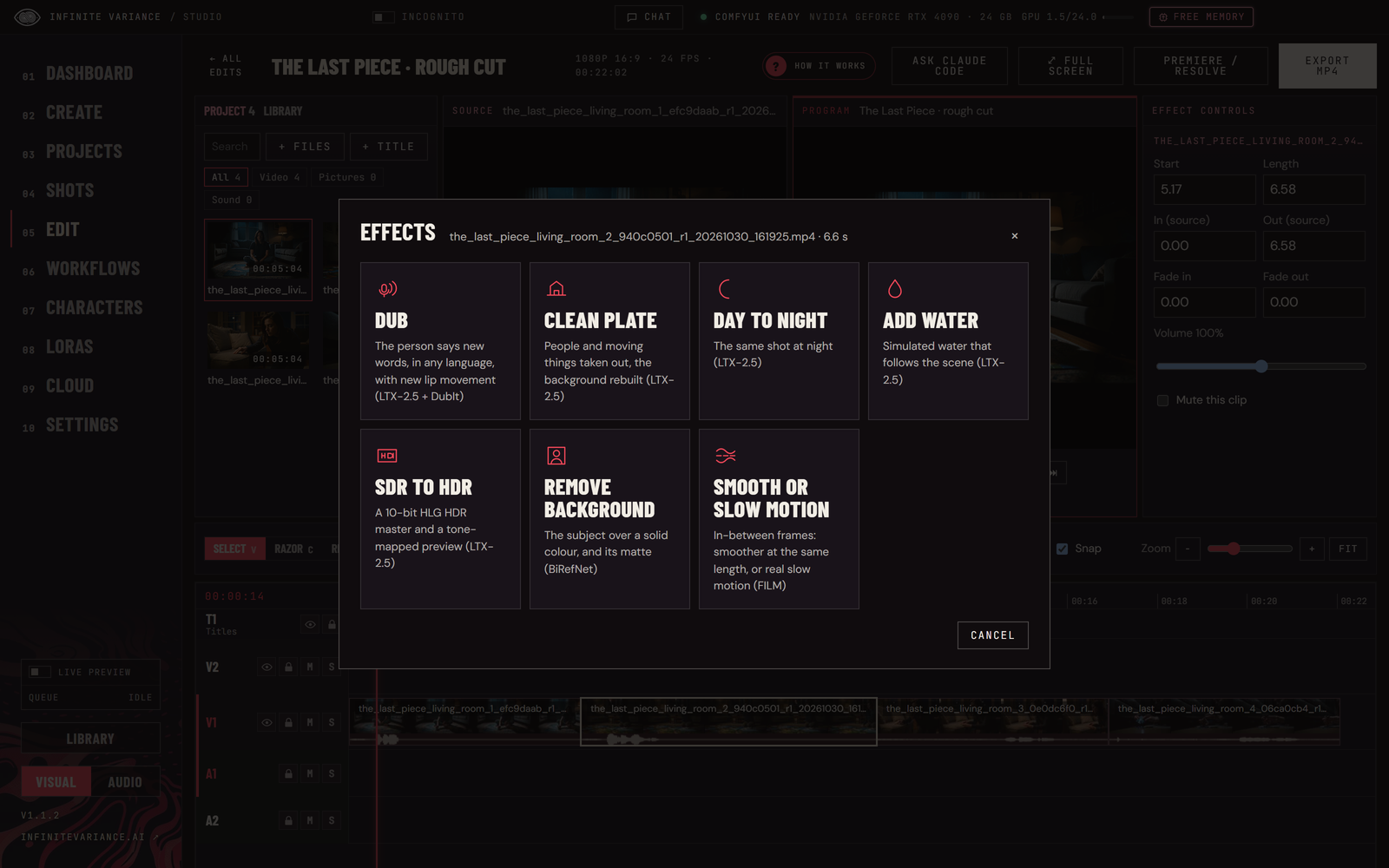 |
| Seedance 2.5 beside MiniMax H3, priced before you hunt | Right-click a clip for Effects |
 |
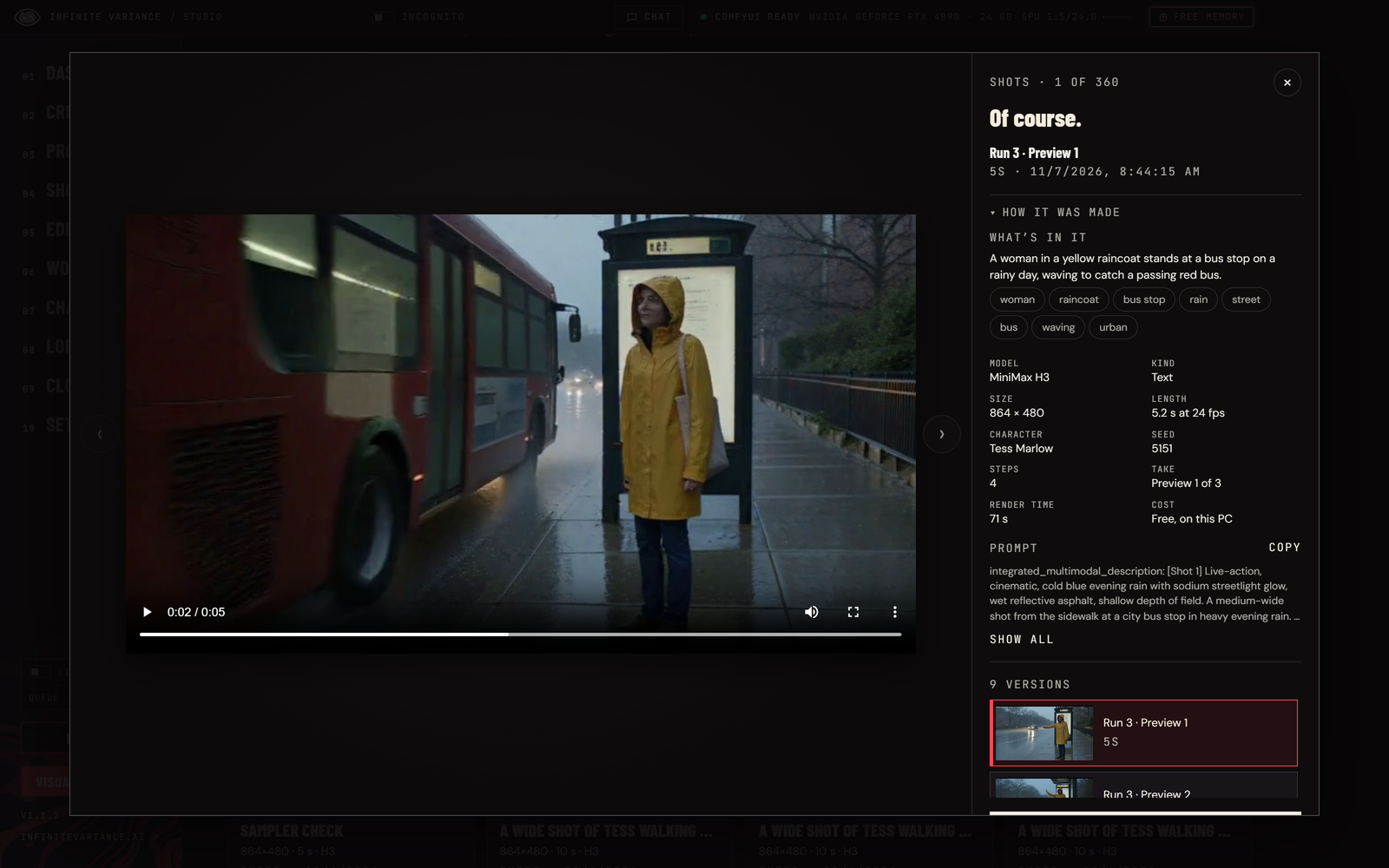 |
| Compare up to four versions in sync | Every render says how it was made |
Catch problems sooner, finish anywhere
- Takes that cut away. H3 sometimes cuts to a close-up nobody asked for in the middle of a one-shot take. The take card now says "cuts away at 2.4 s", the take scores lower, and Use 0.0 to 2.4 s keeps the part before (or after) the cut in an edit; Carry on from it starts a Continue shot from that part, cut to H3's frame grid. Only hard cuts are caught, not slow dissolves.
- First and last frames held. In First / last frame mode each take says whether it really opens on your first picture and ends on your last.
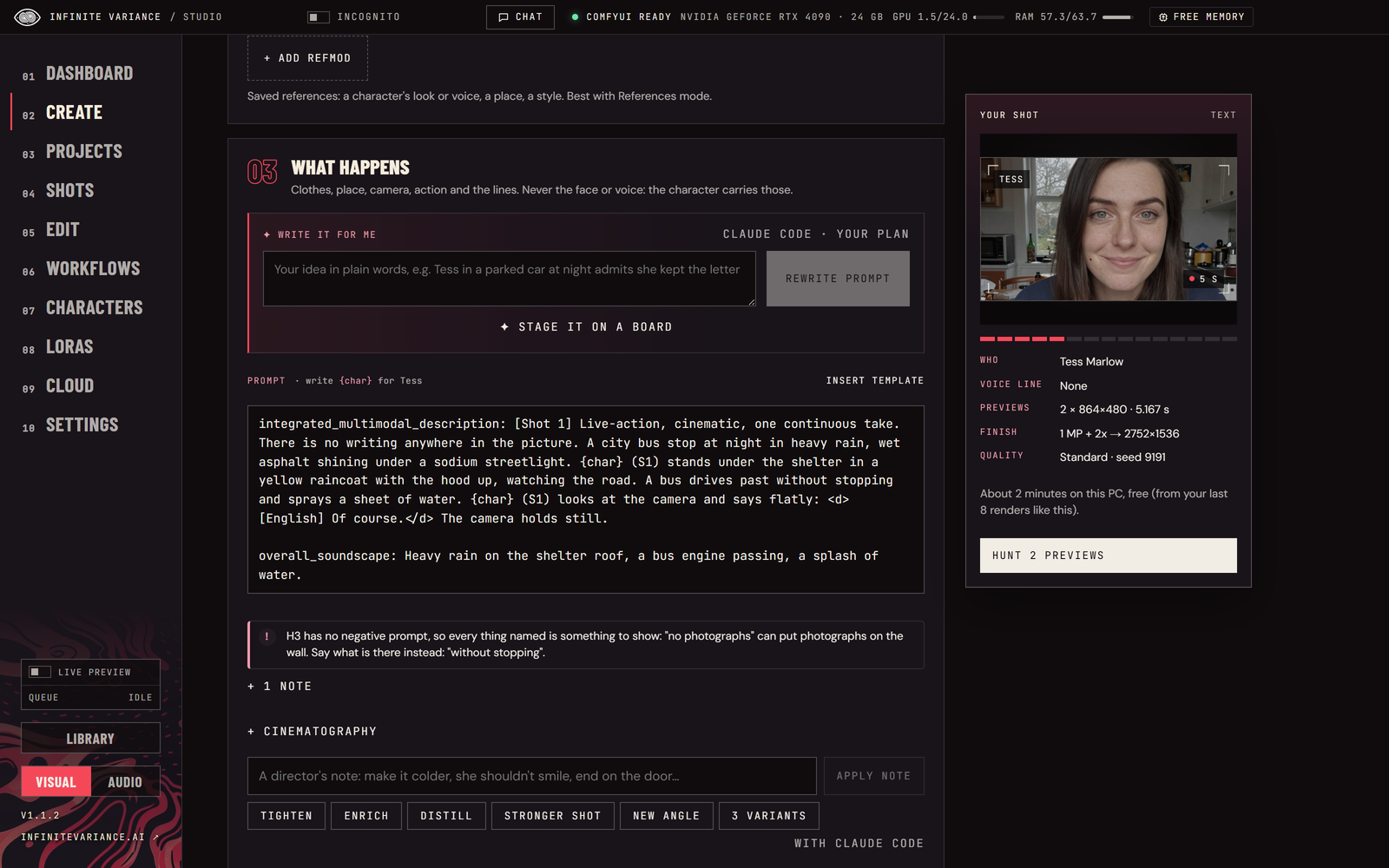
- "No …" wording. H3 has no negative prompt, so "No photographs appear anywhere" can hang photographs on the wall. The checker lists every "no / without / never / not …" phrase with what to write instead. IV Studio's own tested lines ("No one speaks.", "There is no writing anywhere in the picture.") stay.
- Premiere / Resolve. The editor's Premiere / Resolve button: the timeline goes out as FCP 7 XML (Premiere Pro and DaVinci Resolve), FCPXML 1.10 (Resolve, Final Cut Pro) and a CMX3600 EDL of V1, with every clip copied into a Media folder beside them and the folder zipped to send. Tracks, trims, pictures, volume, hidden, muted and locked tracks and markers come over; titles come over as markers (and as text in the FCPXML). Fades and title styling don't.
- Recommended LoRAs. LoRAs → Recommended (MiniMax H3): Camera Motion, Natural Face Speech, Motion Continuity Repair, Spatial Physics, Head-mounted FPV, 360° Orbit and Transformation, each fixed to one tested file and checked when it downloads, with what it does, the modes it works in, how to prompt it and its licence. Use in a shot puts it in Create's tray with its trigger and strength.
- Turnaround sheets. A character's settings make five views of them turning around from their face picture, with matlod's Turnaround LoRA and the H3 Contact Sheet nodes (both downloads you choose).
- Search by what's in a file. While nothing renders, your local prompt writer (Ollama, or your OpenAI-compatible server when it sees pictures) looks at each new video and picture in the Library and writes a sentence and a few tags, so search finds "red car" or "beach at night". It stops as soon as a render starts; Settings → Prompt writer turns it off.
- Soft mouth. A reference video in References mode (and Replace's Swap people) can have its mouths blurred first, so the new face doesn't mouth the words spoken in it. Off while the shot has a spoken line. It uses the face models from Characters. H3 can copy the blur into a take's first second; trim it in Edit.
- Dailies. When an overnight batch finishes, Videos\IV Studio\Dailies gets a reel of every take, the best of each shot first, each after a card with its seed and checks, and notes.md on what to look at first. The chat's report has Watch the dailies and Read the notes.
These ideas come from keys and Sam Wasserman's Imagination Studio (Apache-2.0); the code is IV Studio's own.
Your own cloud does nearly everything
- Almost every feature on your RunPod or Modal. Pictures and picture tools, storyboard sketches, character design, Music, Sounds, Cut out, Reframe, Replace (with Remake), Effects, Retake in the editor, the SeedVR2 finish and Enhance now run on your own cloud GPU, not just shots. The models a render needs download into your cloud storage the first time, after you agree to the size; your LoRAs and RefMods go up once.
- Voices in your cloud. Voices, Lines, Speak it and Whisper's read-backs run on your RunPod or Modal too.
- Hugging Face models. A Hugging Face token on the Cloud page (kept sealed) lets the cloud fetch gated models like LTX-2.5 and Flux.2 Klein.
- Cloud setup you can follow. Setting up RunPod or Modal shows each step with a timer and the time left, and tells you when it's ready (1.0.6). Modal's sign-in, sign-out and new accounts work (1.0.3 to 1.0.5).
- The IV Studio cloud beta. Want IV Studio to run the cloud for you? Join the waitlist on the Cloud page or in Settings → Privacy. Only the email you type is sent, and only when you press Join.
Easier to use
A simpler welcome (1.1.7). The first thing IV Studio asks is how much you know about making AI video and pictures. Then Make it yours (your name, your agent, a colour, easier-to-read options), a look at your PC, where things render, what to download and you're ready: six steps on one row. If you're new to it, IV Studio keeps each step to a couple of plain sentences and folds the details away with its suggestions already set.
Your colour (1.1.6). Red is IV Studio's own; blue, purple, orange or Dark (greys and white) recolour every button, highlight and the artwork, in the welcome or Settings → Accessibility.
Cinematography you can see (1.1.7). The Cinematography button (with its little cinema camera) opens all 165 setups as pictures of one scene, a woman in a red coat at a rainy café window, shot each way: film stocks, lenses, lighting, camera moves, moods. Hover one to read the phrase it adds; camera moves are marked.
The staging board in a pop-up (1.1.7). Stage it on a board on Create opens the board large; Use this staging puts a one-line summary under the prompt, with Edit to open it again.
Editor tools you can see (1.1.6). The Razor (C) turns the cursor into a red katana with a guide line, and each cut flashes a slash (not with Reduce motion). Select, Ripple and Roll have their own cursors and icons.
A new look. Tall animated banners with a quick-start bar on every main page, and an Audio front page. Nothing flashes (every banner is checked against the WCAG flash limit), animations pause when they're off screen, and Reduce motion holds them still.
Fits any window. Pages, banners and the title bar adapt to smaller windows, and choice cards wrap instead of being cut off.
Searches that say so. The search bars in the banners have a Search button that takes you to the results and a count of what matches; + New shot, + New film and + New edit are their own buttons.
What's new as a pop-up. After an update, a small See what's new in this update button opens this list.
Simple words. Check my PC asks how much you know about AI video. New to it? IV Studio says "trained look" for LoRA, "variation number" for seed, "quick sharpen" for DLSS and so on. Only the words change; switch it in Settings → Words.
Get ComfyUI for me. No ComfyUI yet? Setup downloads ComfyUI's official portable build for your graphics card into a folder you choose, checks it, unpacks it and starts it. Already have one? IV Studio keeps using it.
A tidier Setup. A status card first, then folding sections that open by themselves when something needs you. Restart ComfyUI is one click (it asks first while renders run), and node packs that are installed but not loaded yet say so.
Less waiting on memory. Effects free the GPU before their video model loads, and reopening IV Studio while ComfyUI starts no longer starts a second one.
An installer in IV Studio's colours, with the eye down the side.
Scroll bars in the theme, and no clipped corners (1.1.6). Every page was checked from 1100 × 720 to 2560 × 1440 with the chat open and closed.
 |
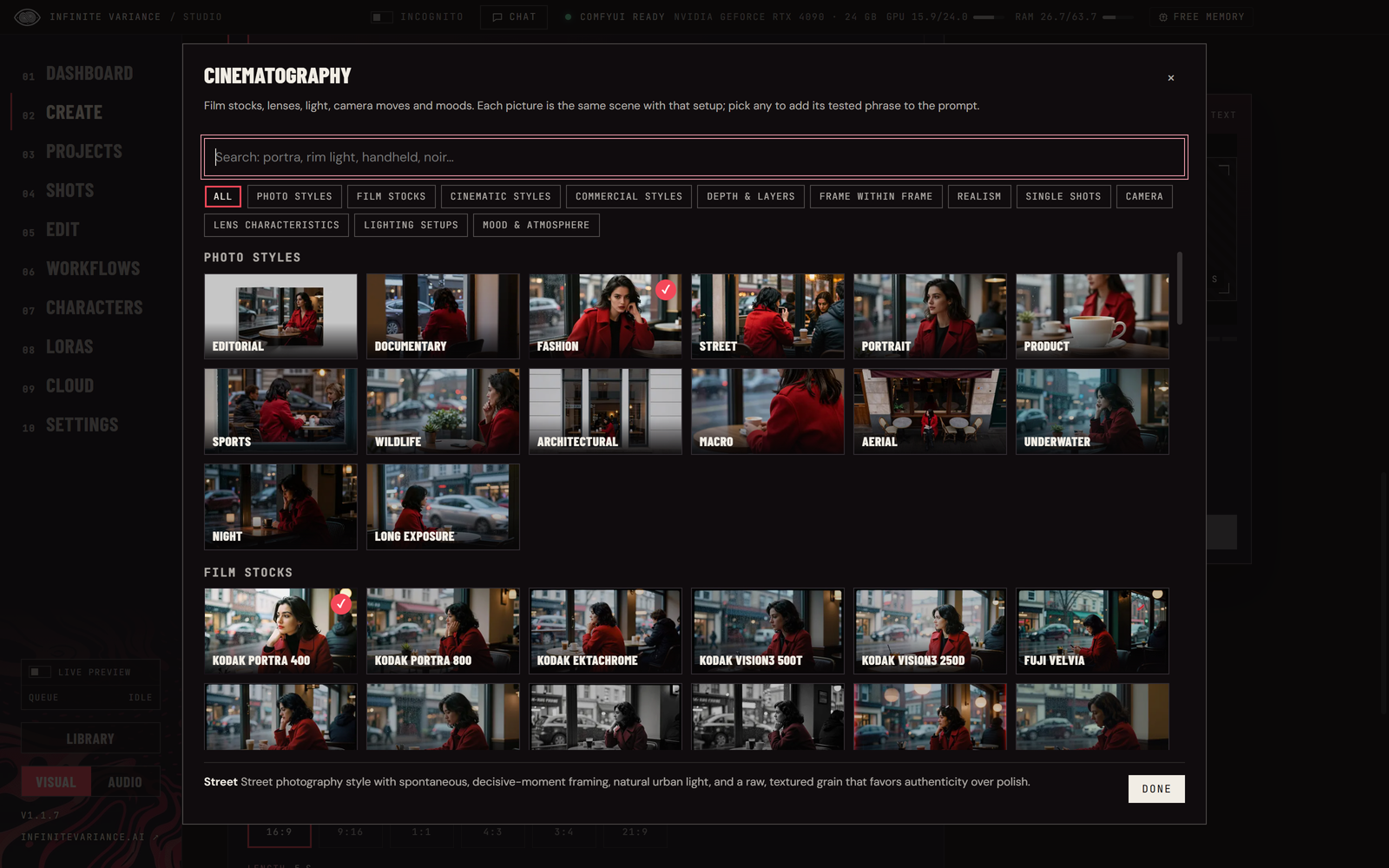 |
| Name your agent, tell it yours and pick a colour | Every cinematography setup as a picture |
Updates, privacy and credits
- Updates on a Mac. Mac copies now download and install new versions themselves, like Windows and Linux: Restart to update, or it installs when you quit. (IV Studio needs to be in your Applications folder.)
- Privacy. Settings → Privacy: IV Studio sends nothing about how you use it unless you turn on Help improve IV Studio, which counts only opens and renders, never prompts, pictures or files. Incognito never counts.
- Training on Fizgig 9. Character training uses Fizgig 9.3.2, on this PC, Modal and RunPod. RunPod training pods start from Fizgig's own RunPod template, so your training time supports Fizgig too.
- Credits. Settings → About → Credits lists every model, tool, node pack and library IV Studio is built on: who made it, what it does here and its licence.
- Terms for MiniMax H3. Before your first H3 render or training, IV Studio shows the rules for H3 in plain words and asks you to agree to its terms of use once (they carry MiniMax's licence restrictions and Acceptable Use Policy). Read them again, or report misuse, in Settings → About. If you're updating from 1.0, you'll be asked at your next H3 render.
What's new in 1.0
- Help on every page. A How it works button on every page lights up its real controls one at a time with a line on each. The welcome wizard offers a full tour of the app, and Settings → About takes it again.
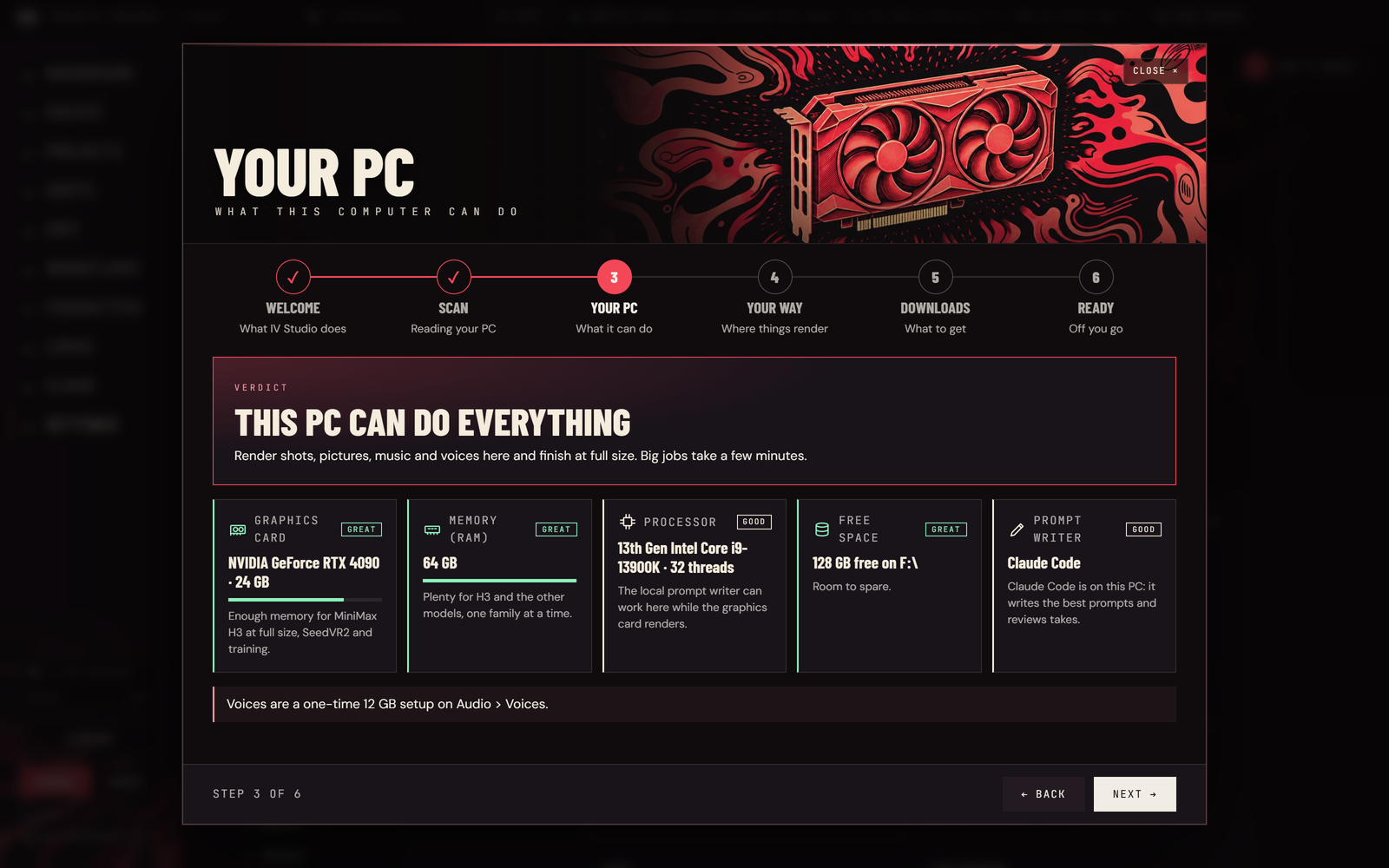
- Check my PC. On first launch IV Studio reads your graphics card, memory, processor and drives (nothing leaves your PC), says plainly what it can do, and sets previews, finals, the prompt writer and downloads to suit. A guided cloud setup connects RunPod, Modal or Comfy Cloud in a few steps.
- Redesigned. Create (video and image), Settings, Characters, Voices, Lines and Music are numbered step cards. The Workflows tools (Sizzle, Reel, Sequences, Shinobi and Replace) open on animated stages with their main bar centered.
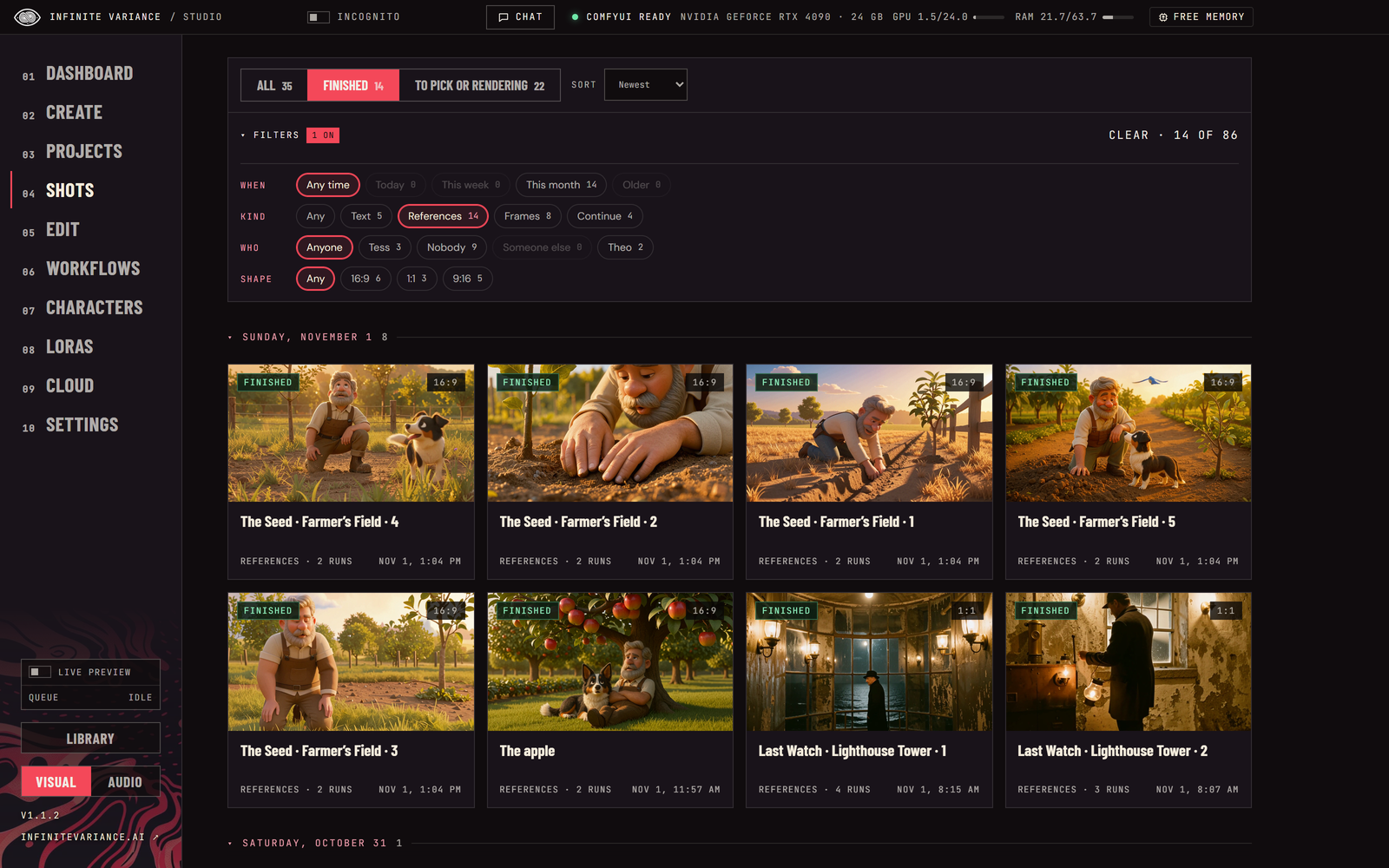
- Find anything. Shots, Projects and the Library group your work by day and filter it by when, kind of shot, who's in it and shape, in a panel that folds away. Long histories open at once: tiles load as you scroll.
- Train characters anywhere. Free on your own graphics card (Fizgig), or on your RunPod or Modal account, with presets, a spending cap, Train more and likeness scoring. Or make a RefMod character from a few pictures in seconds.
- More control. Pick a shot's sampler and scheduler, and keep a resizable live preview of any render floating over every page.
What it does
- Dashboard. IV Studio opens on one-click starts for everything it makes, your latest renders and your cast. Every page has its own banner art and its own How it works tour.
- Projects. A short film as a six-step wizard for anyone: an idea, a script (written for you or your own), the cast and places, a storyboard of drawn sketches you can play as an animatic, filming every panel, and the finished film. Faces and rooms stay the same from shot to shot.
- Shots. Write a shot (or type the idea in plain words and let Write it for me write the H3 prompt; it looks at your reference pictures and videos first), hunt one to three quick previews, pick one and finish it at 1 to 2 MP with DLSS, an RTX 2× upscale and frame generation, or with SeedVR2. Four modes: text, reference pictures, video and audio, first and last frame, and continuing a video. Create lays it out as numbered steps beside a pinned Your shot card.
- Directing. A prompt checker that catches H3 mistakes before you spend a render, @ mentions for your cast and places, live step pictures while takes render (also in a floating preview over every page), takes ranked by words heard, likeness and sharpness, side-by-side Compare, a Review that names each problem with its seconds and one fix, and a top-down staging board that becomes exact screen directions or a moving grey previs.
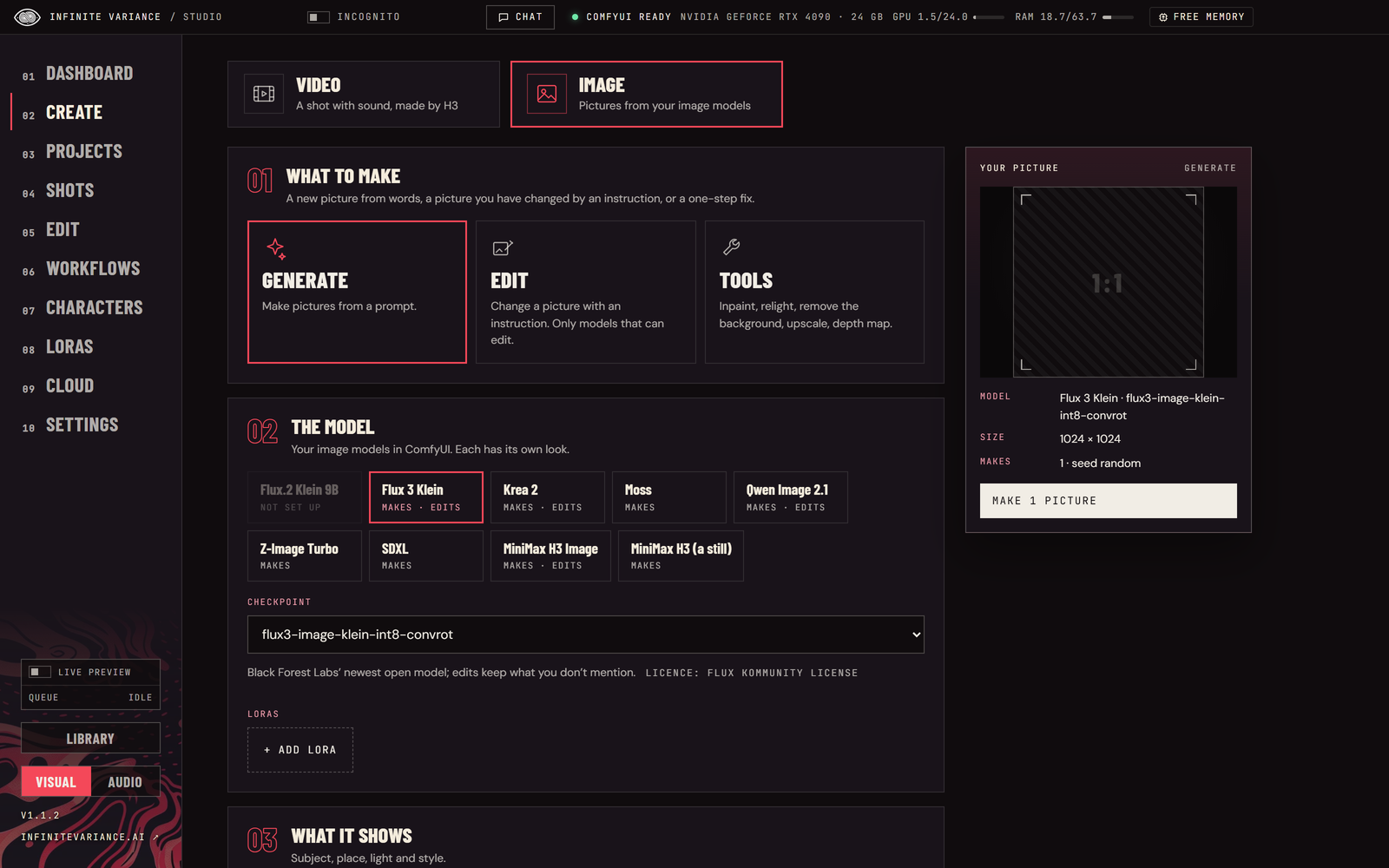
- Images. Create switches between Video and Image: make or edit pictures with eight image model families (Flux.2 Klein, Flux 3 Klein, Krea 2, Moss, Qwen Image 2.1, Z-Image Turbo, SDXL and H3 stills with your H3 characters), then use one as a shot's first frame.
- LoRAs. Browse Civitai's MiniMax H3 LoRAs as tall picture cards whose clips play on hover, open one for a full-size gallery of its examples, and download it straight into ComfyUI. Your own LoRAs show as pictures too, and Create's LoRA tray adds them to a shot with a strength slider.
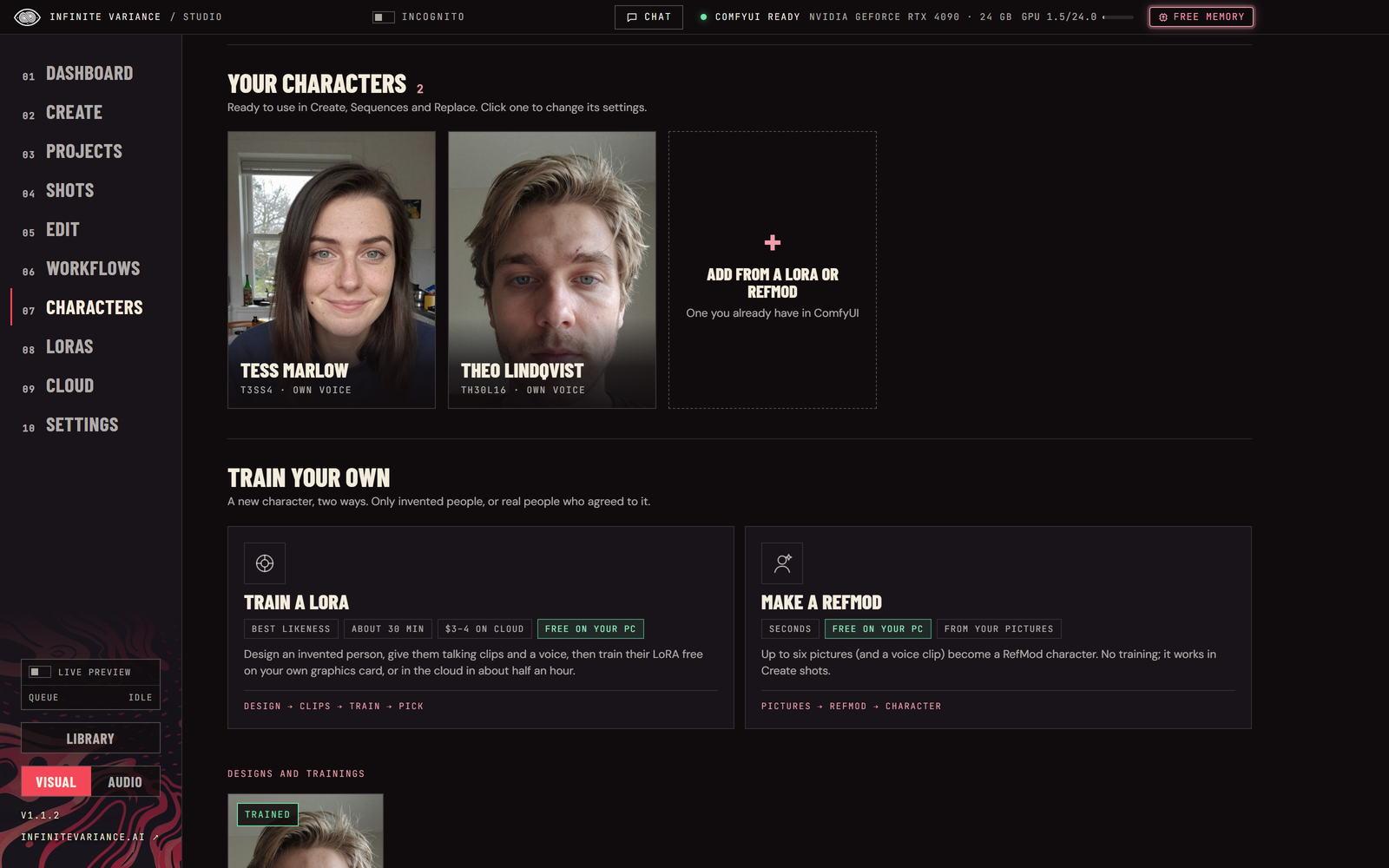
- Characters. Recurring actors as trained H3 LoRAs with a trigger word, or as RefMods made from a few pictures in seconds. Use the ready-made Tess and Theo, add a LoRA or RefMod you have, or design, clip and train your own: free on your graphics card, or on your RunPod or Modal account.
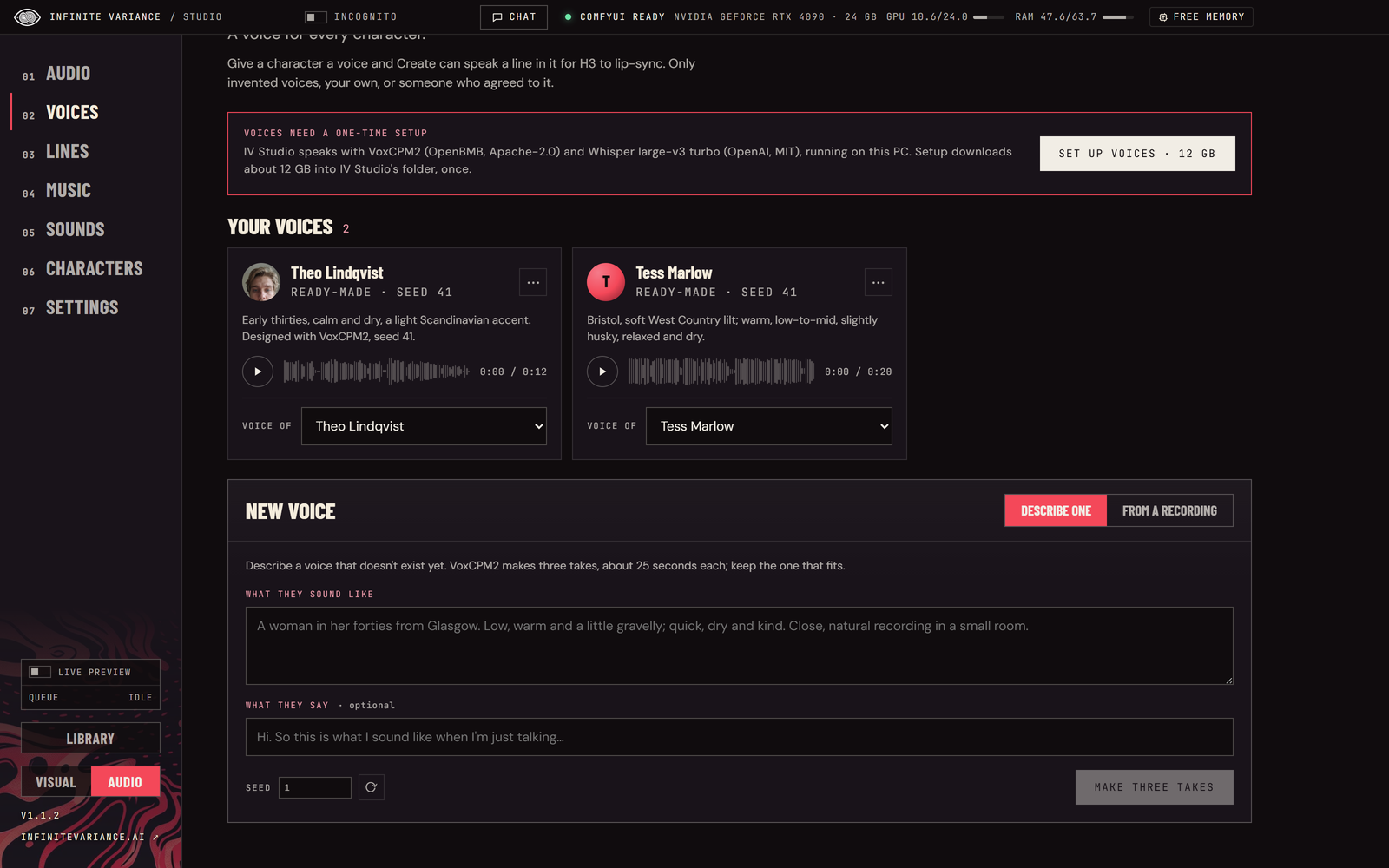
- Voices. Give each character a voice: design one from a description, or save one from a recording. Type a line and Speak it: the character says it on screen, lip-synced. Runs on your PC with VoxCPM2 and Whisper.
- Music. Songs with sung lyrics, or instrumentals, from a style and lyrics: MiniMax Music 3 for full songs up to five minutes, ACE-Step 1.5 for a draft in seconds. Put a song under an edit, or have a character sing it.
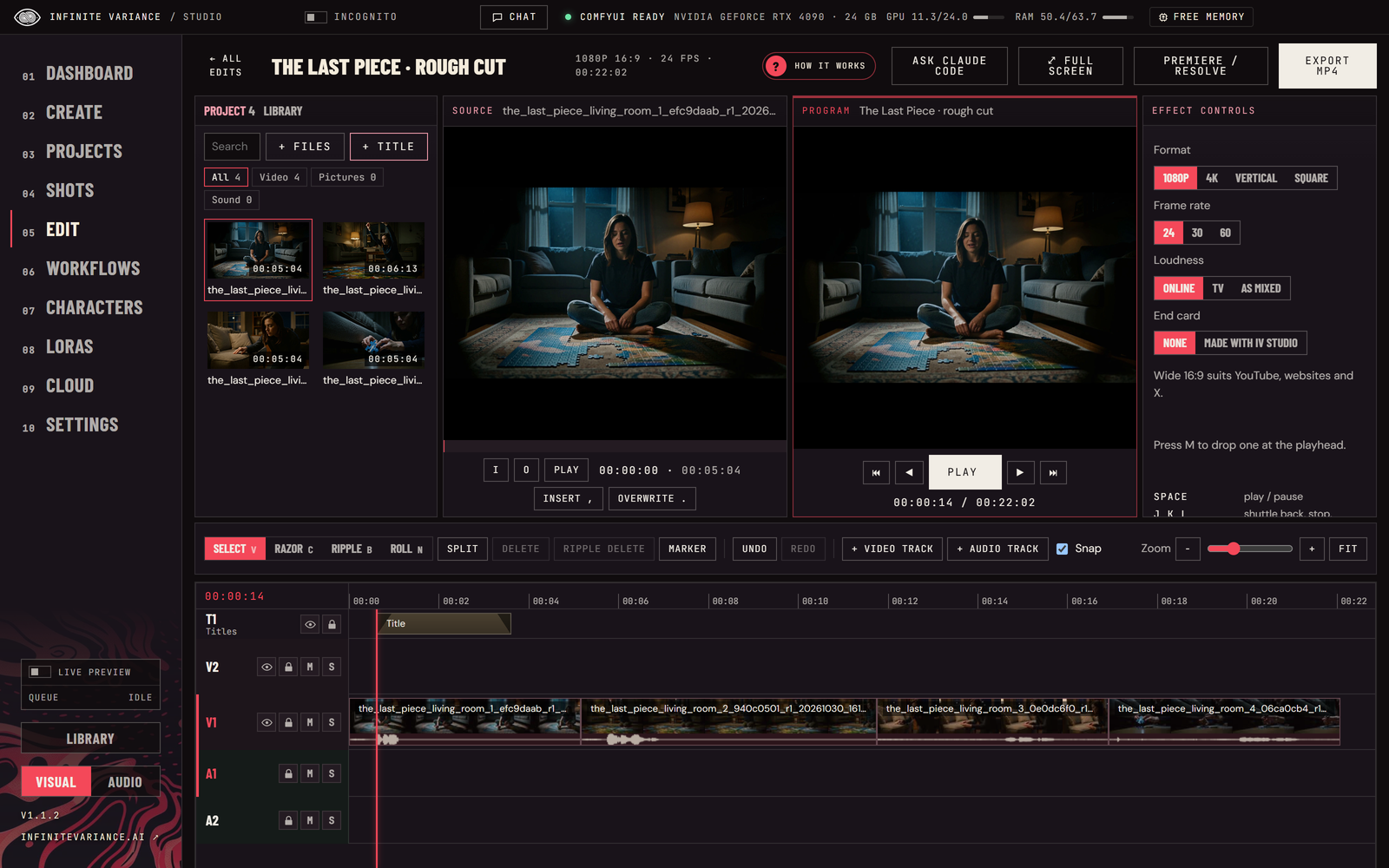
- Edit. A Premiere-style editor with a full-screen workspace: project bin, source and program monitors, as many video and audio tracks as you need, filmstrips and waveforms, markers, J/K/L, insert and overwrite, razor, ripple and rolling trims, and MP4 export at 1080p, 4K, vertical or square at a set loudness. Right-click to make new footage on the timeline (extend, bridge, fill a gap, retake a stretch), cut out a person or thing with see-through edges, or reframe a shot to a new shape with H3 drawing what lies beyond its edges.
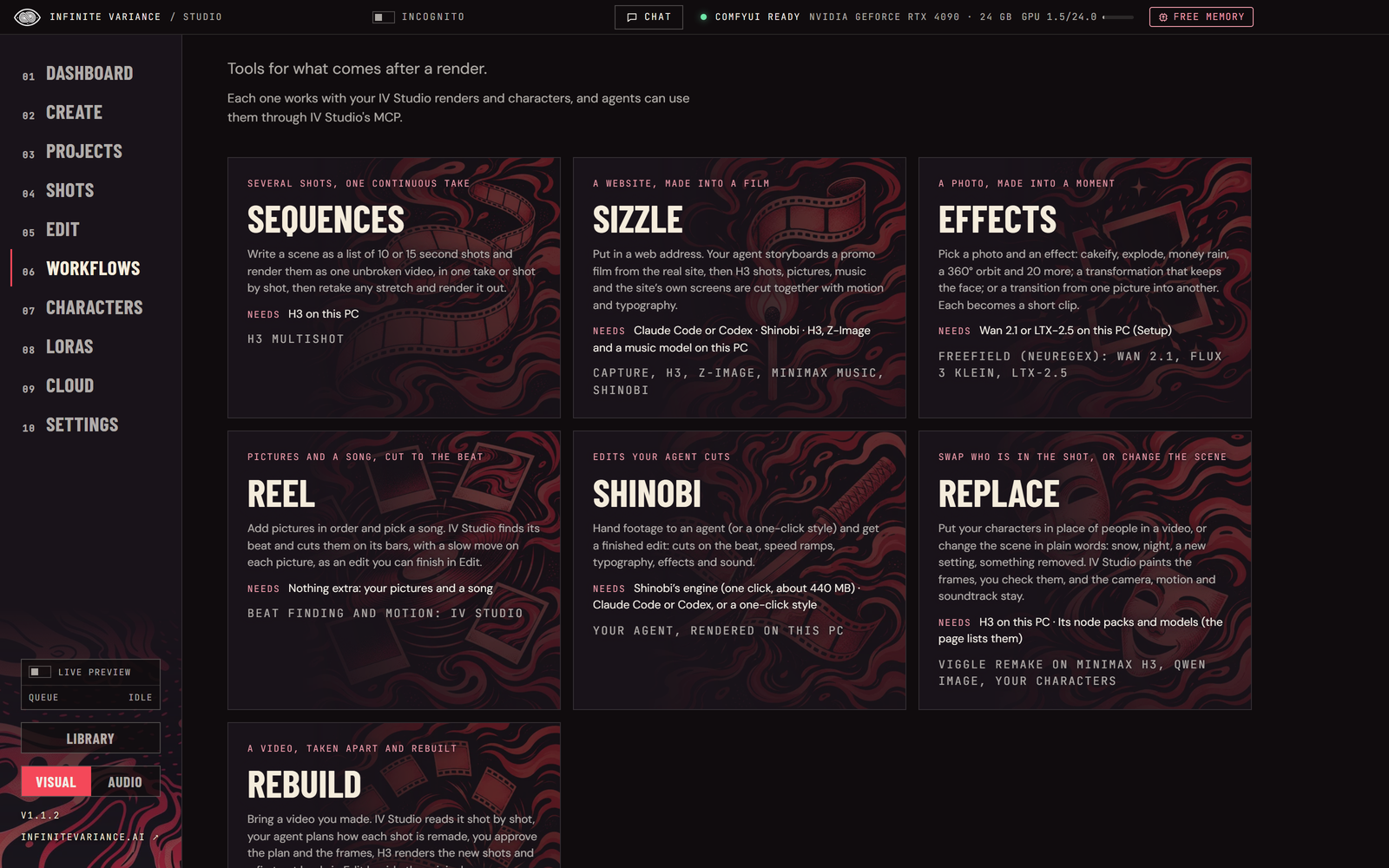
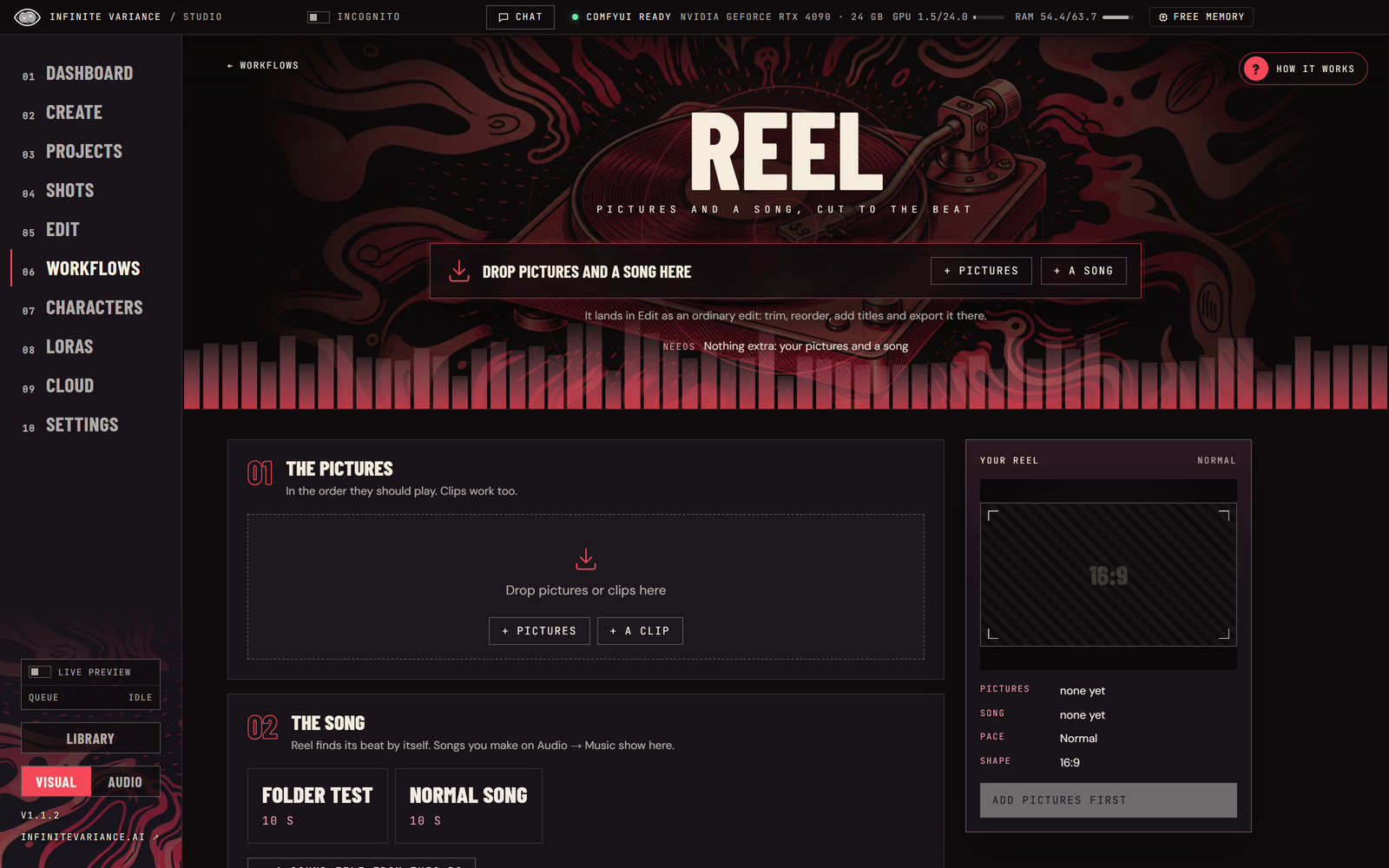
- Workflows. Five tools, each opening on its own animated stage. Sequences: several shots as one continuous video. Sizzle turns a website into a promo film: your agent storyboards it from the real site, then H3 shots, pictures, music and the site's own screens are cut together on the beat. Reel cuts pictures or clips to a song's beat. Replace swaps a person or changes the scene in a video while the camera, motion and sound stay. Shinobi lets an agent cut a whole edit in code.
- Library and Queue. Every shot, sequence, picture, export, song and spoken line in one place, a day at a time, filtered by when, where it came from, kind, who and shape. Above it, the render queue shows what's rendering and what waits.
- Help. How it works on every page, a full tour from the welcome wizard, What's new after every update, and the PDF guide.
- Check my PC. Reads your hardware on first launch and sets IV Studio up to suit it.
- Cloud. Render shots and sequences on your own RunPod or Modal account, or on Comfy Cloud, set up with a guided wizard, with a running time and cost meter in the title bar and a Shut down GPU button.
- Incognito. A private space whose work never shows in the normal app.
- Agents. A local MCP server with 214 tools and a start menu gives Claude Code or any MCP client nearly everything a person can do in the window.
- Updates. IV Studio updates itself: one click installs a new version and reopens.
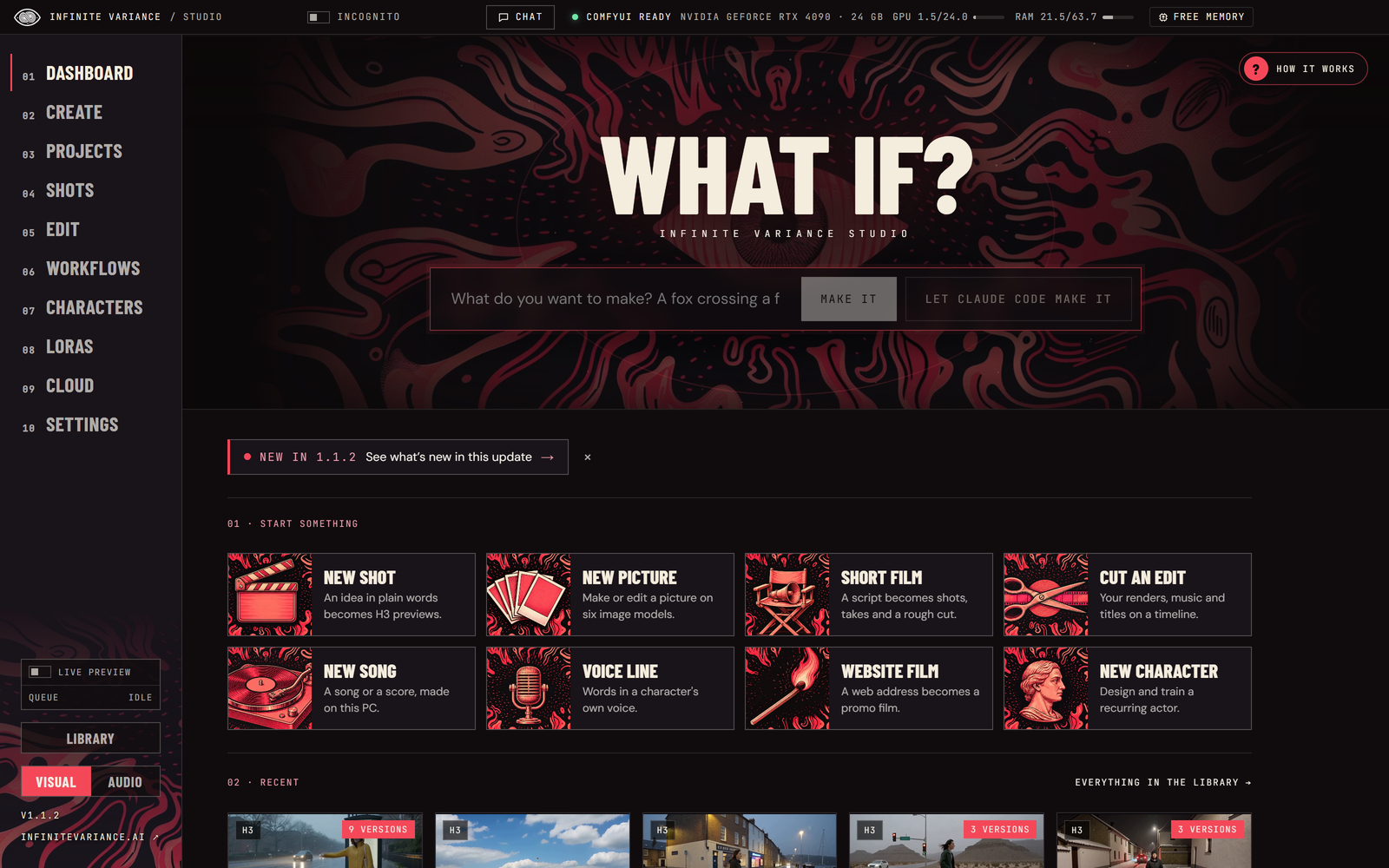 |
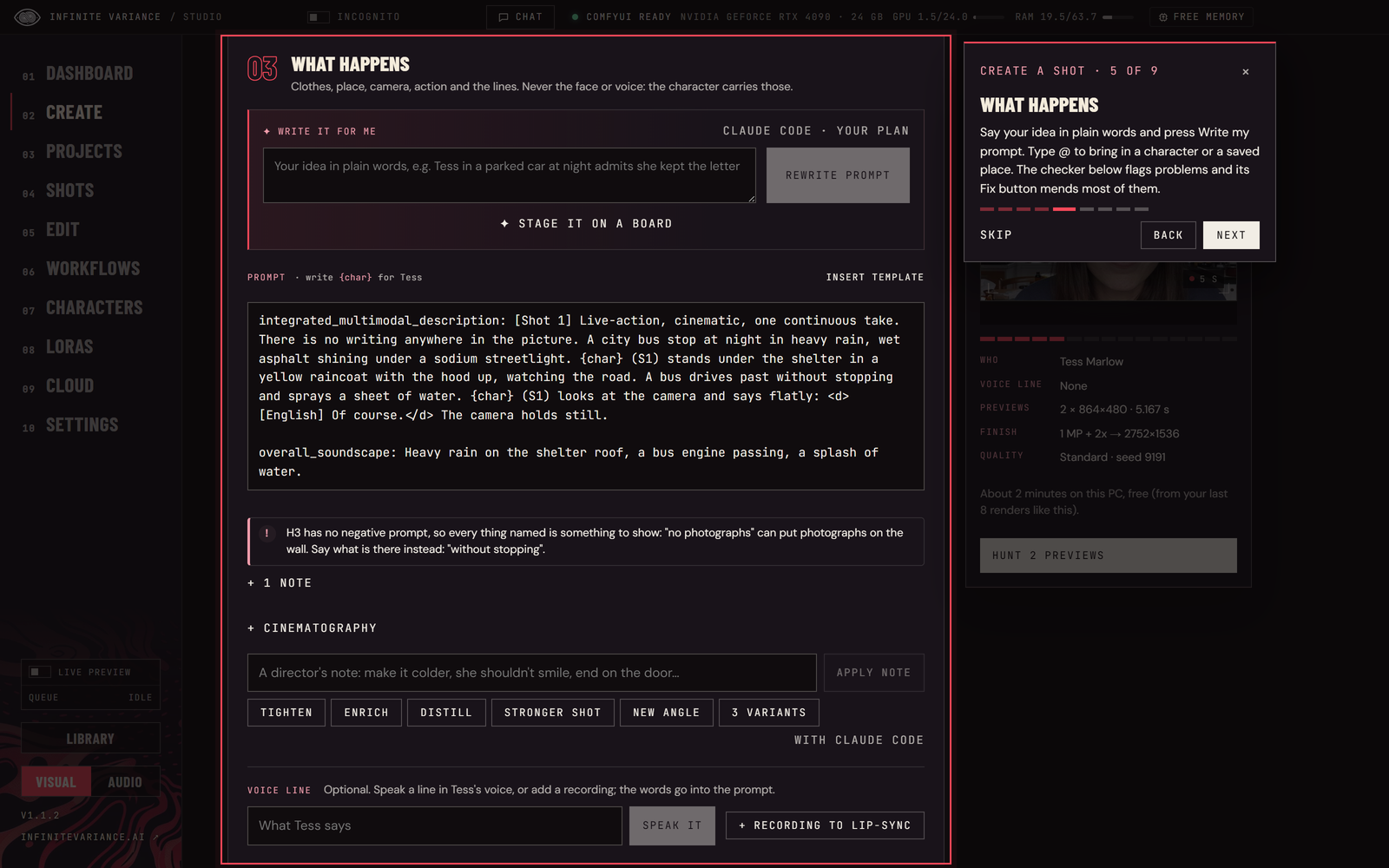 |
| Start anything from the Dashboard | How it works: every page walks you through itself |
 |
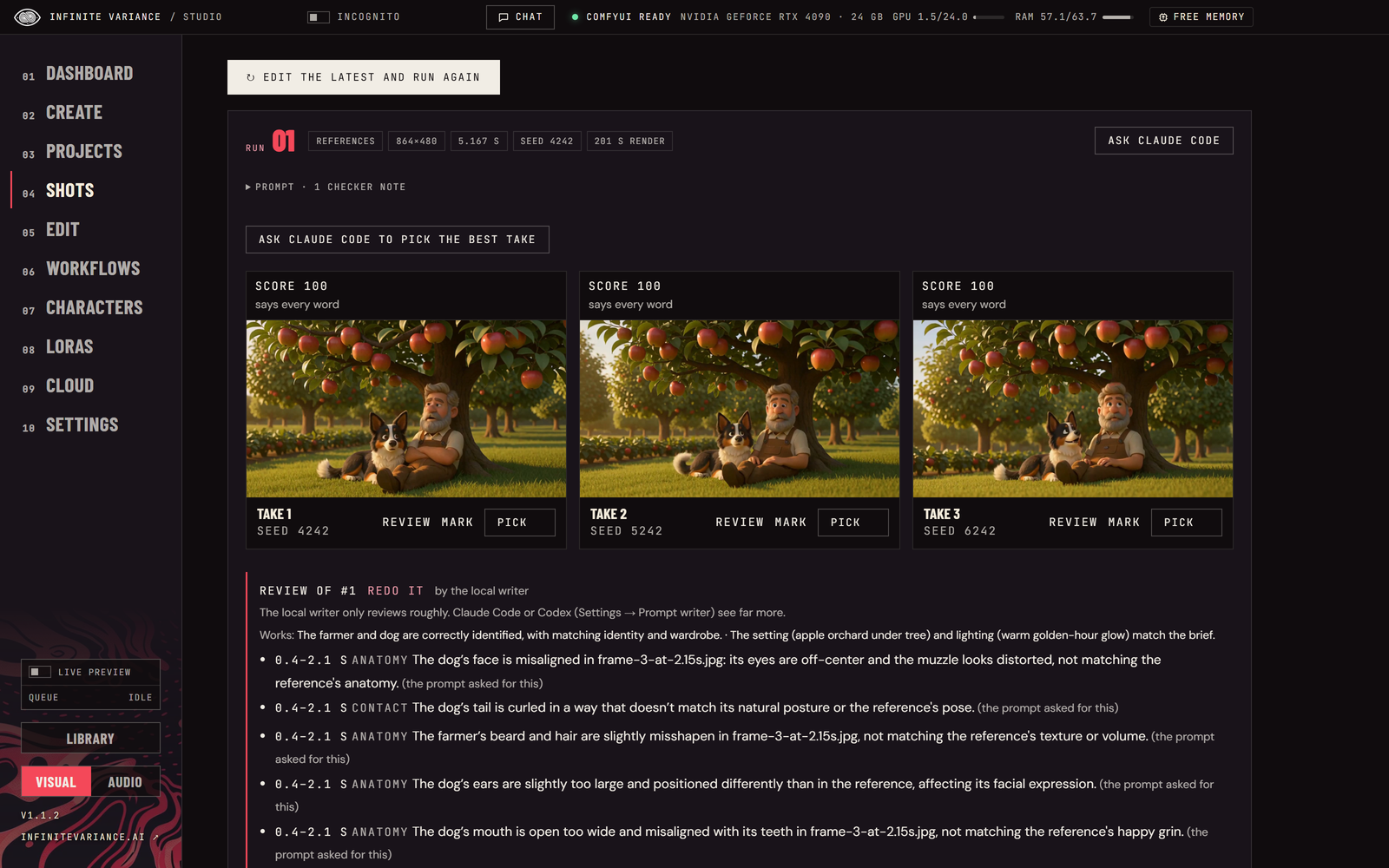 |
| Check my PC sets IV Studio up for your computer | Hunt a few takes, review them, pick one and finish it |
 |
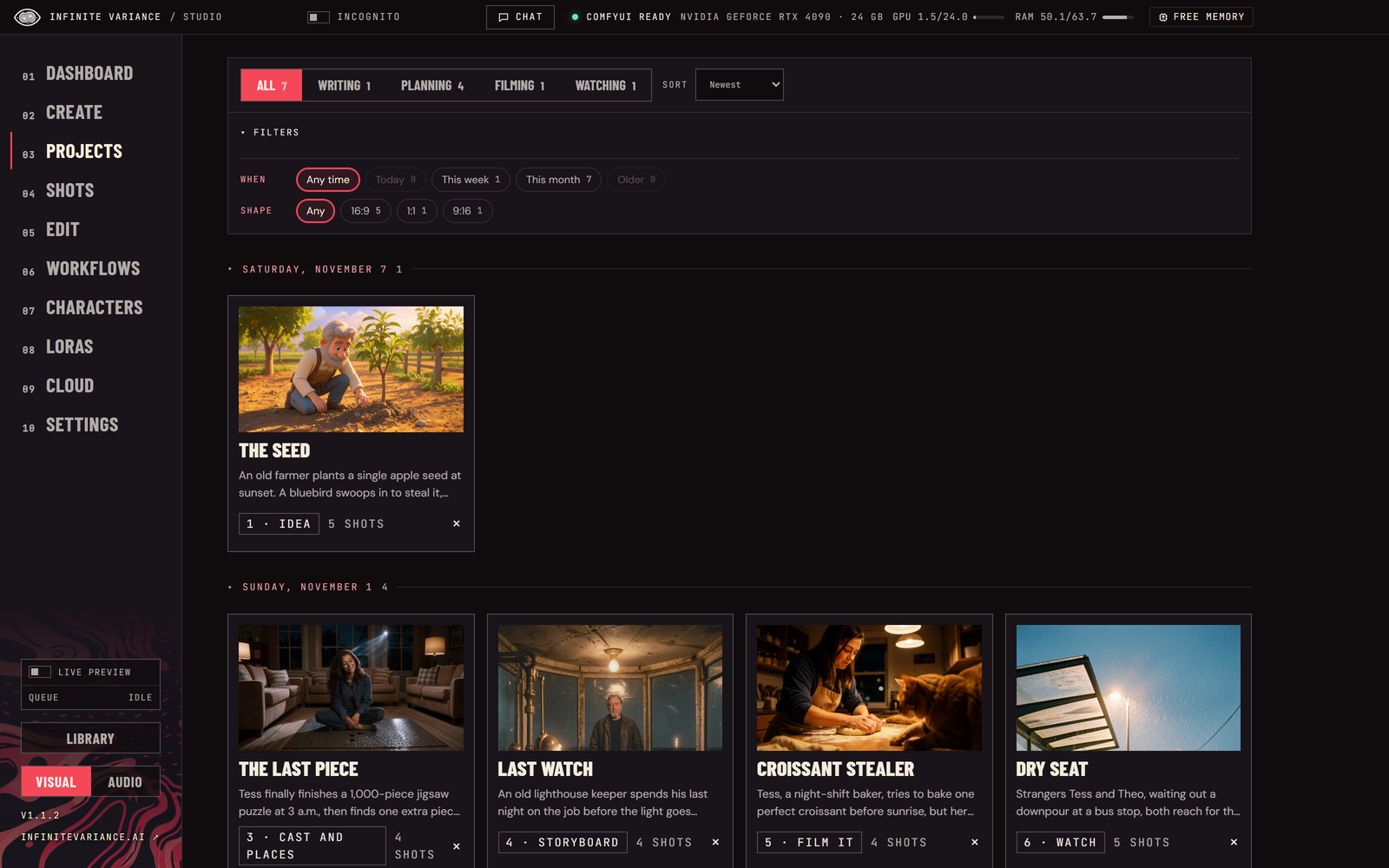 |
| Every shot, a day at a time, with filters | A short film, step by step |
 |
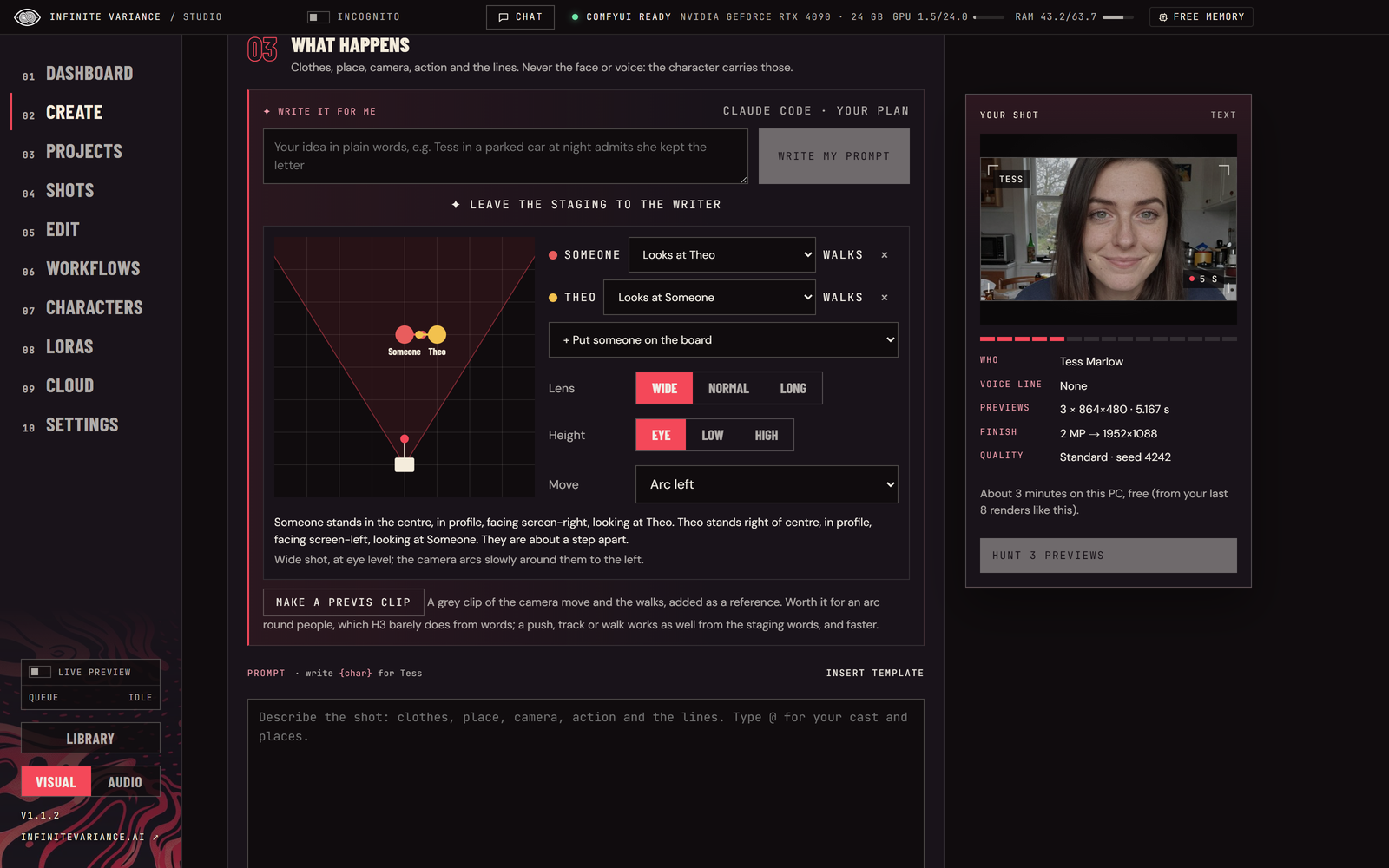 |
| Pictures too: generate, edit or fix on nine model families | Stage the shot on a board; it becomes exact directions or a previs clip |
 |
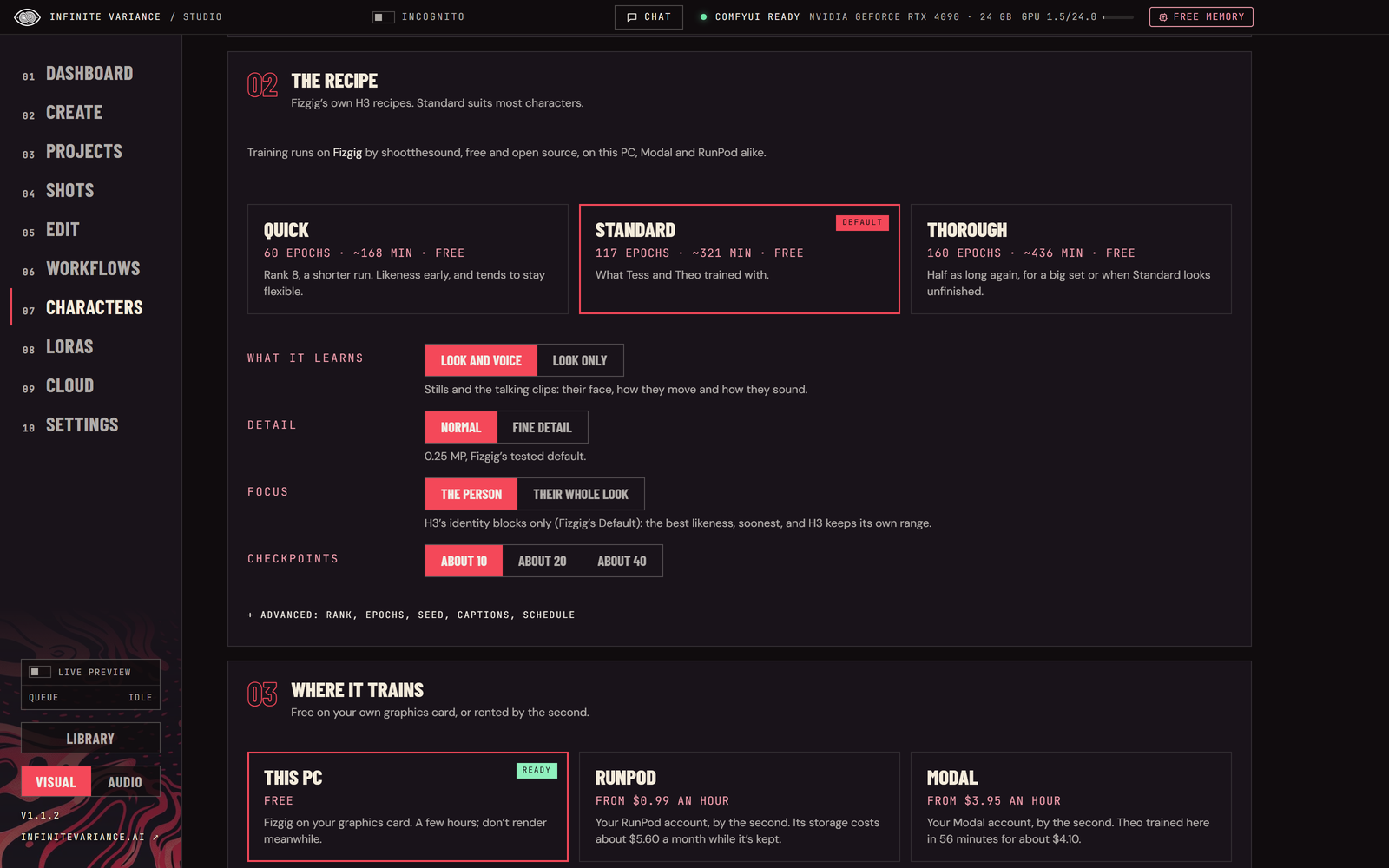 |
| Recurring characters, ready-made or your own | Train free on your PC, or rent a cloud GPU |
 |
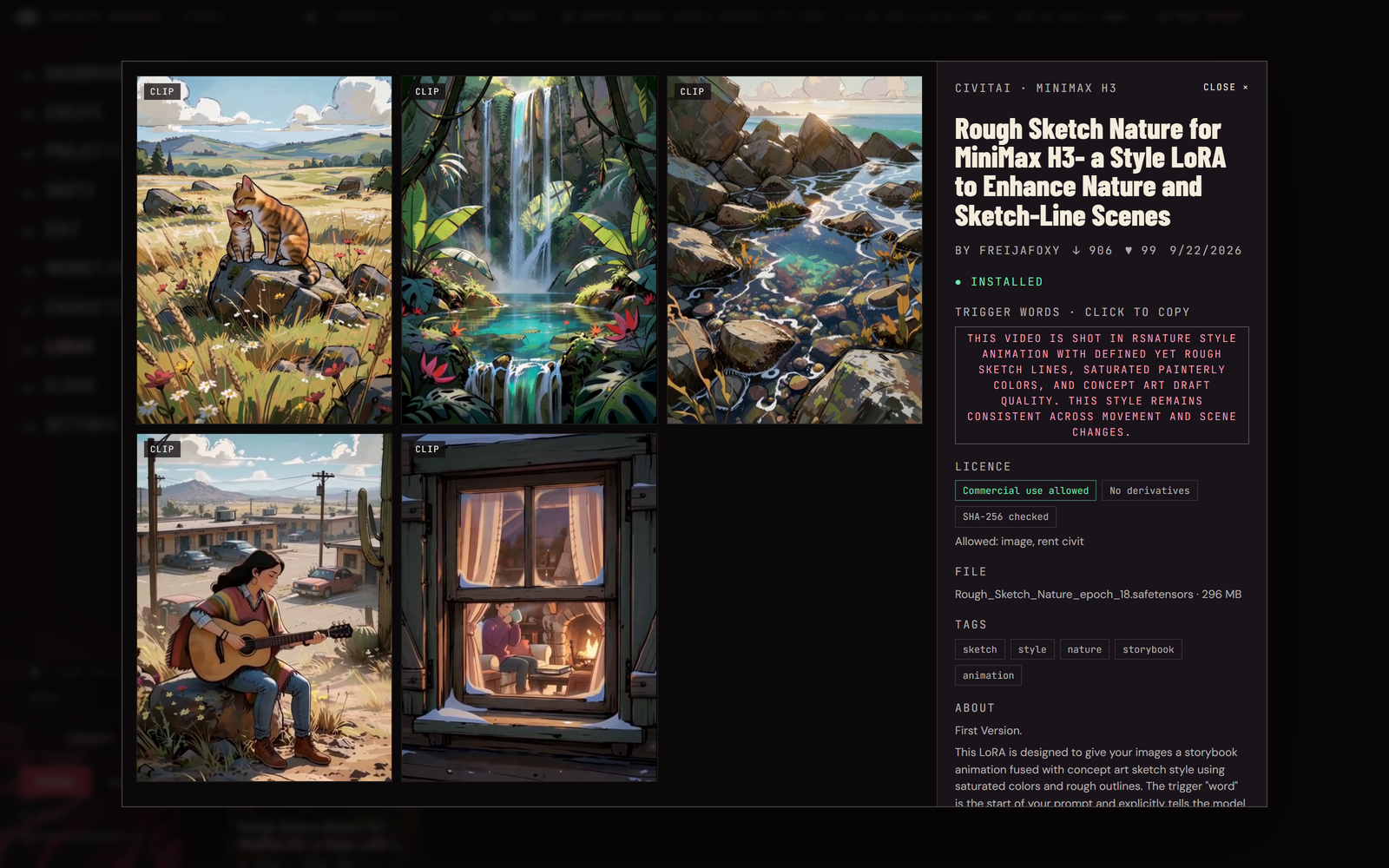 |
| LoRAs for every model, found on Civitai | Every LoRA's examples, trigger words and licence |
 |
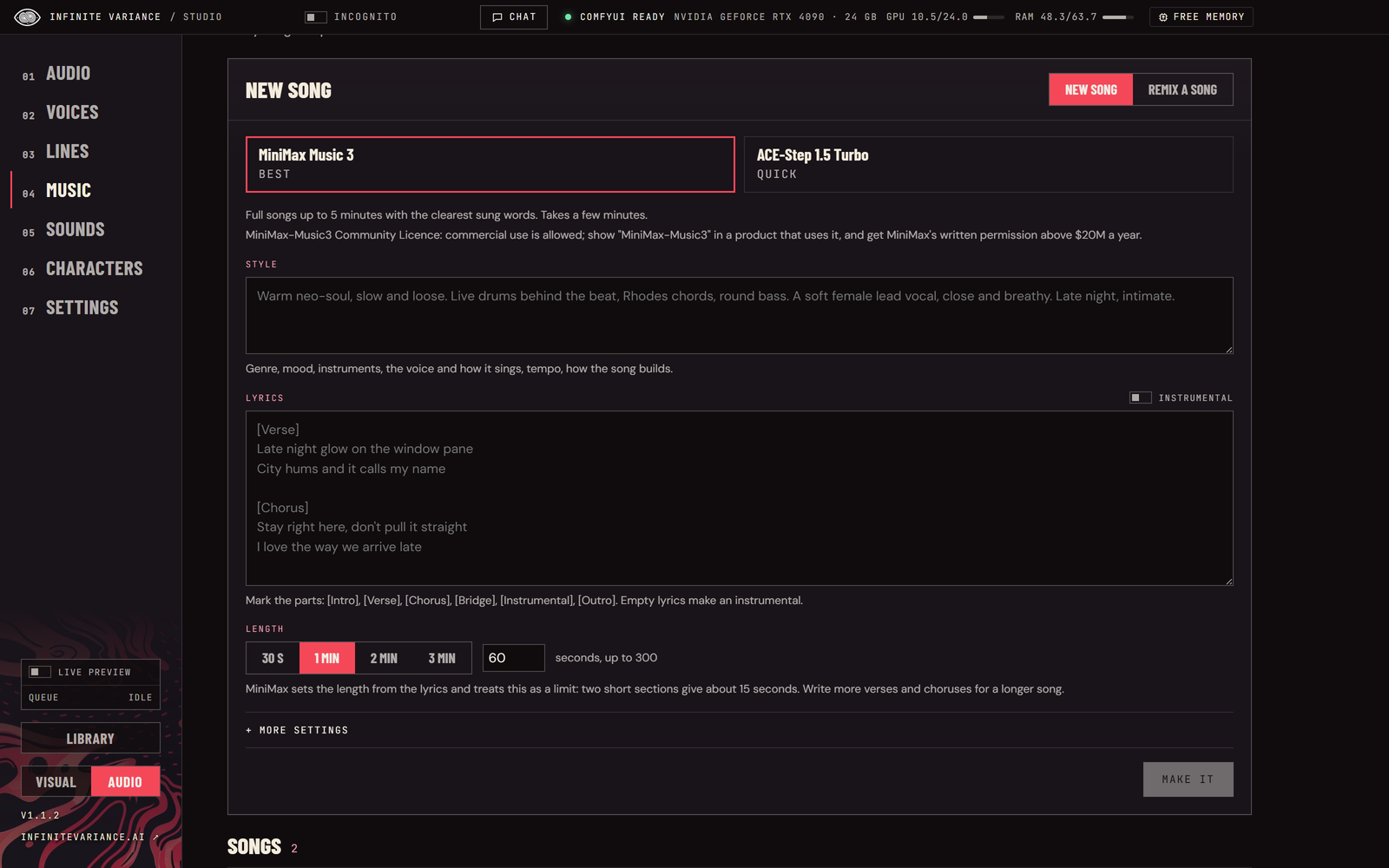 |
| A voice for every character | Songs and scores, made on your PC |
 |
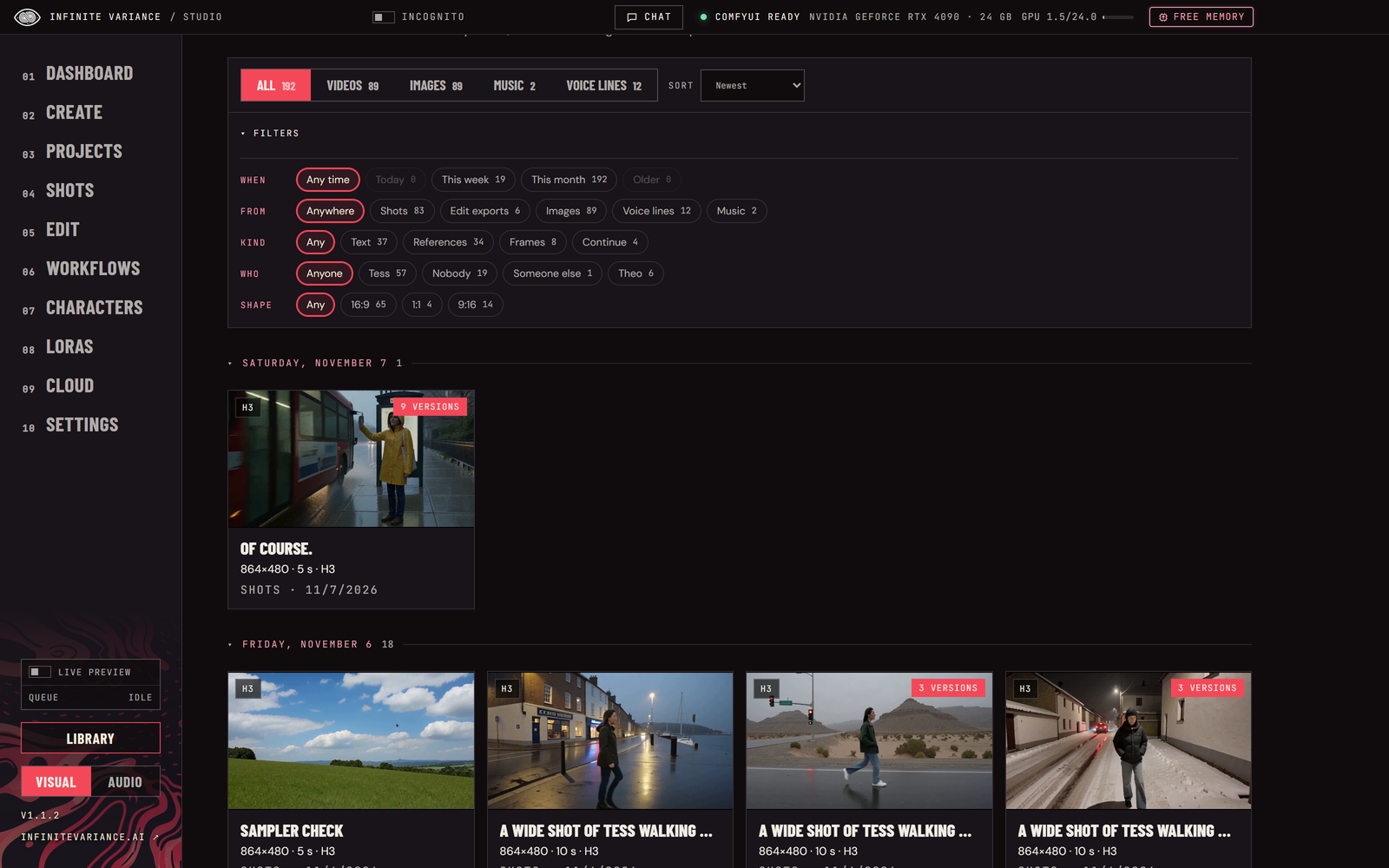 |
| A Premiere-style editor, with your agent cutting alongside | Everything you've made, in one place |
 |
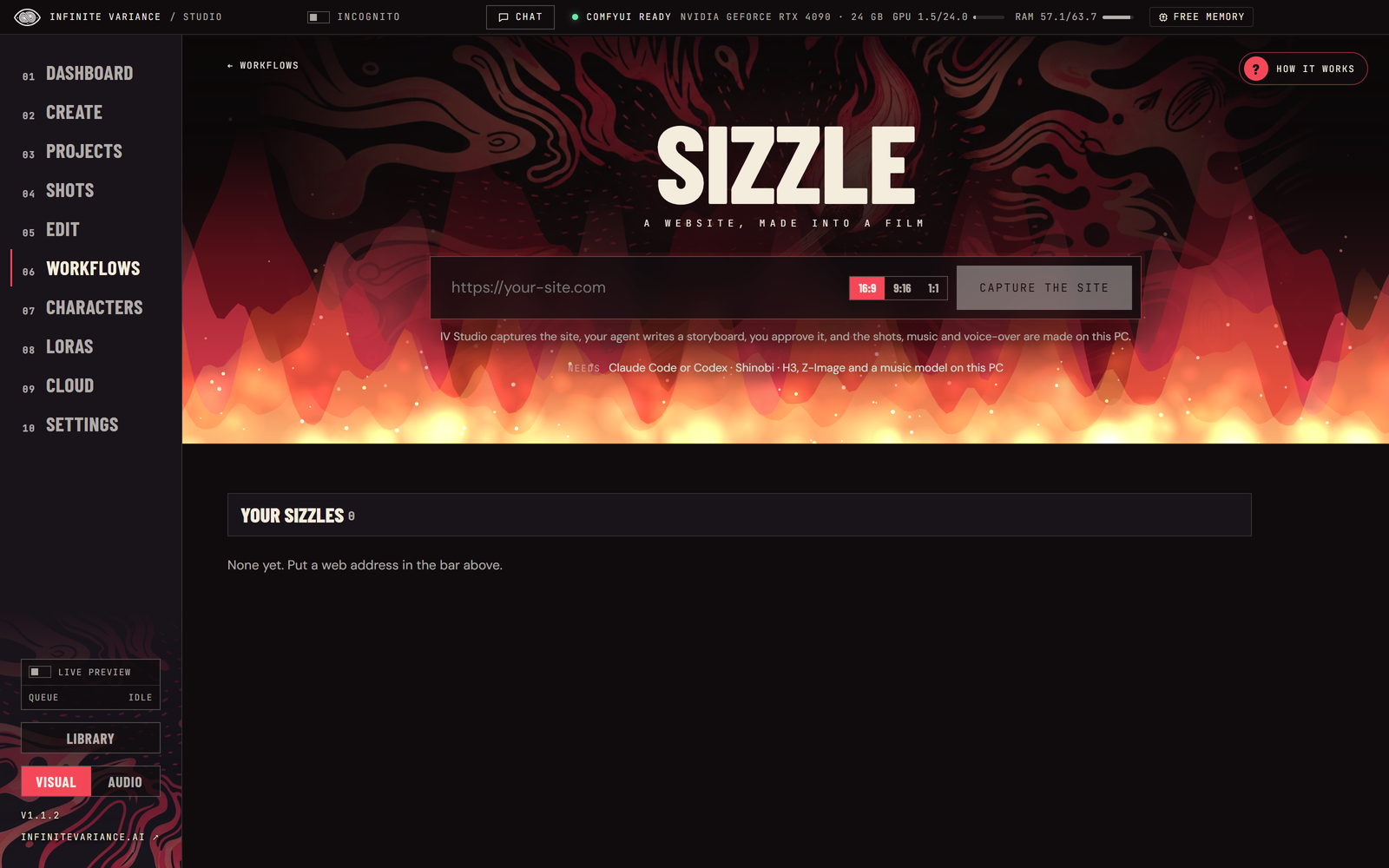 |
| Seven tools for after a render | Sizzle: a website, made into a promo film |
 |
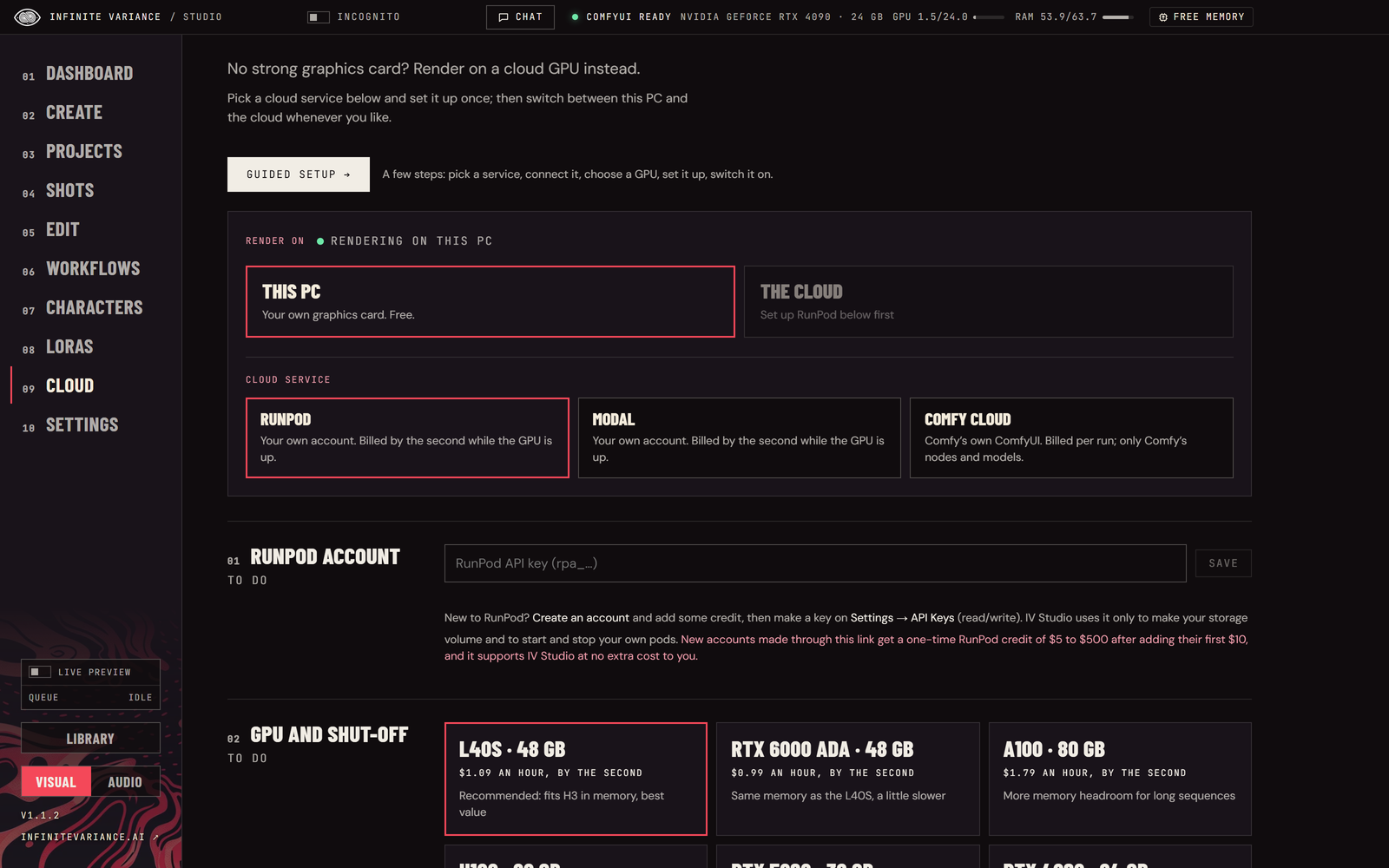 |
| Reel: pictures and a song, cut to the beat | No big GPU? Render on your own cloud account |
…
Releases