
Server · #175 trending MCP repo · ↗ +32 stars this week
Bambu Printer MCP
DMontgomery40/bambu-printer-mcp
MCP server for Bambu Lab 3D printers — STL manipulation, BambuStudio or FULU/orca slicing, Blender MCP integration, and direct printer control
- Stars
- 290
- This week
- +32
- Forks
- 52
- Open issues
- 1
- Latest release
v1.1.78
Get started
Add it to your agent
claude mcp add bambu-printer -- npx -y bambu-printer-mcpRun in your terminal. Add --scope project to share it with your team through .mcp.json.
codex mcp add bambu-printer -- npx -y bambu-printer-mcpSaved to ~/.codex/config.toml.
{
  "mcpServers": {
    "bambu-printer": {
      "command": "npx",
      "args": [
        "-y",
        "bambu-printer-mcp"
      ]
    }
  }
}Add to ~/.cursor/mcp.json (or .cursor/mcp.json in a project).
{
  "servers": {
    "bambu-printer": {
      "type": "stdio",
      "command": "npx",
      "args": [
        "-y",
        "bambu-printer-mcp"
      ]
    }
  }
}Add to .vscode/mcp.json, then start it from the MCP view in Copilot Chat.
gemini mcp add bambu-printer npx -y bambu-printer-mcpSaved to .gemini/settings.json.
Documentation
README
bambu-printer-mcp
Thank you, FULU Foundation, Louis Rossmann, and the OrcaSlicer-bambulab contributors. We stand with open-source developers, the right to repair, and your right to control hardware you own. You should be able to choose your software and print without a vendor cloud standing in the way.
Want to skip Bambu's software and cloud? Use FULU OrcaSlicer-bambulab to slice and export, then this MCP's direct LAN path on supported printers and firmware. That workflow does not require Bambu Studio, Bambu Connect, or Bambu Cloud. Start with the FULU setup guide. The optional BambuNetwork bridge is a separate path that still uses Bambu's networking runtime; cloud jobs still use Bambu's services.






A Bambu Lab-focused MCP server for controlling Bambu printers, manipulating STL files, and managing end-to-end 3MF print workflows from Claude Desktop, Claude Code, or any MCP-compatible client.
Browse the documentation site for searchable setup guides, slicing and AMS guidance, and the full tool reference. It is generated from this README and the docs folder.
Built with help from our contributors. Huge thanks to everyone sharing fixes, careful bug reports, and real printer testing!
This is a stripped-down, Bambu-only fork of mcp-3D-printer-server. All OctoPrint, Klipper, Duet, Repetier, Prusa Connect, and Creality Cloud support has been removed. What remains is a focused, lean implementation for Bambu Lab hardware.
Set up with your agent
Tell your agent your printer's model and LAN address, if you know them, then copy and paste this:
Install bambu-printer-mcp in the agent/harness I'm using now.

Read https://github.com/DMontgomery40/bambu-printer-mcp/blob/main/docs/SETUP.md
and https://github.com/DMontgomery40/bambu-printer-mcp/blob/main/docs/FULU.md
for the current setup instructions and supported workflows.

Detect my OS and harness, then use its native MCP configuration or installer.
Preserve my existing servers and settings. Prefer the published npm package
(npx -y bambu-printer-mcp, stdio); use Node.js 24 if a runtime is needed.

Find existing printer settings in relevant local configuration or available
LAN discovery. Confirm the detected printer's model, address, and identity
with me before connecting. Ask only for values you cannot find:
PRINTER_HOST, BAMBU_MODEL, BAMBU_SERIAL, and BAMBU_TOKEN (the LAN access code).
Keep credentials in local/private configuration; do not repeat access codes
or tokens in chat. Never guess the printer model.

Use direct LAN printing by default. Explain any LAN/Developer Mode setting
I need to enable. Prefer FULU OrcaSlicer-bambulab GUI slicing/export; discover
an existing slicer before suggesting an install. For FULU/Orca CLI auto-slicing,
require MCP 1.1.11+ and its matching installed profile tree (see guide).
A slicer is not needed here to print a pre-sliced file. Configure the optional FULU
BambuNetwork bridge only if I choose it, and explain its runtime/auth needs.
X2D supports status and slicing; native printing requires macOS or x86-64 Linux and a locally built helper.

If this harness does not already provide code mode or an equivalent, suggest
a compatible code-mode integration as an optional addition. It is not required;
finish ordinary MCP setup without it unless I choose to add it.

Verify that the MCP initializes, lists its tools, and reads printer status.
Do not start a print or change printer settings as a setup test. Tell me what
worked and whether I need to restart or reload the harness.
Setup reference · FULU guide · Optional code mode
What to ask your agent
Ask for the result you want, not the steps. Current models plan across tools: they search the web, read photos, look up exact dimensions, edit models, slice, and print. Expect a question or two when a choice matters, such as which filament to use or whether to start the print.
This server provides the printer, slicing, AMS, and mesh tools. Web search, photos, and Blender edits come from your agent and its other connections, such as a Blender MCP server. Printing a model your agent edited uses CLI slicing with your installed slicer presets; see the slicing guide.
Start from anything
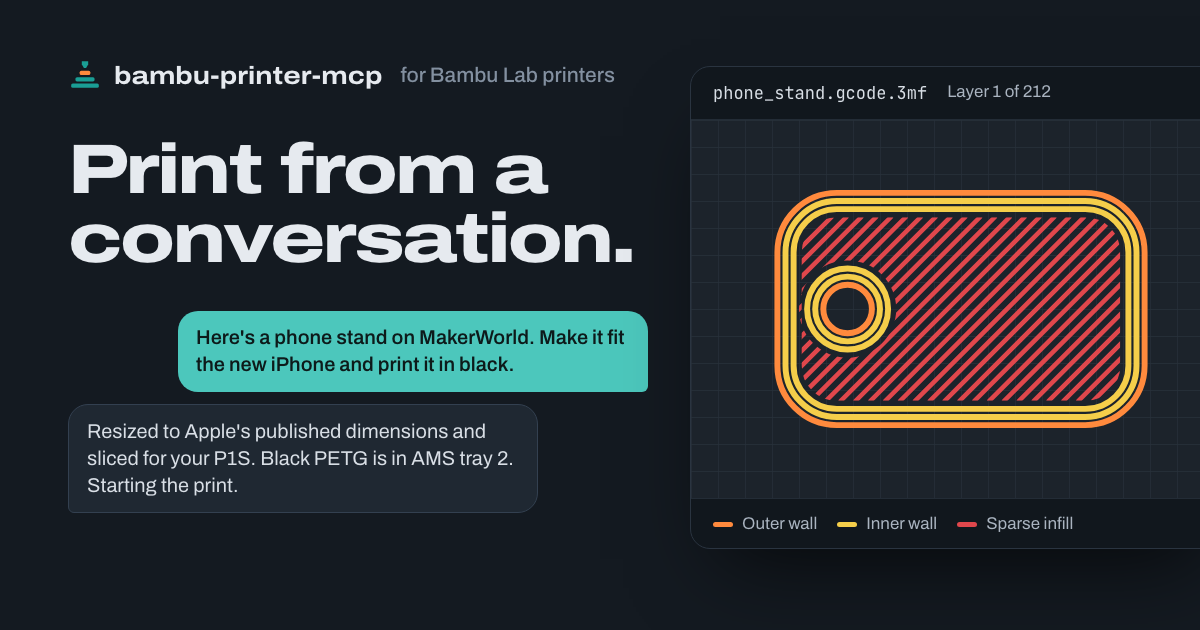
- "Here's a phone stand on MakerWorld. Make it fit the new iPhone and print it in black."
Your agent looks up Apple's published dimensions, adjusts the stand in Blender, slices it for your printer, and finds the AMS tray with black filament. - "I want one of these." (with a photo of a planter you saw at a café)
It works out the shape and size from the photo, finds or models a matching design, and asks about anything the photo can't show. - "Can you print a replacement?" (with a photo of a snapped dishwasher rack clip)
It asks for a measurement or two where the fit matters, models the part, and prints it in a loaded material that suits the job.
From anywhere, while it prints
If your agent is always on, such as OpenClaw or Hermes Agent running on a computer at home, message it from Telegram or any other chat app. For direct LAN printing, the server runs on the printer's local network; you don't have to.
- "How's the print going? Send me a picture."
It reports progress and time remaining, and sends a snapshot from the chamber camera. - "The corner is lifting. Pause it."
It pauses the job so you can decide whether to resume or cancel. - "One of the parts came loose. Skip it and keep printing the rest."
It finds that object on the plate and skips only that one. - "Start drying the PETG so it's ready when I get home."
On a heated AMS, it starts the drying cycle for the unit holding that spool.
Before you print
- "Start the bracket I sliced last night."
It checks the camera image before it sends the job. - "What's loaded in the AMS? Print this in whatever black I have."
It reads the live AMS inventory and matches the file's filaments to your trays. - "Are there any errors on the printer?"
It reads the printer's HMS diagnostics and explains them.
Start here
Start here
| I want to… | Read next |
|---|---|
| Use open-source slicing and a cloud-free print workflow | FULU setup: slicer, LAN, and optional bridge |
| Connect this MCP to my agent | Copy the setup request |
| See what my agent can do with it | What to ask your agent |
| Troubleshoot setup or configure it manually | Installation, environment variables, and LAN reference |
| Prepare a printable file or troubleshoot slicing | Slicing guide and model routing |
| Choose filament trays or inspect a printer | AMS setup and printer tools |
| Edit an STL through Blender | Blender MCP setup |
| See release changes or contributor credit | Changelog, releases, and contributors |
What's new in bambu-printer-mcp
What's new in bambu-printer-mcp
See the changelog for versioned changes. Recent releases add reliable npm and desktop-extension installs, standard Blender MCP integration, corrected P2S/A1 routing, and safer multi-filament CLI slicing. X2D status and slicing are available, with optional native printing on macOS through the installed Bambu Studio networking plug-in.
Table of Contents
Table of Contents
- Start here
- Description
- FULU and open-source printing
- Features
- Set up with your agent
- What to ask your agent
- AMS (Automatic Material System) Setup
- Bambu Communication Notes (MQTT and FTP)
- Available Tools
- Available Resources
- Bambu Lab Printer Limitations
- General Limitations and Considerations
- Acknowledgements
- License
Description
Description
bambu-printer-mcp is a Model Context Protocol server for Bambu Lab 3D printers. A straightforward workflow is: slice in FULU OrcaSlicer-bambulab, OrcaSlicer, or Bambu Studio, export a sliced .gcode.3mf, then pass its path to print_3mf. The default direct LAN path uploads via FTPS and chooses the MQTT command for the target model. See the slicing guide for CLI options, model routing, and validation limits.
What this is not. This package intentionally supports only Bambu Lab printers. It does not include adapters for OctoPrint, Klipper (Moonraker), Duet, Repetier, Prusa Connect, or Creality Cloud. If you need multi-printer support, use the parent project mcp-3D-printer-server instead.
Why a separate package? The parent project carries all printer adapters in a single binary. When working exclusively with Bambu hardware, that breadth adds unnecessary weight. This fork strips the project to its Bambu core for a smaller, faster install. See each project's changelog for its current fixes and supported workflows.
Note on resource usage. STL manipulation loads entire mesh geometry into memory. For large or complex STL files (greater than 10 MB), these operations can be memory-intensive. See General Limitations and Considerations for details.
FULU and open-source printing
FULU and open-source printing
FULU OrcaSlicer-bambulab is a supported slicer target (SLICER_TYPE=orcaslicer-bambulab; aliases include fulu-orca and orca-studio). Use its GUI to export a sliced project for direct LAN printing, or configure its CLI with matching installed profiles. From 1.1.11, FULU/Orca share the machine-preset gate and profile safety checks.
The optional FULU BambuNetwork bridge exposes bambu_network_bridge_status, bambu_network_call, and print_3mf_bambu_network, also reachable through print_3mf with connection_mode: "bambu_network". Slicer selection does not enable the bridge. It needs a separately installed FULU runtime and an explicit launch command; cloud printing also needs an authenticated BambuNetwork session. On Linux, FULU's v1.0.0 host needs a small cat wrapper and the 02.05.02.5x plug-in; the guide covers both. LAN bridge prints open the plug-in's own LAN session with Bambu's printer certificate, which the server supplies.
Follow the FULU setup guide for the direct LAN recipe, Linux/Windows/macOS bridge setup, connection probes, authentication, and troubleshooting. Bridge protocol tests and a successful handshake do not establish a successful physical print.
Features
Features
- Get detailed printer status: temperatures (nozzle, bed, chamber), print progress, current layer, time remaining, and live AMS slot data
- Query live AMS inventory with resolved Bambu/Orca filament profile paths via
get_printer_filaments. Profile suggestions use the selected slicer installation on Windows, macOS and Linux, including an explicitBAMBU_PROFILES_ROOT; unavailable profiles leave live inventory readable. Includes per-tray display names, match confidence (high/medium/low/none), resolution tier (exact-model-nozzle/model/generic/unresolved), and a summary with recommended auto-slice filament. Retries automatically when AMS data hasn't arrived yet (common on first MQTT push from idle printers). - List, upload, and delete files on the printer's SD card via FTPS
- Capture a JPEG snapshot from the chamber camera. Supports A1, A1 mini, P1S, P1P (TCP-on-6000), and X1, X1C, X1E, P2S, H2, H2S, H2D, H2C, H2D Pro, X2D (RTSP via ffmpeg). Requires ffmpeg in PATH for the RTSP path.
- Upload and print pre-sliced
.3mfprojects with checked plate selection and calibration flags. Legacy.gcode.3mfroutes require a single external-spool-only plate; see the slicing guide. - Slice through BambuStudio CLI with automatic BBL inheritance/include resolution, per-slot filament colours, and fallback prime-tower placement for multi-nozzle printers. Missing dependencies stop the slice; custom settings and saved project tower positions are preserved. Multi-colour slicing is verified by the contributor on BambuStudio 02.08.02.60 for Windows; older CLI versions have separate limitations. See slicing guide.
- Recognize X2D status and slice with its own installed BambuStudio preset (
BAMBU_MODEL=x2d). On macOS and x86-64 Linux,print_3mfselects the native route after resolving the model, including an elicited model. Install the optional helper as described below; Windows native print requests, and Linux requests without the helper, fail before slicing or contacting the printer. Legacy FTPS and remote G-code starts remain unsupported for X2D. - Parse AMS mapping from the 3MF's embedded slicer metadata (
Metadata/plate_<n>.json+ gcode filament header) and send it correctly formatted per the OpenBambuAPI spec, with correct H2S/H2D/H2Cams_mapping2parallel array format - Auto-match AMS slots by RFID (
auto_match_amsflag onprint_3mf). Resolves requiredtray_info_idxfrom the sliced 3MF against live AMS inventory. Handles same-SKU different-color filaments by matching on(tray_info_idx, tray_color)and tracking already-claimed slots. Dry-run withresolve_3mf_ams_slotsbefore printing. - Cancel, pause, and resume in-progress print jobs via MQTT
- Skip specific objects during a running multi-object print via
skip_objects(uselist_3mf_plate_objectsto find object IDs first) - Set print speed mode (
silent/standard/sport/ludicrous), clear HMS/print errors, trigger AMS RFID re-read, and control H2/P2 airduct mode (cooling/heating) via MQTT - Start/stop AMS filament drying (
set_ams_drying) on heated AMS units (AMS Pro / AMS-HT). Sendsprint.ams_controlMQTT command. - Set nozzle and bed temperature via G-code dispatch over MQTT
- Print, heating and resume start without a prompt; clearing hardware errors and resuming a file that could not be re-read still ask a person; see hardware safety.
- Set fan speed (part, auxiliary, chamber) and chamber light mode (on/off/flashing) via MQTT
- Read HMS (Health Management System) diagnostics as an MCP resource at
printer://{host}/hms— read-only error summary from the printer, with automatic settle retry - Start G-code files already stored on the printer
- Collar charm print wrapper (
print_collar_charm) — specialized two-color workflow with fixed tray policy for inner (black, AMS 1 slot 1) and outer (white, AMS 2 slot 1) charm parts - STL manipulation: scale, rotate, extend base, merge vertices, center at origin, lay flat, and inspect model info
- Slice STL or 3MF files using an external CLI, or use the optional
orca-slicer-apibackend in a separate container without a local slicer executable. Remote slicing requires a matching read-only Orca profile tree and currently supports one filament slot and one selected plate. BambuStudio, FULU, and Orca require the exact machine preset and resolve BBL dependencies before slicing; see FULU/Orca CLI setup and validation limits. - Inspect slicer settings from a saved 3MF template or extracted profile via
get_slice_settings - Enumerate saved slicing templates from the local registry via
list_templates - Save templates into the local registry via
save_template - Slice directly from a named template via
slice_with_template - For simple single-material slices, auto-select the printer's current or first loaded AMS filament when no explicit slicer profile or
load_filamentsoverride is provided - Template-driven slicing can reuse a saved 3MF's process settings while still pulling the live printer filament choice over MQTT
- Optional Blender MCP bridge for advanced mesh operations
- Dual transport: stdio (default, for Claude Desktop / Claude Code) and Streamable HTTP
AMS (Automatic Material System) Setup
AMS (Automatic Material System) Setup
The Bambu AMS is a multi-spool feeder that lets you assign different filaments to different parts of a multi-color or multi-material print. This section explains how AMS slot mapping works with this MCP server.
How AMS slots work
The AMS has 4 slots per unit, numbered 0 through 3. If you have multiple AMS units chained together, the second unit's slots are 4 through 7, and so on. When you slice a model in Bambu Studio or OrcaSlicer, each color/material in the print is assigned to a specific AMS slot.
Automatic AMS mapping from the 3MF
When you slice a model in Bambu Studio, the slicer embeds AMS mapping information inside the 3MF file at Metadata/project_settings.config. The print_3mf tool reads this file automatically and extracts the correct mapping. In most cases, you do not need to specify ams_mapping manually -- the tool handles it.
Manual AMS mapping
If you need to override the embedded mapping (for example, you swapped filament positions since slicing), pass the ams_mapping array to print_3mf:
{
  "three_mf_path": "/path/to/model.3mf",
  "ams_mapping": [0, 2],
  "use_ams": true
}
Each element in the array corresponds to a filament slot used in the print file, in the order they appear in the slicer. The value is the physical AMS slot number (0-based) where that filament is currently loaded. In the example above, the first filament in the print uses AMS slot 0, and the second uses AMS slot 2.
Mapping is positional: each entry corresponds to a project filament, and -1 means unused. H2/P2S project-file commands use project-length mapping plus a parallel ams_mapping2; other project-file routes retain at least five positions without truncating longer projects. Prefer ams_slots in plate filament order or auto_match_ams: true when you do not already have the full project mapping.
Single-material prints
For a single-material plate, explicitly select its loaded tray. For example, use AMS slot 2:
{
  "three_mf_path": "/path/to/model.3mf",
  "ams_slots": [2]
}
This expands slot 2 into the correct project filament position. There is no universal fixed default mapping for every model and project.
Printing without AMS
If you are using the direct-feed spool holder (no AMS attached) or want to bypass the AMS entirely, set use_ams to false:
{
  "three_mf_path": "/path/to/model.3mf",
  "use_ams": false
}
For H2 projects with declared filaments, also provide the required mapping; use_ams: false alone does not remove the firmware's mapping requirement. See print_3mf.
Dual-nozzle printers (H2D, H2D Pro, H2C, X2D) have two external spool holders, and the printer reports one virtual slot per nozzle. Use Bambu Studio's ids in ams_slots/ams_mapping: 254 is the left/deputy nozzle's external spool and 255 the right/main nozzle's. The server composes the selected plate's filament_map with physical_extruder_map to verify each filament's physical nozzle (0 = right, 1 = left), and requires the matching fresh vir_slot report. An explicit external-spool mapping is preserved with use_ams: false; a missing mapping is derived only from these inspected headers. Single-nozzle printers keep 254 as their only external tray.
Auto-match AMS by RFID
For pre-sliced 3MFs that declare filament types, the auto_match_ams flag on print_3mf (or the standalone resolve_3mf_ams_slots dry-run tool) automatically resolves the required filaments against your live AMS inventory. The matcher works as follows:
- Reads the required
tray_info_idxvalues from the 3MF'sMetadata/slice_info.configandMetadata/plate_<n>.json - Reads your live AMS trays from the printer's MQTT status push
- Matches on
(tray_info_idx, tray_color)— so two filaments of the same SKU but different colors (e.g. two GFG02 PETG HF spools in black and white) resolve to different slots - Tracks already-claimed slots so two requirements can't collapse onto the same physical position
- Falls back to SKU-only matching when the 3MF carries no color data or only one tray of that SKU is loaded
If resolution fails, returns a structured missing report with per-requirement reasons:
no_loaded_match— no AMS tray of that SKU is loadedcolor_mismatch— the SKU matches but the loaded color differsexhausted— all matching trays are already claimed by other requirementsno_sku— the 3MF doesn't declare atray_info_idxfor this filament
Dry-run with resolve_3mf_ams_slots before printing to preview the match without uploading or starting a job.
AMS settle-time handling
The first MQTT status push from an idle printer is often sparse (model/module info only) — AMS slot data arrives on a second push. The server's filament inventory and HMS handlers both retry after a 1.5-second settle window when the expected data isn't present in the first response. This is transparent to the caller.
Checking AMS status
Use get_printer_filaments for the parsed, enriched view (profile paths, display names, match confidence) or get_printer_status for the raw AMS data from the printer:
"What filaments are loaded in my AMS right now?"
Bambu Communication Notes (MQTT and FTP)
Bambu Communication Notes (MQTT and FTP)
Bambu Lab printers do not use a conventional REST API. Instead, they expose two local protocols that this server uses directly:
MQTT (port 8883, TLS): All printer commands and state reports flow over an MQTT broker running on the printer itself. Authentication uses username bblp and your LAN access code; the serial number identifies the device topics. Commands like starting a print, cancelling a job, and dispatching G-code lines are all MQTT publishes to the device topic. Status data is received by subscribing to the printer's report topic and requesting a push_all refresh. This implementation is based on community reverse engineering documented in the OpenBambuAPI project.
FTPS (port 990, implicit TLS): File operations (upload and directory listing) use FTPS. The printer's SD card is accessible as a filesystem with directories including cache/ (for 3MF and G-code print files), timelapse/, and logs/. Authentication uses the username bblp and your access token as the password.
What this fork fixes
This package works around two protocol-level issues in the bambu-js library it previously used, and no longer depends on bambu-js at all: file transfers and listings use basic-ftp directly, and printer commands use bambu-node.
Bug 1: FTP double-path error in bambu-js.
The bambu-js library's sendFile method has a path construction bug. It calls ensureDir to change the working directory into the target directory (e.g., /cache), and then calls uploadFrom with the full relative path including the directory prefix (e.g., cache/file.3mf). The result is that the file lands at the wrong path on the printer (e.g., /cache/cache/file.3mf instead of /cache/file.3mf), and the subsequent print command fails because it references a file that does not exist at the expected path.
This fork bypasses bambu-js for all uploads and uses basic-ftp directly. The upload function (ftpUpload) connects to the printer, resolves the absolute remote path, changes to the correct directory with ensureDir, and then uploads using only the basename -- avoiding the double-path construction entirely.
// From src/printers/bambu.ts
private async ftpUpload(host, token, localPath, remotePath): Promise<void> {
  const client = new FTPClient(15_000);
  await client.access({ host, port: 990, user: "bblp", password: token,
                        secure: "implicit", secureOptions: { rejectUnauthorized: false } });
  const absoluteRemote = remotePath.startsWith("/") ? remotePath : `/${remotePath}`;
  const remoteDir = path.posix.dirname(absoluteRemote);
  await client.ensureDir(remoteDir);
  // basename only -- no double-path
  await client.uploadFrom(localPath, path.posix.basename(absoluteRemote));
  client.close();
}
Bug 2: AMS mapping format in the project_file MQTT command.
The bambu-js library's project file command hardcodes use_ams: true and does not support the ams_mapping field at all. Without the fix, the mapping is a simple array of slot indices (e.g., [0, 2]), which does not match the OpenBambuAPI specification.
For the non-H2/P2S project-file route, this implementation retains at least five positions in the ams_mapping array where position i is the project filament index and the value is the AMS slot feeding that filament. For example, a single-filament print from AMS slot 0 sends [0, -1, -1, -1, -1].
This fork sends the project_file command directly via bambu-node (bypassing bambu-js entirely for print initiation) and constructs the mapping in the format the target firmware expects:
// Non-H2/P2S project_file: at least five entries; preserve longer projects
ams_mapping = [0, -1, -1, -1, -1];

// H2S/H2D/H2C/P2S: project-length lookup table + parallel ams_mapping2
ams_mapping = [-1, 1, -1, -1];
ams_mapping2 = [
  { ams_id: 255, slot_id: 255 },
  { ams_id: 0, slot_id: 1 },
  { ams_id: 255, slot_id: 255 },
  { ams_id: 255, slot_id: 255 }
];
The command payload also includes all required fields per the OpenBambuAPI spec: param (the internal gcode path within the 3MF), url (the sdcard path), md5 (computed from the plate's embedded gcode), and all calibration flags.
Verified print procedure (H2S, LAN-only, no client cert)
This is the sequence that successfully started a print on an H2S in the original LAN-only test. It's documented here because several common approaches fail on this firmware, and this fork's transport is what makes it reliable.
Result: print started in RUNNING state, printer accepted the MQTT project_file command, no client certificate was required. Authentication was plain bblp + LAN access code over TLS with rejectUnauthorized: false.
What doesn't work on stock bambu-cli:
bambu-cli print start <file>andbambu-cli files uploadboth fail with522 SSL connection failed: session reuse required. Bambu's FTPS server requires TLS session reuse between the control and data channels, which the Go FTPS client in bambu-cli does not negotiate correctly.bambu-cli print start --no-uploadstill opens an FTPS session (to stat the remote file) and hits the same 522.
What works — two-step upload + MQTT dispatch:
Upload the
.gcode.3mfvia curl (curl's OpenSSL backend negotiates FTPS session reuse correctly):curl -k --ftp-pasv --ssl-reqd \ -u "bblp:<ACCESS_CODE>" \ -T /path/to/file.gcode.3mf \ "ftps://<PRINTER_IP>:990/<remote-name>.gcode.3mf"Keep
<remote-name>simple ASCII, ending in.gcode.3mf. The file lands at the FTP root, which corresponds to/data/on the printer's SD card.Send the
project_filecommand over MQTT todevice/<SERIAL>/request:import mqtt from "mqtt"; const payload = { print: { sequence_id: "0", command: "project_file", param: "Metadata/plate_1.gcode", // path inside the 3MF subtask_name: "<remote-name>.gcode.3mf", file: "<remote-name>.gcode.3mf", url: "ftp:///<remote-name>.gcode.3mf", // three slashes, FTP root md5: "", project_id: "0", profile_id: "0", task_id: "0", subtask_id: "0", timelapse: false, bed_type: "auto", bed_leveling: true, bed_levelling: true, flow_cali: true, vibration_cali: true, layer_inspect: true, use_ams: true, ams_mapping: [0, -1, -1, -1, -1] } }; const client = mqtt.connect(`mqtts://<PRINTER_IP>:8883`, { username: "bblp", password: "<ACCESS_CODE>", rejectUnauthorized: false, }); client.on("connect", () => { client.publish(`device/<SERIAL>/request`, JSON.stringify(payload)); });
Notes:
urlmust beftp:///<filename>(three slashes) — the empty host component is required; the printer rejectsftp://<filename>as "unsupported print file path or name".paramuses the internal plate path inside the 3MF (Metadata/plate_1.gcodefor plate 1), not a filesystem path.md5: ""is accepted; populating it is optional.- On AMS-equipped H2 printers,
use_ams: falsedoes not suppress mapping lookup if the sliced file declares filaments. The working H2 path is to senduse_ams: trueplus a valid mapping. For H2, the mapping length must match the project-level filament declaration length, and the populated positions must matchplate_<n>.json.filament_ids. Preferams_slotsat the tool layer and let the server expand it. If no mapping is provided for an H2 pre-sliced job with declared filaments, the server fails before sending; pass explicitams_slots, rawams_mapping, orauto_match_ams: true. - No client X.509 certificate was needed. The earlier assumption that post-Jan 2025 firmware mandates mTLS on all models does not hold for the H2S in LAN mode — user/password over TLS is sufficient.
- The MCP server's
ftpUploadhelper (basic-ftp withsecure: "implicit"and a short idle timeout) performs the equivalent upload natively and is the preferred path when using the server itself; the curl form is the manual-debug equivalent.
Available Tools
Available Tools
STL Manipulation Tools
STL Manipulation Tools
All STL tools load the full mesh geometry into memory. For files larger than 10 MB, monitor memory usage and prefer testing on smaller files first.
get_stl_info
Inspect an STL file without modifying it. Returns bounding box dimensions, face count, vertex count, and model center.
{
  "stl_path": "/path/to/model.stl"
}
scale_stl
Scale an STL model along individual axes. Omit any axis to leave it unchanged (defaults to 1.0).
{
  "stl_path": "/path/to/model.stl",
  "scale_x": 1.5,
  "scale_y": 1.5,
  "scale_z": 1.0
}
For uniform scaling, set all three axes to the same value:
{
  "stl_path": "/path/to/model.stl",
  "scale_x": 2.0,
  "scale_y": 2.0,
  "scale_z": 2.0
}
rotate_stl
Rotate an STL model around one or more axes. Angles are in degrees. Omitted axes default to 0.
{
  "stl_path": "/path/to/model.stl",
  "angle_x": 0,
  "angle_y": 0,
  "angle_z": 90
}
extend_stl_base
Add solid geometry underneath the model to increase its base height. Useful for improving bed adhesion on models with a small or unstable footprint.
{
  "stl_path": "/path/to/model.stl",
  "extension_height": 3.0
}
extension_height is in millimeters.
merge_vertices
Merge vertices that are closer together than the specified tolerance. This can close small gaps in a mesh and slightly reduce file size. Useful as a cleanup step before slicing.
{
  "stl_path": "/path/to/model.stl",
  "tolerance": 0.01
}
tolerance is in millimeters and defaults to 0.01 if omitted.
center_model
…
Releases