
SDK / infra · #385 trending MCP repo · ↗ +1 stars this week
Craft MCP Hub
AndrianLeah/craft-mcp-hub
Unofficial MCP hub for the ArtCraft app suite: one shared, windowless MCP server per app, for every AI client session.
- Stars
- 25
- This week
- +1
- Forks
- 1
- Open issues
- 0
- Latest release
v0.7.0
Documentation
README
Craft MCP Hub
One shared, windowless MCP server per ArtCraft app, for every AI client session.

Quick start · Install · Use · How it works · Changelog
Unofficial. This project is not affiliated with ArtCraft or its apps.
The ArtCraft apps (PhotoCraft, VectorCraft, LightCraft, PdfCraft, FigCraft, WordCraft, DeckCraft, GridCraft, Craft Anything, …) each ship a command-line tool with an mcp command, so an AI client such as Claude Code can drive them. Craft MCP Hub runs one windowless engine per app, on its own local port, and every AI session connects to that same engine:
- no desktop app has to stay open, and no session starts a copy of its own;
- sessions see each other's documents, and a photo library opens once for all of them;
- the apps are registered in your AI clients for you, and kept in step.
Contents
- Quick start
- Install: update, uninstall
- Use: the control panel, command line, let your AI set it up, adding apps
- Settings: AI clients, files the engines may use, ports, idle engines, photo libraries, language
- How it works
- Troubleshooting
- Security
- Platform status
- Build from source
- Contributing · License
Quick start
- Have at least one ArtCraft app and an AI client that uses MCP servers (Claude Code, Cursor, VS Code, …).
- Install the hub with the one-line command for your system.
- Open Craft MCP Hub and press Set up everything, or run
crafthub setup. - Open a new AI session: the apps are there.
Install
Windows 10 or 11, 64-bit, x86_64 or ARM (PowerShell):
irm https://raw.githubusercontent.com/AndrianLeah/craft-mcp-hub/main/install.ps1 | iex
macOS (Apple silicon or Intel) and Linux (x86_64 or ARM64, glibc 2.35 or newer: Ubuntu 22.04, Debian 12 and later):
curl -fsSL https://raw.githubusercontent.com/AndrianLeah/craft-mcp-hub/main/install.sh | sh
The script takes the build for your system from the latest release, checks it against the release's checksum, and needs no administrator rights. Both scripts are short enough to read first: install.ps1, install.sh.
| System | Programs (crafthub, crafthub-panel) |
Control panel |
|---|---|---|
| Windows | %USERPROFILE%\.crafthub\bin, added to your PATH |
Start menu: Craft MCP Hub |
| macOS | ~/.local/bin, pointing into the app |
Craft MCP Hub in Applications (Launchpad, Spotlight) |
| Linux | ~/.local/bin |
App menu entry with its icon |
The programs aren't code-signed. The commands above avoid "unknown publisher" warnings; a release downloaded by hand needs More info → Run anyway on Windows, or System Settings → Privacy & Security → Open Anyway on macOS. You can also build from source.
Update
The panel says when a newer version is out (crafthub update-check asks from the command line). It asks GitHub at most once a day; CRAFTHUB_NO_UPDATE_CHECK=1 turns that off.
To update, run the install command again. Running servers keep the old version until restarted, and restarting closes what their engines have open, so do it when no AI session is busy:
crafthub restart all
What changed is in the changelog.
Uninstall
crafthub uninstall
Or Uninstall… in the panel. It shows what it will do and asks first, then turns every app off, takes the apps out of your AI clients, and deletes the hub's app or menu entry, its programs and ~/.crafthub (settings, access token, logs, backups of your clients' settings, downloaded tools). The ArtCraft apps aren't touched. On Windows a running program can't delete itself, so delete the bin folder and its PATH entry afterwards: the uninstaller says where they are.
Use
The control panel
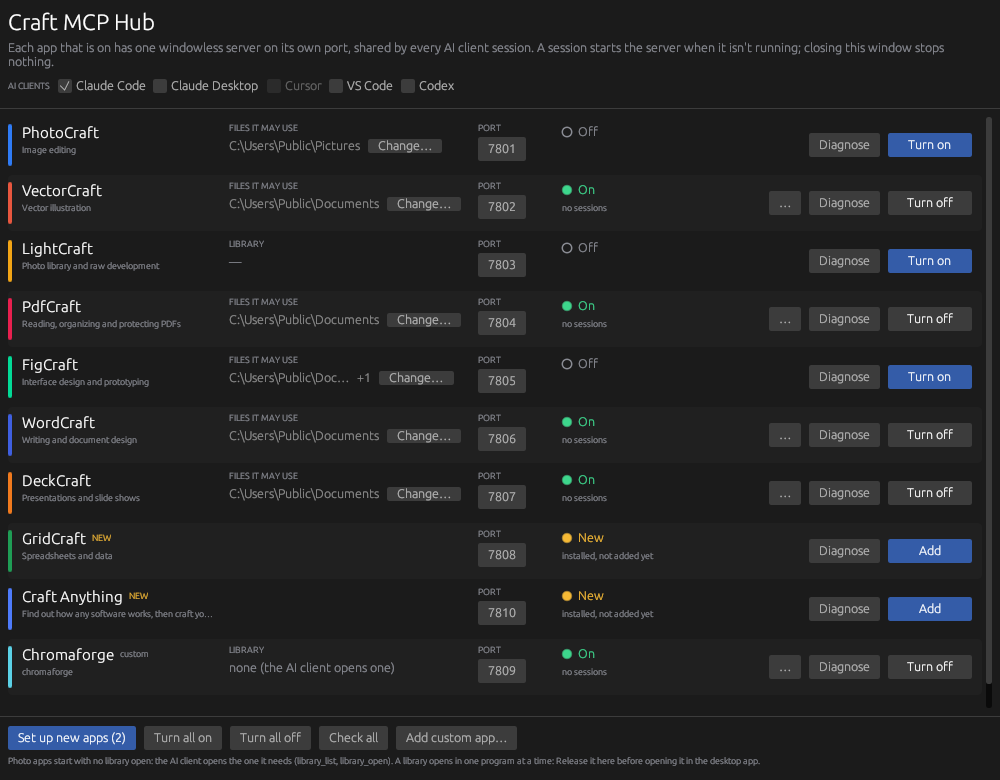
One row per app, with the folders it may use, its port and its state, and Turn on/off and Diagnose. When something is wrong, the fix is a click away under the state: Use free port 7811, Restart it, Add it to Codex too. The AI clients found on this computer are at the top, and + Add more lists the others. Closing the panel stops nothing: servers run until you turn their app off.
Command line
crafthub setup     # add and turn on every installed ArtCraft app
crafthub panel     # open the control panel
| Command | What it does |
|---|---|
crafthub list |
Every app: installed or not, its port, and what its server is doing |
crafthub setup |
Add and turn on every installed app that isn't in the hub yet |
crafthub add <app> |
Add one app, for example one you just installed |
crafthub on <app> / off <app> |
Turn an app on or off (all for every added app) |
crafthub port <app> <port> |
Move an app's server to another port |
crafthub check [<app>] |
A full MCP round trip through the server, as a client would do |
crafthub doctor <app> |
Check everything between the client and the engine, and say what to do |
crafthub restart <app> |
Restart an app's server (all for every server that is running) |
crafthub close-library <app> |
Close the photo library an app has open |
crafthub root <app> [<folder>…] |
Show or set the folders an app's engine may read and write |
crafthub tools [<app>] |
Fetch the command-line tools of apps installed without one (macOS) |
crafthub clients [on|off <client>] |
Show the AI clients, or enable or disable one |
crafthub clients add <id> --file <path> |
Describe a client the hub doesn't know (remove <id> forgets it) |
crafthub snippet [<app>] |
Print the MCP servers, for a client you set up by hand |
crafthub catalog [--update] |
Show which copy of the app list is used, or fetch the current one, signed |
crafthub update-check |
Check GitHub for a newer version of the hub |
crafthub guide |
For AI agents: how to set the hub up for themselves |
Let your AI set it up
Tell your AI:
Run
crafthub guideand set Craft MCP Hub up for yourself.
The guide tells it how to see what is installed, register itself (with crafthub clients add if it is a client the hub doesn't know), ask you which apps to turn on, and check the result.
Adding apps
A newly installed app: press Add in the panel (its state says New), or run
crafthub add <app>;crafthub setupadds all new ones.An app the launcher doesn't list yet: the hub has its own short list,
assets/extra-apps.toml(for now ShapeCraft). An entry steps aside by itself once its app joins the launcher; a pull request adding one is welcome.A fork or your own build, as long as its command-line tool has an
mcpcommand. In the panel: Add custom app…, then drop the tool on the window. Or:crafthub add chromaforge --cli "C:\Program Files\Chromaforge\chromaforge-cli.exe" --name ChromaforgeThe hub reads the tool's
--helpto work out how to start it;--like lightcraftstarts it exactly like a known app instead, and--settings <folder>says where a photo app lists its recent libraries.
Settings
AI clients
The hub registers the apps that are on with every client you enable, and all their sessions share the same engines.
| Client | id | Where the hub registers the servers | Restart after enabling |
|---|---|---|---|
| Claude Code | claude-code |
its user settings, through claude mcp |
|
| Claude Desktop | claude-desktop |
claude_desktop_config.json |
yes |
| Cursor | cursor |
~/.cursor/mcp.json |
|
| VS Code | vscode |
mcp.json in the user profile |
|
| Codex | codex |
~/.codex/config.toml |
yes |
| Devin (Windsurf) | devin |
~/.config/devin/mcp_config.json (%APPDATA%\devin\ on Windows) |
yes |
| Gemini CLI | gemini-cli |
~/.gemini/settings.json |
|
| Antigravity | antigravity |
~/.gemini/config/mcp_config.json |
yes, or /mcp reload in the CLI |
| GitHub Copilot CLI | copilot-cli |
~/.copilot/mcp-config.json |
|
| Kiro | kiro |
~/.kiro/settings/mcp.json |
|
| LM Studio | lm-studio |
~/.lmstudio/mcp.json |
|
| Zed | zed |
context_servers in its settings.json (~/.config/zed, %APPDATA%\Zed on Windows) |
Claude Code is enabled by default when it is installed; enable the others in the panel, or:
crafthub clients              # which clients are on this computer, which are enabled
crafthub clients on vscode    # register the apps that are on, and new ones from now on
crafthub clients off vscode   # take the hub's servers out of it again
The files stay the clients'. The hub changes only its own entries, keeps the rest (key order, indentation, comments, including Zed's), backs the file up to
~/.crafthub/backupfirst (the five newest copies), and leaves alone a file it can't parse, telling you so.Claude Desktop can write its settings back while it runs, dropping servers added meanwhile, so enable it while it is closed. If it happens, the app's row offers Add it to Claude Desktop too.
Devin Desktop and Devin CLI share one file, as do Antigravity's IDE and CLI.
GEMINI_CLI_HOMEandCOPILOT_HOMEmove those clients' files, as they move the clients' own.Another client that keeps its MCP servers in a JSON or TOML file can be described, by you or by the AI:
crafthub clients add cline --name "Cline CLI" --file ~/.cline/data/settings/cline_mcp_settings.json
crafthub clients on cline
--format toml,--key <object holding the servers>,--typed(entries carry"type": "stdio") and--restartcover clients that differ. For a client whose settings can't be edited at all,crafthub snippetprints the servers to add by hand.
Files the engines may use
An AI drives these engines, so the hub keeps each one to the folders you choose: it can't open or save anything outside them. Until you choose, that is your home folder.
| Engine | Kept to folders | How many |
|---|---|---|
| PhotoCraft | yes (no file access at all without one) | one |
| WordCraft, PdfCraft | yes | one |
| FigCraft, VectorCraft, DeckCraft | yes | several |
| GridCraft, LightCraft, Craft Anything | no: their command-line tools have no option for it | – |
Change them with Change… in the app's row, or:
crafthub root figcraft                       # what it may use now
crafthub root figcraft ~/Design D:\Assets    # these folders, and everything in them
crafthub root figcraft --anywhere            # lift the restriction
The restriction is the engine's own (--automation-read-root, --automation-write-root, with the same folders for both).
Ports
Each app has a default port, 7801 and up (assets/profiles.toml). Change it in the panel or with crafthub port; open sessions follow the server to its new port.
Idle engines
Engines can hold a lot of memory, and some use the GPU. After 10 minutes with no session connected and no request under way, a server stops its engine; the next request starts it again, and a photo app reopens its library. The server, its port and its registrations stay, and the app shows as Ready. Requests that arrive while the engine starts wait for it.
Set the minutes in ~/.crafthub/config.toml, for every app or for one (a fraction is fine; 0 keeps the engine running). A running server applies it when restarted:
idle_stop_minutes = 30

[apps.photocraft]
idle_stop_minutes = 0
Photo libraries
LightCraft-style engines pick their library when they start, and a library can be open in only one program at a time. So the hub starts them with no library, leaving the desktop app free, and gives the AI three tools: library_list, library_open and library_close. Release in the panel, or crafthub close-library, closes it again for the desktop app.
Language
The panel is in English and Italian, and follows the system's language. The language's name at the bottom right switches it; the choice is kept as language in ~/.crafthub/config.toml, and CRAFTHUB_LANG=it sets it for one run. The command-line tool is in English.
To add a language, copy assets/lang/it.toml to ~/.crafthub/lang/<code>.toml (Add a language… in the panel's language menu opens the folder), set name, and replace the Italian on the right of each =, keeping words in braces like {name}. Lines you haven't translated show in English. A pull request adding the file to assets/lang is welcome (it also needs a line in BUILT_IN in src/panel/lang.rs).
How it works
AI client session ──stdio──▶ crafthub connect photocraft ─┐
AI client session ──stdio──▶ crafthub connect photocraft ─┼─▶ crafthub serve photocraft ──▶ photocraft-cli mcp
control panel / crafthub ────────────────────────────────┘        (127.0.0.1:7801)            (one engine)
crafthub connect <app>is what the AI client launches. It starts the app's server if none is running, so nothing has to be open beforehand, and reconnects by itself when the server restarts.crafthub serve <app>is the shared server: it runs the engine, forwards each session's requests, returns each answer to whoever asked, and stops the engine when it is idle.- Questions from the engine (a model's answer through sampling, or a question for you through elicitation) go to the session whose request the engine is working on, and are refused rather than sent to the wrong one. When the engine asks which folders it may use (
roots/list), the server answers with the app's folders. - The list of apps comes from the ArtCraft launcher's signed catalog, so a new app shows up as soon as the launcher knows it, plus the hub's own extra apps.
Troubleshooting
crafthub doctor <app>, or Diagnose in the panel, checks in order: the app catalog in use, the app's program, its registration in each client, the server, the engine, a real MCP round trip, and the errors the client logged in the last day. It ends with what to do; in the panel, each check is a line with the fix for what failed.
Settings, the access token and logs are in ~/.crafthub (%USERPROFILE%\.crafthub on Windows).
Security
Local only, with a token. Servers listen on
127.0.0.1, and every connection must first present the token in~/.crafthub/token, which only you can read; otherwise any local program, or a web page posting to localhost, could drive the engines. A connection without it can send at most 4 KB and is closed after five seconds, and a browser's HTTP request is refused at its first line.Downloads are checked. The install scripts check each download against the checksum published with its release. From 0.7.0 on, every release archive also has a build provenance attestation, signed through GitHub and Sigstore, proving this repository's release workflow built it. A file replaced in the release along with its checksum would fail it. The install scripts don't check it, since that needs the GitHub CLI; to check a file yourself:
gh attestation verify crafthub-windows-x86_64.zip --repo AndrianLeah/craft-mcp-hubThe app catalog is signed. It says what each app's program is called and where its releases are. The hub uses a copy (the launcher's own, or one
crafthub catalog --updatefetched) only when its Ed25519 signature matches the key the launcher pins,assets/launcher-catalog-public-key.pem. Otherwise it falls back to the next copy, down to the snapshot built into the hub, andcrafthub catalogsays which copy is used and why. Nothing the catalog names runs until you turn that app on.
Known limits:
- Some engines can't be kept to a folder: GridCraft, LightCraft and Craft Anything can open or save any file you can, as when their tools run on their own.
- An older signed catalog passes too: a signature says who published it, not when. That is as much as the launcher checks.
- The update check is one request a day to github.com, sending nothing but the request itself.
- Programs running as you are trusted: they can read the token, as they can read everything else of yours.
Platform status
| System | State |
|---|---|
| Windows | Tested with the installed apps |
| macOS | Finds the apps the ArtCraft launcher installed, and fetches their command-line tools (crafthub tools) |
| Linux | Finds installed apps, Flatpak included; not yet tried with real installs |
The hub itself is tested end to end on Windows, macOS and Linux in CI, against a stand-in engine. On macOS and Linux, the output of crafthub list and crafthub doctor <app> is exactly what is needed to fix app locations in src/discover.rs; apps whose start-up arguments haven't been verified are marked in assets/profiles.toml.
Build from source
With Rust installed:
git clone https://github.com/AndrianLeah/craft-mcp-hub
cd craft-mcp-hub
cargo build --release
- The programs are
target/release/crafthubandtarget/release/crafthub-panel: keep them in the same folder.crafthub install-appthen adds the panel to Applications (macOS) or the app menu (Linux), as the install script does. cargo build --release --no-default-featuresbuilds the command-line tool alone, which needs no display.- On Linux the panel needs the usual window-system development packages (see
.github/workflows/ci.yml). Its file and folder pickers use the desktop portal (xdg-desktop-portal); without one, drop the file or folder on the window instead.
Contributing
Open an issue with the output of crafthub doctor <app>. It lists file paths from your computer, so read it before posting; the access token is never in it. Reports from macOS and Linux help most right now. To change the code, see CONTRIBUTING.md; for a security problem, SECURITY.md.
License
The icon, an engraved octopus, was made by Roccobot with ChatGPT Astra 6.2 Max; its files and sources are in assets/icons.
ArtCraft and the names of its apps belong to their owner, and are used here only to say what this tool works with. assets/catalog.toml is a trimmed snapshot of the app catalog the ArtCraft launcher publishes, and assets/launcher-catalog-public-key.pem the key it is signed with, from the ArtCraft launcher.
Releases