
Server · #224 trending MCP repo · ↗ +21 stars this week
Webclaw
0xMassi/webclaw
Fast, local-first web content extraction for LLMs. Scrape, crawl, extract structured data — all from Rust. CLI, REST API, and MCP server.
- Stars
- 2.4k
- This week
- +21
- Forks
- 246
- Open issues
- 3
- Latest release
v0.7.2
Get started
Add it to your agent
claude mcp add webclaw -- npx -y @webclaw/mcpRun in your terminal. Add --scope project to share it with your team through .mcp.json.
codex mcp add webclaw -- npx -y @webclaw/mcpSaved to ~/.codex/config.toml.
{
  "mcpServers": {
    "webclaw": {
      "command": "npx",
      "args": [
        "-y",
        "@webclaw/mcp"
      ]
    }
  }
}Add to ~/.cursor/mcp.json (or .cursor/mcp.json in a project).
{
  "servers": {
    "webclaw": {
      "type": "stdio",
      "command": "npx",
      "args": [
        "-y",
        "@webclaw/mcp"
      ]
    }
  }
}Add to .vscode/mcp.json, then start it from the MCP view in Copilot Chat.
gemini mcp add webclaw npx -y @webclaw/mcpSaved to .gemini/settings.json.
Documentation
README
English | 简体中文
webclaw
Turn websites into clean markdown, JSON, and LLM-ready context.
CLI, MCP server, REST API, and SDKs for AI agents and RAG pipelines.


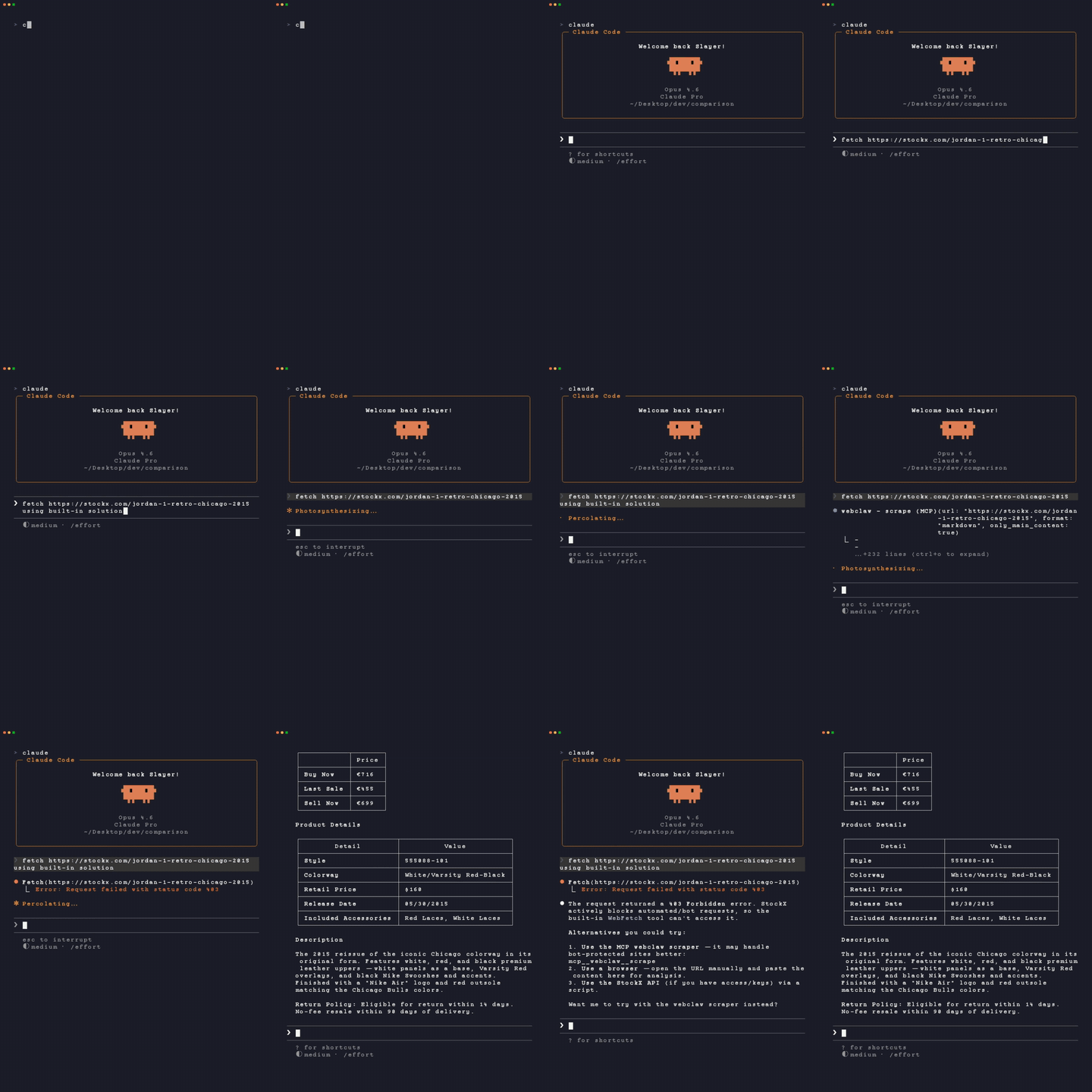
Most web scraping tools give your agent one of two bad outputs:
- a blocked page, login wall, or empty app shell
- raw HTML full of nav, scripts, styling, ads, and duplicated boilerplate
webclaw.io is the hosted web extraction API for webclaw. This repo contains the open-source CLI, MCP server, extraction engine, and self-hostable server.
webclaw turns a URL into clean content your tools can actually use.
webclaw https://example.com --format markdown
# Example Domain

This domain is for use in illustrative examples in documents.

You may use this domain in literature without prior coordination or asking for permission.
Use it from the terminal, wire it into Claude/Cursor through MCP, call the hosted API from your app, or self-host the OSS server.
Install
Agent setup
The fastest way to connect webclaw to Claude Code, Claude Desktop, Cursor, Windsurf, OpenCode, Codex CLI, and other MCP-compatible tools:
npx create-webclaw
The installer detects supported clients and configures the MCP server for you.
Homebrew
brew tap 0xMassi/webclaw
brew install webclaw
Prebuilt binaries
Download macOS, Linux, and Windows binaries from GitHub Releases.
Windows (x64)
The prebuilt ZIP is the easiest installation and does not require Rust. On the
v0.6.22 release page,
download webclaw-v0.6.22-x86_64-pc-windows-msvc.zip. Extract it in File Explorer,
open PowerShell in the extracted folder containing webclaw.exe, and run:
.\webclaw.exe --version
.\webclaw.exe https://example.com --format markdown
PowerShell requires the .\ prefix for programs in the current directory.
Add that directory to your user PATH only if you want to run webclaw from
other folders. If Windows reports a missing Visual C++ runtime DLL, install the
Microsoft Visual C++ Redistributable for x64. The ZIP contains x64 binaries;
Windows ARM64 is not covered by the native installation check.
To build from source on Windows, install Rust with the x86_64-pc-windows-msvc
toolchain, Visual Studio Build Tools with Desktop development with C++ and
the Windows SDK, Git, CMake 3.22 or newer, LLVM (including libclang.dll), and
NASM. Open a fresh Developer PowerShell for Visual Studio after installation.
Ensure CMake and NASM are on PATH and set LIBCLANG_PATH to your LLVM bin
directory if bindgen cannot find it, for example:
$env:LIBCLANG_PATH = "C:\Program Files\LLVM\bin"
cargo install --git https://github.com/0xMassi/webclaw.git --tag v0.6.22 --locked webclaw-cli
webclaw --version
The Cargo package is webclaw-cli; the executable is webclaw. These packages
are installed from Git, not crates.io. A first source build can take several
minutes. The Windows CI workflow checks the Git installation and published ZIP
on a hosted runner with preinstalled build tools; it does not model a clean PC.
Linux containers, including Docker on macOS, do not validate Windows support.
Docker
docker run --rm ghcr.io/0xmassi/webclaw https://example.com
Cargo
cargo install --git https://github.com/0xMassi/webclaw.git --tag v0.6.22 --locked webclaw-cli
cargo install --git https://github.com/0xMassi/webclaw.git --tag v0.6.22 --locked webclaw-mcp
If building from source fails because native build tools are missing, install the platform prerequisites:
| OS | Command |
|---|---|
| Debian / Ubuntu | sudo apt install -y pkg-config libssl-dev cmake clang git build-essential |
| Fedora / RHEL | sudo dnf install -y pkg-config openssl-devel cmake clang git make gcc |
| Arch | sudo pacman -S pkg-config openssl cmake clang git base-devel |
| macOS | xcode-select --install |
Python
The python/ directory builds a Python package that bundles the webclaw binary and calls it from Python: scrape, select, tables, find_text, similar, crawl, map and screenshot, with no API key and no Python dependencies.
cd python && uv build --wheel && pip install dist/webclaw_cli-*.whl
import webclaw_cli as wc

md = wc.scrape("https://example.com", "llm")
titles = wc.select("https://books.toscrape.com", css="h3 a::attr(title)")
for page in wc.crawl("https://quotes.toscrape.com", max_pages=10):
    print(page["url"])
See python/README.md for every function and option.
Quick Start
Scrape one page
webclaw https://stripe.com --format markdown
Return LLM-optimized text
webclaw https://docs.anthropic.com --format llm
Keep only the main content
webclaw https://example.com/blog/post --only-main-content
Include or exclude selectors
webclaw https://example.com \
  --include "article, main, .content" \
  --exclude "nav, footer, .sidebar, .ad"
Pick values with CSS selectors or XPath
webclaw https://books.toscrape.com --select "h3 a::attr(href)"
webclaw https://books.toscrape.com --select "article.product_pod" \
  --field "title=h3 a::attr(title)" --field price=.price_color
--select prints a JSON array of what the selector matches: each element's text, or an attribute or the element's HTML when the selector ends in ::attr(NAME) or ::html. Links in href and src come back absolute. With --field NAME=SELECTOR, each match becomes a JSON object whose fields run inside it, taking the first value or null. Pages that need JavaScript render first, as with extraction.
webclaw https://books.toscrape.com --xpath "//li[@class='next']/a/@href"
webclaw https://books.toscrape.com --xpath "//article[@class='product_pod']" \
  --field "title=.//h3/a/@title" --field "price=.//p[@class='price_color']"
--xpath takes an XPath 1.0 expression instead, over the same parsed page: elements and text nodes give their text, attributes their value, and count() or string() style expressions one value. With --xpath, each --field is an expression evaluated from the match, so it usually starts with .. The MCP select tool takes xpath in place of selector.
Data tables as JSON
webclaw "https://en.wikipedia.org/wiki/List_of_S%26P_500_companies" --tables
--tables prints the page's data tables as a JSON array, each with its caption (when it has one), headers and rows of cell text. A cell that spans several rows or columns repeats its text in each one, so every row has one value per column. Stacked header rows are joined per column with /, as in Population / % of world. The MCP select tool takes tables: true in place of a selector.
Header rows are the rows of <thead> and the leading rows made only of <th>; a leading row that is one cell across the whole table becomes the caption. These tables are skipped as page layout:
- tables marked
role="presentation"orrole="none"; - tables with fewer than two columns of text;
- tables without a header row that have a single body row, wrap another table, hold only links, or hold paragraphs, lists or other blocks in a row of more than one cell.
Text hidden with hidden, an inline display:none or <template> is left out. Text hidden by a stylesheet is kept, because pages are not styled. A cell keeps its first 64 KB of text, and a very large table is cut short with "truncated": true. Once the tables on a page reach 64 MB, the tables after that are left out.
Find elements by text, or everything like one example
webclaw https://books.toscrape.com --find-text "tipping the"
webclaw https://books.toscrape.com --find-regex '^£5\d\.\d\d$'
webclaw https://books.toscrape.com --find-text "Tipping the Velvet" --similar
--find-text prints the elements in the page body whose visible text contains the text, any case, as {"selector", "text"} objects. Each match is the deepest element holding the text, so text split by inline tags still matches, and its selector is the element's path from the nearest ancestor with a unique id, or from the root. That path picks the element alone, except on pages nested more than 64 levels deep with no such id, where it keeps only the last 64 steps and can pick more. --exact matches the whole text, --case-sensitive matches letter case, and --find-regex takes a regular expression instead.
--similar takes the first element that --find-text, --find-regex, --select or --xpath picks as an example and returns every element like it on the page, such as the other items of a list, grid or table, with one CSS selector that picks them all. When the example selector ends in ::attr(NAME) or ::text, or the XPath picks a text or attribute node, the element holding it is the example:
{
  "selector": "article.product_pod > h3 > a",
  "matches": [
    { "selector": "html > body > ... > li:nth-of-type(1) > article > h3 > a", "text": "A Light in the ..." },
    ...
  ]
}
Reuse the selector with --select, or add --field to get records straight away; with --similar the fields are CSS and the output is {"selector", "records"}. Pick the item itself as the example (for instance --select "article.product_pod" --similar) when the fields live inside it. The MCP select tool takes text or regex (with exact and case_sensitive) and similar the same way. One call takes one picker: --select, --xpath, --tables, --find-text or --find-regex (in MCP: selector, xpath, tables, text or regex), and --similar and --field do not apply to tables.
Keep only what answers a question
webclaw "https://en.wikipedia.org/wiki/Rust_(programming_language)" -f llm \
  --query "Who began the language as a personal project?"
--query (and query on the MCP scrape tool) scores each paragraph, list, table and code block against the question and keeps the best ones under their headings, so an agent reads the answer instead of the whole page. The page comes back unchanged when no block shares a word with the question.
Chunks for retrieval
webclaw https://doc.rust-lang.org/book/ch03-01-variables-and-mutability.html --chunk 256
webclaw https://quotes.toscrape.com --crawl --depth 1 --chunk 512 --chunk-overlap 50
--chunk prints the page as chunks for a search index or a RAG pipeline, one JSON object per line (one JSON array with -f json): url, index, heading_path (the headings in effect where the chunk starts, outermost first), tokens and the chunk's markdown text. Chunks are built from whole paragraphs, lists, tables and code blocks and stay under about the given number of tokens. A block too big for one chunk is cut at line breaks, then at sentence ends, then between words, and text with no spaces between characters: a code block is reopened in each piece and a table repeats its header row. Token counts are estimates made without a tokenizer. On the benchmark pages (prose, docs, code, tables and nine languages), for nine chunks in ten cl100k counted 0.77 to 1.12 times the estimate and o200k 0.72 to 0.97 times; 4.5% of chunks came out above the size asked for in cl100k tokens, and 0.5% in o200k tokens. --chunk-overlap repeats up to that many tokens from the end of each chunk at the start of the next. With several URLs or --crawl, each page is chunked on its own. The MCP scrape tool takes chunk and chunk_overlap and returns the chunks as a JSON array; crawl takes them too and returns an object with the crawl counts, the pages that failed and the chunks.
Links as numbered citations
webclaw https://en.wikipedia.org/wiki/Web_scraping --citations
--citations moves every link and image URL out of the markdown into a numbered list at the end, written as markdown footnotes: [Data scraping](https://...) becomes Data scraping[^1], an image becomes ![alt][^2], and the page ends with ## Links and one [^1]: https://... per URL. Numbers follow the order in which URLs first appear, a URL used twice keeps its first number, and numbering starts after any numbered footnotes the page already has. With several URLs or --crawl, pages printed together keep counting, so a number means one URL in the whole output; with --output-dir, -f json or jsonl each page counts on its own.
Some things stay as they are: code blocks and inline code, reference-style links ([text][id]), autolinks (<https://...>) and raw HTML links. Links to a spot on the same page (#section) and javascript: links keep their text and lose the URL. A cited image is no longer an image to a markdown renderer (GitHub shows ![alt] as text); its URL is in the list. With -f markdown, a page's ## Structured Data block comes after the list.
On the 63 benchmark pages fetched live, the body before the list came out at about half the tokens of the plain markdown, and the whole output, list included, at 10.7% fewer tokens in total. That total comes mostly from link-heavy pages such as Wikipedia articles: the 5 pages that saved most hold 68% of the saving, the median page saved 2.5%, and 18 of 63 pages came out a little longer. Golden facts were the same with and without it. Reach for it to cite sources by a short, stable id or to keep URLs out of the text, not as a general way to cut tokens.
It works with -f markdown and with the markdown inside -f json and jsonl, for one URL, several or --crawl. It is refused with --chunk and with modes that print no page markdown (-f text, llm or html, --select, --map, --brand, --diff-with, --watch, the LLM modes and the like). The MCP scrape, crawl and batch tools take citations: true, and webclaw_core::to_citations (or to_citations_after, to keep counting across pages) does the same for any markdown.
Reuse fetched pages
webclaw https://example.com --cache # fetch once, answer later runs from disk
--cache keeps every successful page in ~/.cache/webclaw (or WEBCLAW_CACHE_DIR), readable by you only, and answers later fetches of the same URL with the same browser profile and headers from there, with no network request. Crawls and batches use it page by page. Entries never expire; delete the directory to refresh. Error responses, challenge pages and Set-Cookie headers are never stored. The cache keeps the HTTP response only: a page that needs JavaScript still renders in the browser, which loads its scripts over the network.
Keep a web archive
webclaw https://example.com --warc page.warc.gz
webclaw https://docs.example.com --crawl --depth 2 --warc site.warc.gz > site.md
--warc FILE keeps every HTTP response webclaw fetches, with the request that asked for it, in a WARC file, the web archive format of ISO 28500 that web archives and replay tools read. The output goes where it always goes; the archive is written beside it. A name that ends in .gz gzips each record on its own, as .warc.gz files do. It works with one URL, several, --crawl (robots.txt and redirect responses included) and --map (the sitemaps it tried). Records are written as they arrive, so a crawl you stop keeps every page it fetched. A file that already exists is added to, never overwritten: each run starts with its own warcinfo record, and a WARC file made of several runs is still one valid WARC file. A file that ends inside a record, as a run stopped while writing can leave it, is refused, since records added after the cut would be unreadable; give --warc a new file then. Each record carries SHA-1 digests of its content.
The response is kept as webclaw's HTTP client hands it over, which is decoded: a compressed body is stored decompressed, without its Content-Encoding, Content-Length and Transfer-Encoding headers, and an HTTP/2 response gets an HTTP/1.1 status line. Each run's warcinfo record says so, and every record points at it. Replay tools read such records fine, but the payload digests are those of the decoded bodies, so they will not match, for deduplication, a copy of the same page that another archiver stored still compressed. The request record lists the headers webclaw sent, -H and --cookie values included, so keep the file as safe as those values; cookies a site set during the run are not listed. Every redirect gets its own response and request record, the redirect responses included, in a crawl or not; cookies and credentials you pass are not sent on to another site, as without --warc. Pages a browser renders are not in it, so --warc refuses --render always, --actions and --scroll; with --render auto, the HTTP response of a page that then gets rendered is kept. It also refuses --cache, whose answers never touch the network, and --cloud. Use --save-mhtml to keep a rendered page.
Render JavaScript pages
Build with the browser feature (cargo build --release --features browser) and webclaw renders pages in your local Chrome when the plain HTTP response has no content yet:
webclaw https://hn.algolia.com                    # --render auto: HTTP first, Chrome only when needed
webclaw https://example.com --render always --wait-for "#app li"
webclaw https://example.com --cdp-url ws://localhost:9222/devtools/browser/<id>   # use a running browser
auto renders when the page loads scripts and the HTTP response has almost no text, or little text next to an empty app root or a "please enable JavaScript" notice, and it keeps the rendered result only when it has more content.
The browser webclaw launches presents itself as regular Chrome: every page, frame and worker sends and reads your Chrome's own User-Agent, without the "Headless" that headless Chrome adds, so it matches the client hints Chrome sends. Some sites serve a headless browser an error or a pre-rendered page. A browser you connect with --cdp-url keeps its own User-Agent.
What a rendered page can reach, in the browser webclaw launches:
- no HTTP request from the page, its frames or its workers, redirects included, reaches a private, loopback or link-local address;
- WebSockets to those addresses are refused, though the TCP connection opens first. Behind a proxy, WebSockets to anything but loopback go through the proxy, so they are only as safe as the proxy;
- speculative prefetching and preconnects are off;
- WebRTC sends no UDP, though a TURN server over TCP can still open a connection to a local port;
- without a proxy, a render fails when the page's document came from a private address, so DNS rebinding cannot return local content. The request itself still goes out, and popups are not checked.
Behind a proxy, the proxy resolves host names itself and the document check is off, so HTTP too is only as safe as the proxy. Service workers are not tested. A browser you connect with --cdp-url is checked page by page and your other tabs are left alone, but the frames, workers, WebSockets, WebRTC and speculative prefetching of the pages webclaw renders there are not covered.
--block images,fonts,media skips those resources while a page renders for its content. Stylesheets always load, since many apps fetch CSS on demand and break without it. Scripts and the data they fetch still load, so most pages keep all their text and download about 40% less. A page that shows some text only after a font or an image has loaded (through document.fonts.load(), FontFace.load(), an image's onload or decode()) loses that text when you block it. We found no such page among the real sites we tested, but compare with and without --block on yours. Rendering is not much faster, since webclaw already stops waiting once the text settles, so blocking stays off unless you ask. Screenshots and PDFs always load everything. The MCP scrape and crawl tools take the same list as block.
--screenshot page.png saves the rendered page's 1280x720 viewport, --full-page the whole page, and a .jpg name gives a JPEG. The MCP screenshot tool returns the same image to the agent.
--save-pdf page.pdf (or - for stdout) prints the rendered page to a PDF through the browser's print engine: every page, with the site's print styles and Chrome's default margins, without the accessibility tags some browsers add. --paper a4 changes the US Letter default, --landscape turns the paper sideways, --print-background keeps background colors and images, and --scale 0.8 zooms the content (0.1 to 2). It takes --wait-for, --actions and --scroll like any render, and loading plus printing must fit in --timeout. Chrome lays out the whole page to print it, so a very long page, such as a full web standard on one page, can take several GB of memory in Chrome while it prints. The flag is not --pdf because --pdf-mode is about reading PDFs you fetch, not making them. The MCP screenshot tool returns the same PDF with format: "pdf", as an application/pdf resource of up to 10 MiB, and takes paper, print_background and actions the same way.
--save-mhtml page.mhtml (or - for stdout) saves the rendered page as MHTML, the one-file web archive of "Save page as, single file": the page as it is after its scripts ran, with the images, styles and frames it loaded. Chrome opens it offline, without running its scripts. It takes --wait-for, --actions and --scroll like any render. An image that loads only once you scroll to it is in the file only if it loaded first, so add --scroll for pages with those. Chrome hands the file over in one piece, so it is in memory once while it is written: an 18.6 MB archive of the one-page HTML standard took about 100 MB more than a screenshot of the same page. The MCP screenshot tool returns the same file with format: "mhtml", as a multipart/related resource of up to 10 MiB.
--solve gets past Cloudflare challenge pages, the ones that say "Just a moment..." or "Performing security verification". When a page comes back as one, webclaw opens it in Chrome, waits for the challenge to clear, clicks its checkbox when it asks for a click, and reads the page it leads to, all within --timeout. When the challenge is still there after three quarters of it, the command fails with that as its error. Later pages of the same site, in a crawl or a batch, go over plain HTTP again with the clearance cookie Chrome got (cf_clearance only, never the site's other cookies) and Chrome's User-Agent; Cloudflare accepts it from the same IP address on about half the sites we tried, and when it does not, webclaw solves again. A Turnstile checkbox inside a page that webclaw renders, as on a sign-up form, is clicked too, so that page actions can submit the form; add --render always for pages that would not otherwise be rendered. webclaw waits up to 10 seconds for such a widget's token, then reads the page as it is. The clearance goes with Chrome's User-Agent, so --solve needs --browser chrome (the default), chrome-macos or edge. Headers you pass with -H still go to the page's other requests, but not to its documents, since rewriting a document request fails the challenge. A browser you connect with --cdp-url keeps its own User-Agent. The MCP scrape tool takes solve: true.
webclaw https://www.scrapingcourse.com/cloudflare-challenge --solve
webclaw https://gitlab.com/users/sign_in https://gitlab.com/explore --solve   # solves once, then plain HTTP
Crawls, batches, --watch and the MCP server render the same way and share one browser, started only when a page needs it. Per site, webclaw keeps count: once at least three renders show that rendering adds content (at least four in five did), it renders every page of that site that runs scripts, and once rendering stops adding content (at most one in five did), it stops rendering there.
Click, type and scroll before reading
With a browser build, --actions runs steps in the browser once the page has loaded and before webclaw reads it, in the same format as the hosted API's actions, so content behind infinite scroll, "load more" buttons, pagination buttons, forms or a slow script ends up in the output. --scroll alone scrolls to the end until the page stops growing, at most 20 times (--scroll=50 for more).
webclaw https://quotes.toscrape.com/scroll --scroll
webclaw https://github.com/topics/rust --actions '[{"type": "click", "selector": "button.ajax-pagination-btn", "repeat": 3}]'
webclaw https://quotes.toscrape.com/login --actions '[{"type": "type", "selector": "#username", "value": "me"}, {"type": "type", "selector": "#password", "value": "secret"}, {"type": "press", "key": "Enter"}]'
webclaw https://example.com --actions @steps.json
| Step | Fields | What it does |
|---|---|---|
click |
selector, and nth, all or repeat |
Clicks the first match, the match at index nth (from 0), or every match. With repeat, clicks the first visible match again and again, up to that many times, until none is left or two clicks in a row change nothing |
type |
selector, value |
Focuses the element and types the value |
press |
key |
Presses a key such as Enter, Tab or ArrowDown |
scroll |
direction (down or up), amount, selector, repeat, all optional |
Scrolls the page, or the element, amount pixels, or without amount to its end. With repeat, scrolls again until two scrolls in a row add nothing; with amount it keeps stepping to the end, which loads lazy images on the way |
wait |
milliseconds |
Pauses |
waitForSelector |
selector, timeout |
Waits until an element matches, up to timeout milliseconds, 10 seconds by default |
executeJavascript |
code |
Runs JavaScript, an expression, statements whose last one gives the value, or a function body with return, with await allowed anywhere, and keeps that value, awaited when it is a promise, as JSON in js_results. A later step may repeat the same top-level let, const or class declaration, but not switch its kind (let m then const m fails) or reuse a name the page's own scripts declare |
After a click, a key press or a scroll, webclaw waits until the page and the site's own requests go quiet, up to 5 seconds, before the next step. Content a site draws on a timer after its request has finished can come later than that: add a waitForSelector step for it. A step that needs an element waits up to 10 seconds for it, and a selector the browser cannot parse fails at once. Alerts, confirms and prompts that steps open are dismissed, and tabs or windows they open are closed. The steps get their own time budget, equal to --timeout, on top of loading the page. The first step that fails or runs out of time fails the command and the error names it; a repeat that runs out of time before it is done fails too, rather than return part of the page. Use --timeout for long feeds. The values of all executeJavascript steps together are capped at 1 MiB. Steps run in the same browser under the same checks as the page's own scripts, and a step that navigates to a private or loopback address, or to a name that resolves to one, fails the command.
--actions takes one URL and renders the page even with --render auto. js_results comes in the output with -f json or -f jsonl and on stderr otherwise, and --raw-html prints the page after the steps. The MCP scrape and screenshot tools take the same list as actions and return js_results after the content. Local additions are nth, all and repeat on click, and selector, repeat and scrolling to the end on scroll. The hosted screenshot step is left out, since --screenshot does that.
Stay logged in between runs
With a browser build, --browser-profile DIR keeps the browser's cookies, local storage and IndexedDB in DIR, so a login made once still holds on the next run:
webclaw https://quotes.toscrape.com/login --browser-profile ~/.webclaw-profile \
  --actions '[{"type": "type", "selector": "#username", "value": "me"}, {"type": "type", "selector": "#password", "value": "secret"}, {"type": "click", "selector": "input[type=submit]"}]'
webclaw https://quotes.toscrape.com/ --browser-profile ~/.webclaw-profile        # a later run, still logged in
webclaw https://example.com/account --browser-profile ~/.webclaw-profile --cookie "session=..."   # or bring a session cookie in once
With a profile, every web page webclaw reads, in crawls and batches too, loads in the browser with the profile's cookies, after a plain HTTP request that tells web pages apart from PDFs, feeds and other files, which stay on HTTP. That makes every page a browser load: on our benchmark a 50-page crawl took 3.6 s without a profile, 12.4 s on a new one and 8.0 s on a warm one. --raw-html prints the page as the browser left it. When a page fails in the browser, webclaw warns and keeps the HTTP result. A profile that cannot be opened, because it is in use, refused (see below) or has unreadable preferences, stops the run with an error before the first page, crawls included; the MCP tools return that error. In a crawl, a redirect the browser meets is checked against robots.txt and the crawl's scope before it is followed, as over HTTP.
Session cookies are kept as well: Chrome drops them when it closes, even on a kept profile, and most sites keep a login in one. All pages share the profile's cookies. Cookies from --cookie and --cookie-file are saved in the profile when the run starts, for the URLs on the command line (or in --urls-file) only, even when no page then needs the browser; with a profile, the browser sends no other cookie than its own. The MCP scrape tool saves its cookies in the profile for the URL it was given, and they stay there for later calls. Without --browser-profile, which stays the default, each run starts from an empty profile and a page rendered with cookies gets a browser context of its own, so nothing carries over between pages or runs.
webclaw creates the directory when it is missing, readable by you only on Unix, and marks it as its own. It refuses a directory that is neither empty nor one it made, such as the profile of the Chrome you browse with, as well as a symbolic link and, on Unix, a directory other users can write to. Before each run it drops the tabs an earlier run left open and the service workers sites registered, and turns prefetching off in the profile's preferences, keeping the rest of them. The profile holds your logins, so treat it like a password. The checks above on what a rendered page can reach apply on a profile too.
One webclaw at a time per profile: a second run on a profile in use stops with an error that names the process holding it, instead of opening it a second time, which can damage it. Stopping webclaw with Ctrl-C or SIGTERM closes its browser first; after a kill -9, stop the Chrome the error names. --browser-profile cannot be combined with --cdp-url; the MCP server takes the directory in WEBCLAW_BROWSER_PROFILE.
On our benchmark, one run rendering a page took 1.7 s on a warm profile against 2.1 s on a new one, and the profile took about 9 MB on disk after six runs.
Capture the JSON a page loads
Single-page apps fetch their data as JSON and build the page from it. With a browser build, --capture-network renders the page and prints the responses it loaded as a JSON array instead of the page, so you get that JSON as the site's own API returned it:
webclaw https://quotes.toscrape.com/scroll --capture-network                  # every XHR and fetch response
webclaw https://github.com/rust-lang/cargo --capture-network=latest-commit
webclaw https://quotes.toscrape.com/scroll --scroll --capture-network=/api/quotes
webclaw https://example.com --capture-network --capture-types all             # documents, scripts, images too
Each response has its url, method, status, resource_type, mime_type, the request_headers the page set, and the body of text responses (JSON, HTML, JavaScript, XML, plain text). Binary bodies are left out. The pattern is a regular expression the URL must match, written after an equals sign. Only xhr and fetch responses are kept unless --capture-types names others, as a comma list of the browser's resource types or all. At most 100 responses are kept, each body is cut to 1 MB and all bodies together to 5 MB, and a cut body has truncated set.
Unless you pass --capture-credentials
…
Releases